 Switch to seedless. Get 30% off with SWITCH30 till Oct 21
How to Import a Wallet
You can import an existing wallet using:
- A 12-, 15-, 18-, 21-, or 24-word recovery phrase — on iOS or Android.
- An iCloud backup — on iOS only.
- A Google Drive backup — on Android only.
Step-by-step guide
To begin, install and open the Tangem app and follow these onboarding steps:
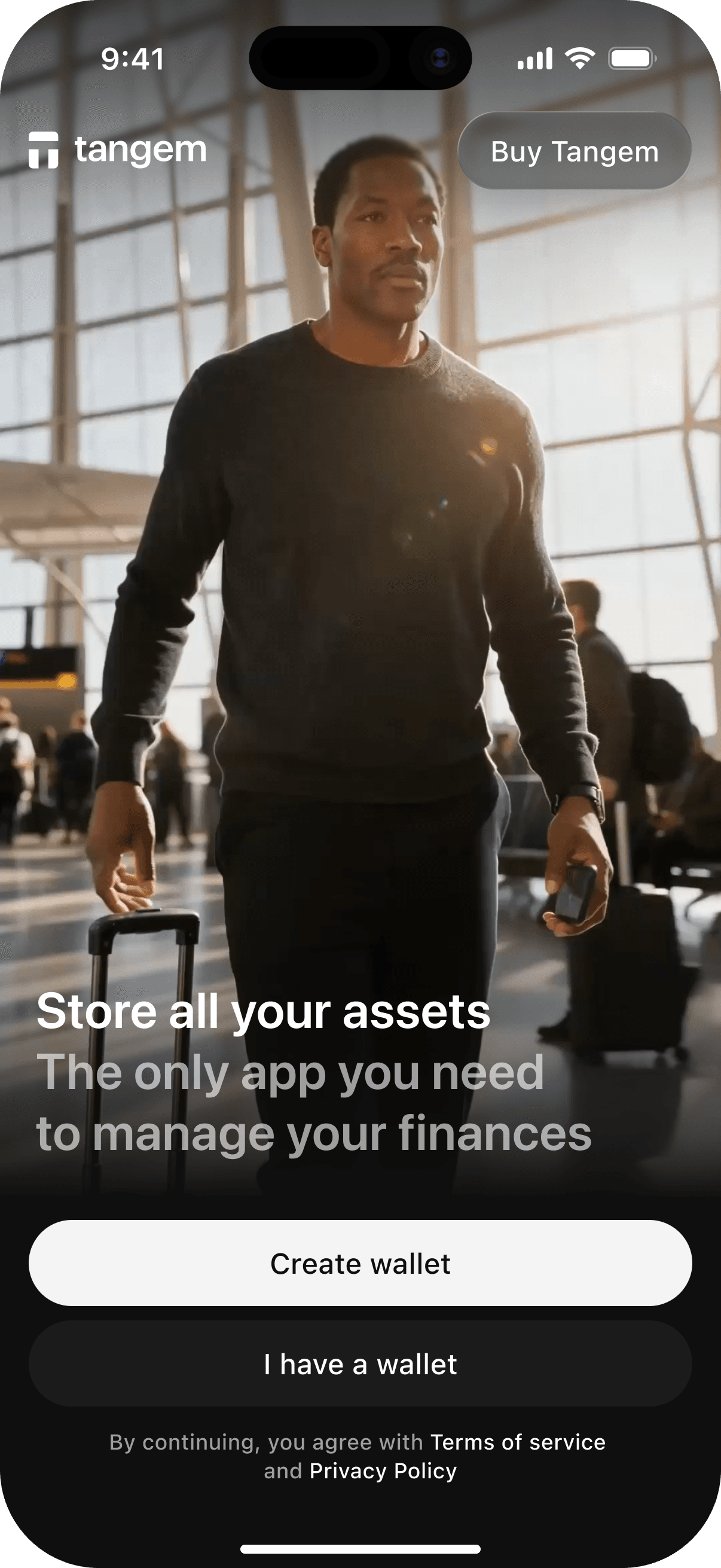
Tap I have a wallet.
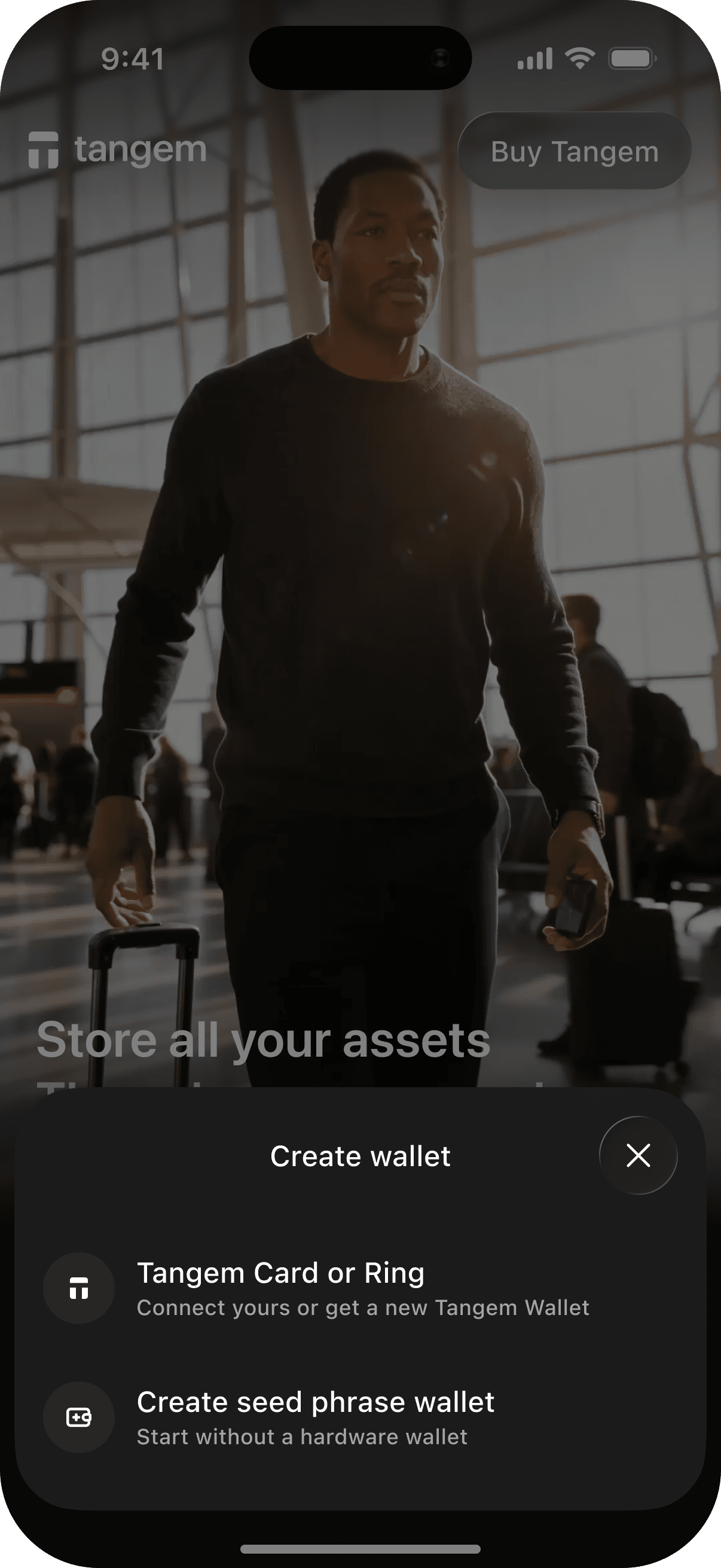
Tap Import existing wallet.
Tap Import existing wallet.
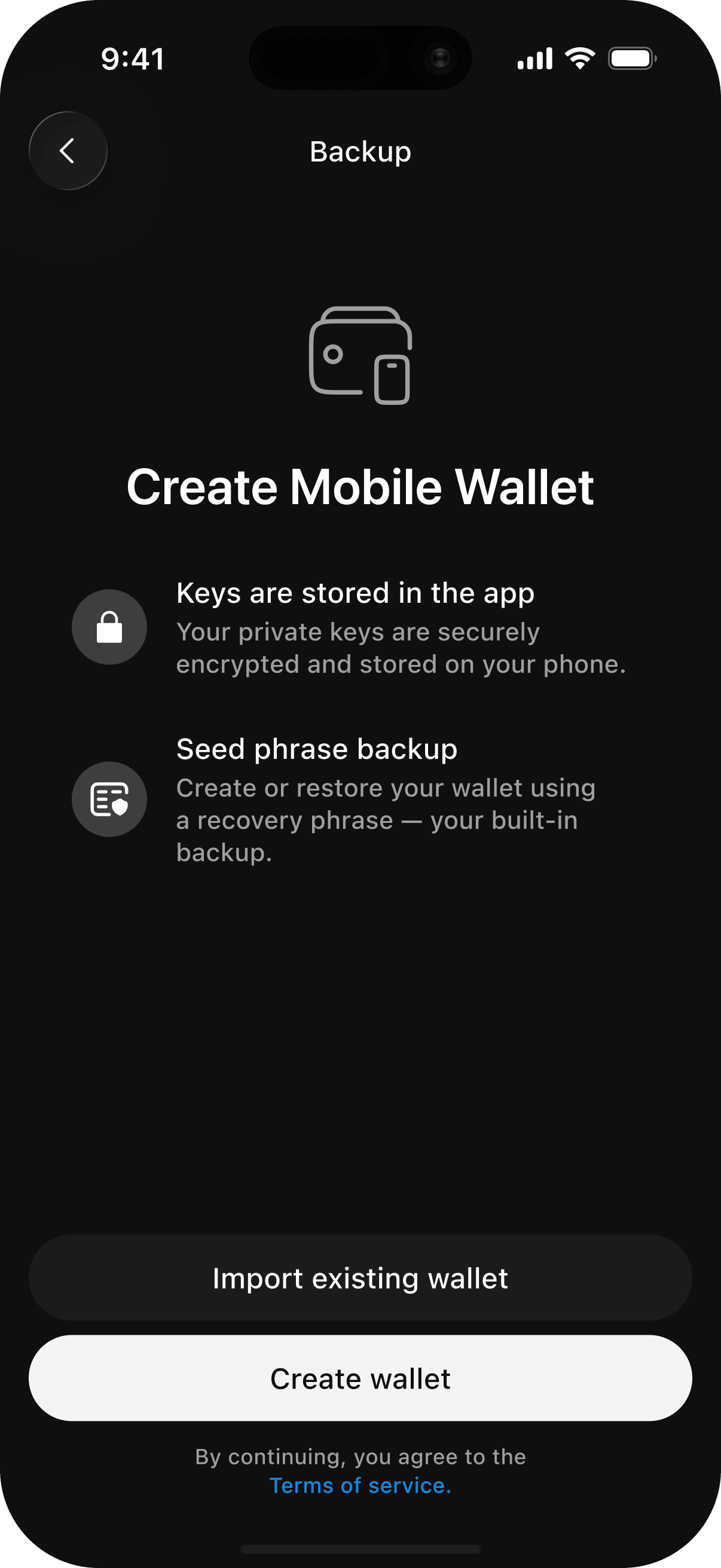
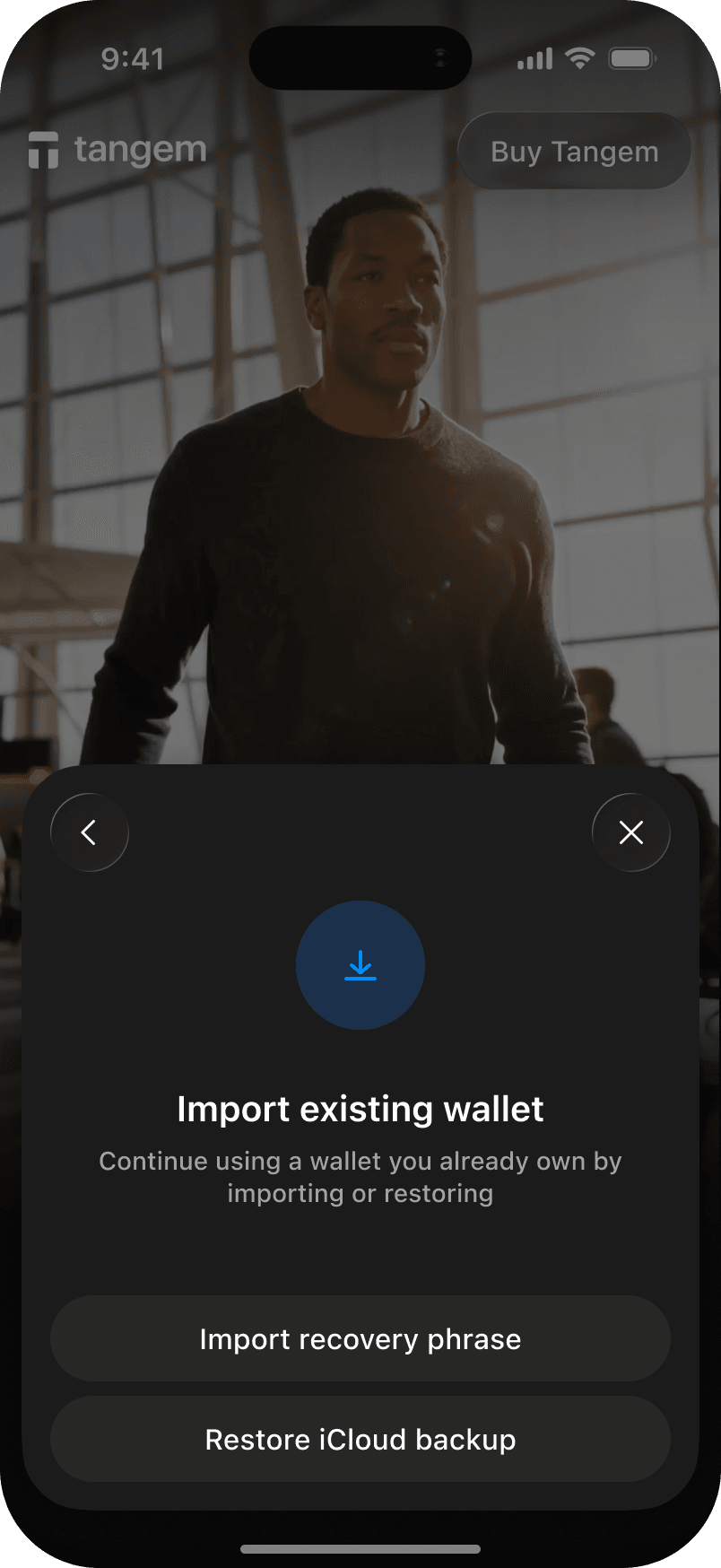
Then, choose the method you want to use:
If you have your recovery phrase, follow these steps:
Tap Import recovery phrase.
Enter your recovery phrase (12, 15, 18, 21, or 24 words).
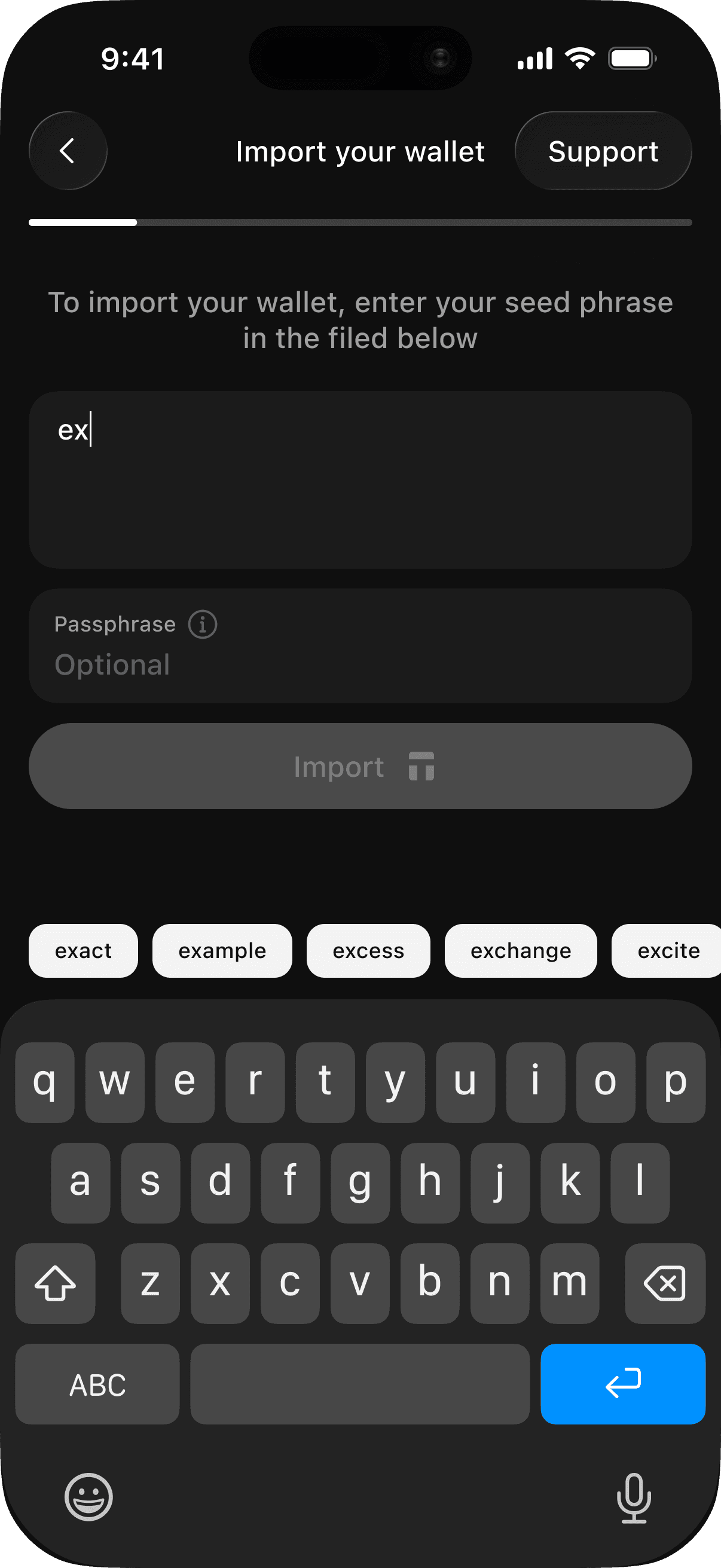
- If your wallet was created with an additional passphrase, enter the same passphrase in the corresponding field. An incorrect passphrase will open a different wallet.
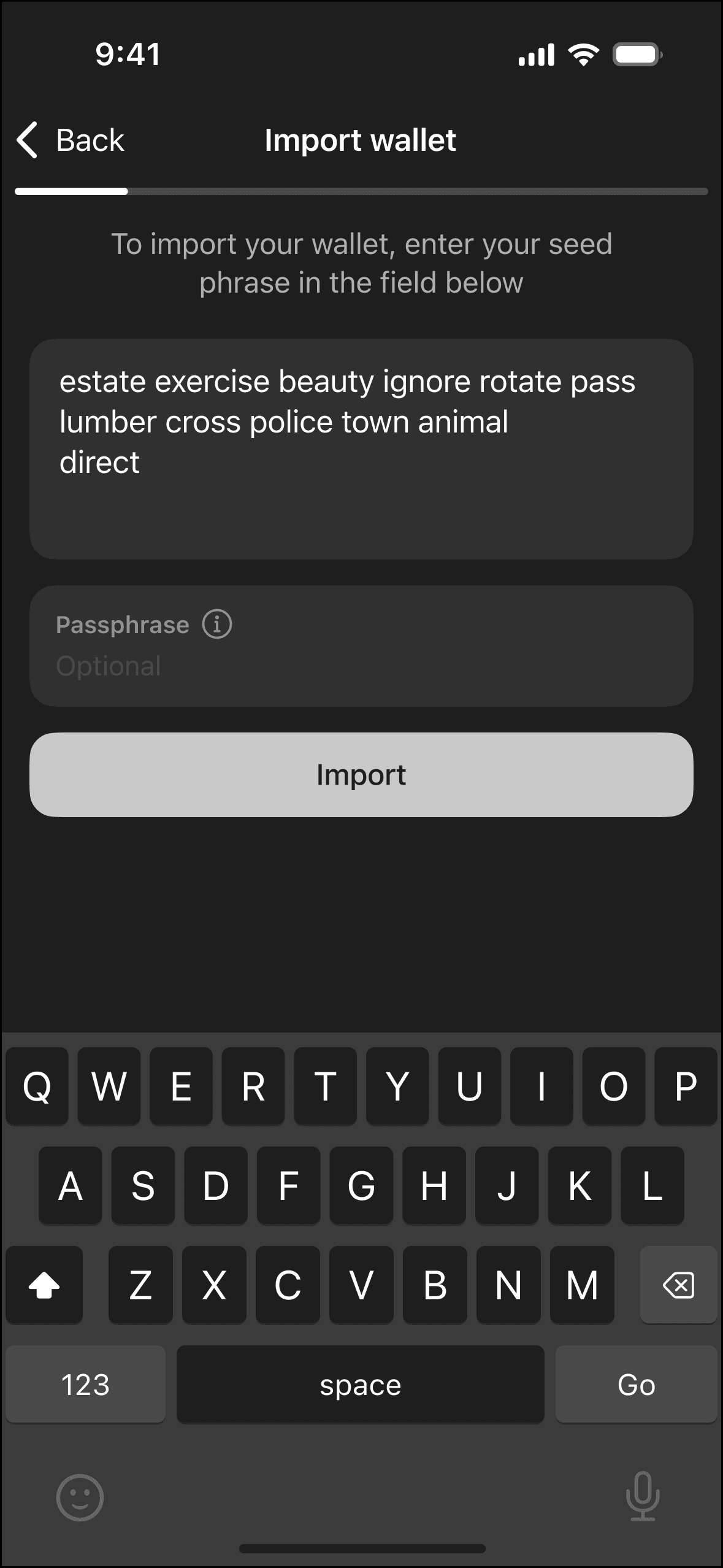
Tap Import.
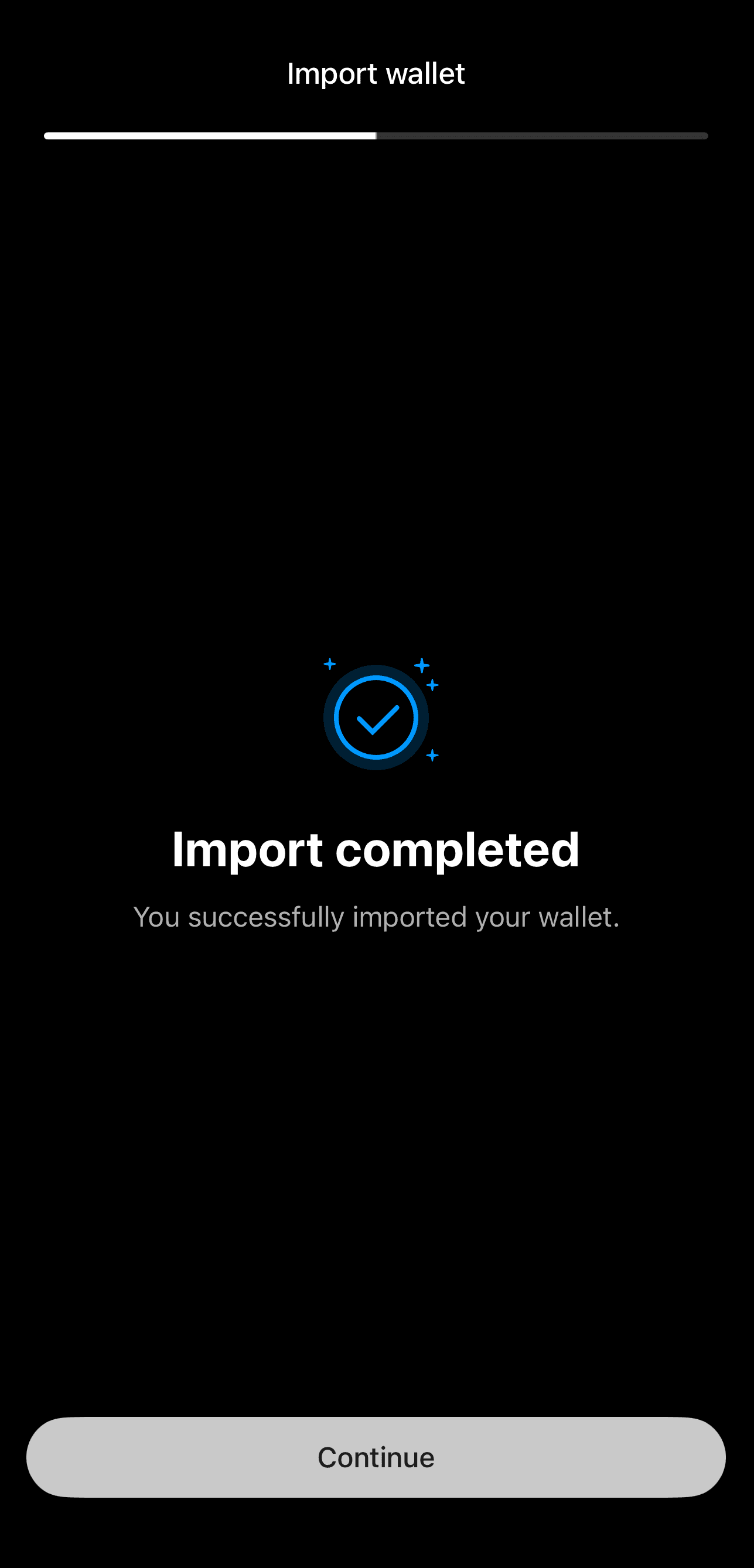
Tap Continue.
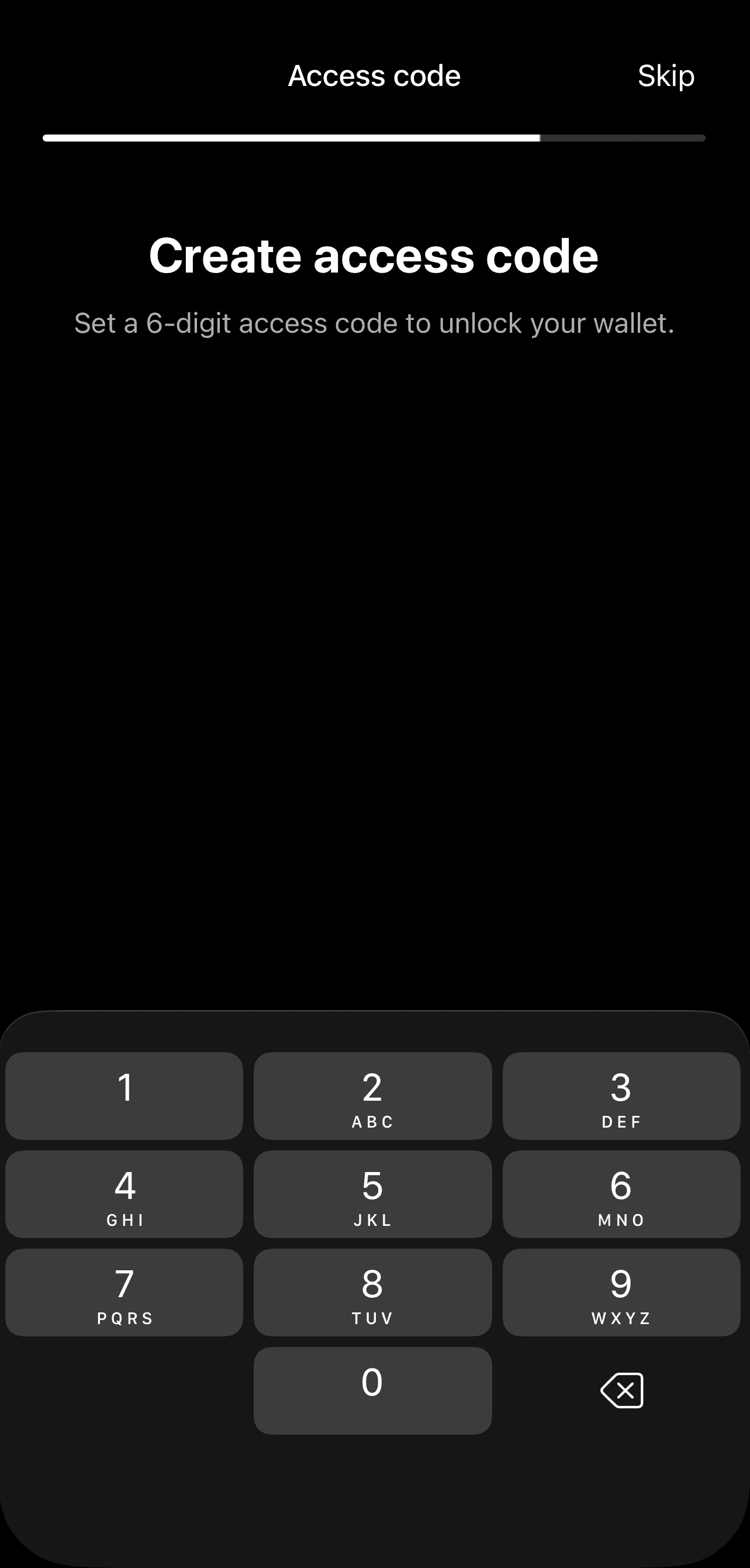
Create and confirm a 6-digit access code.
The wallet is imported directly on your device without requiring a Tangem device. Coins and tokens with a non-zero balance are detected and added to your portfolio automatically.
If you previously created an iCloud backup, follow these steps:
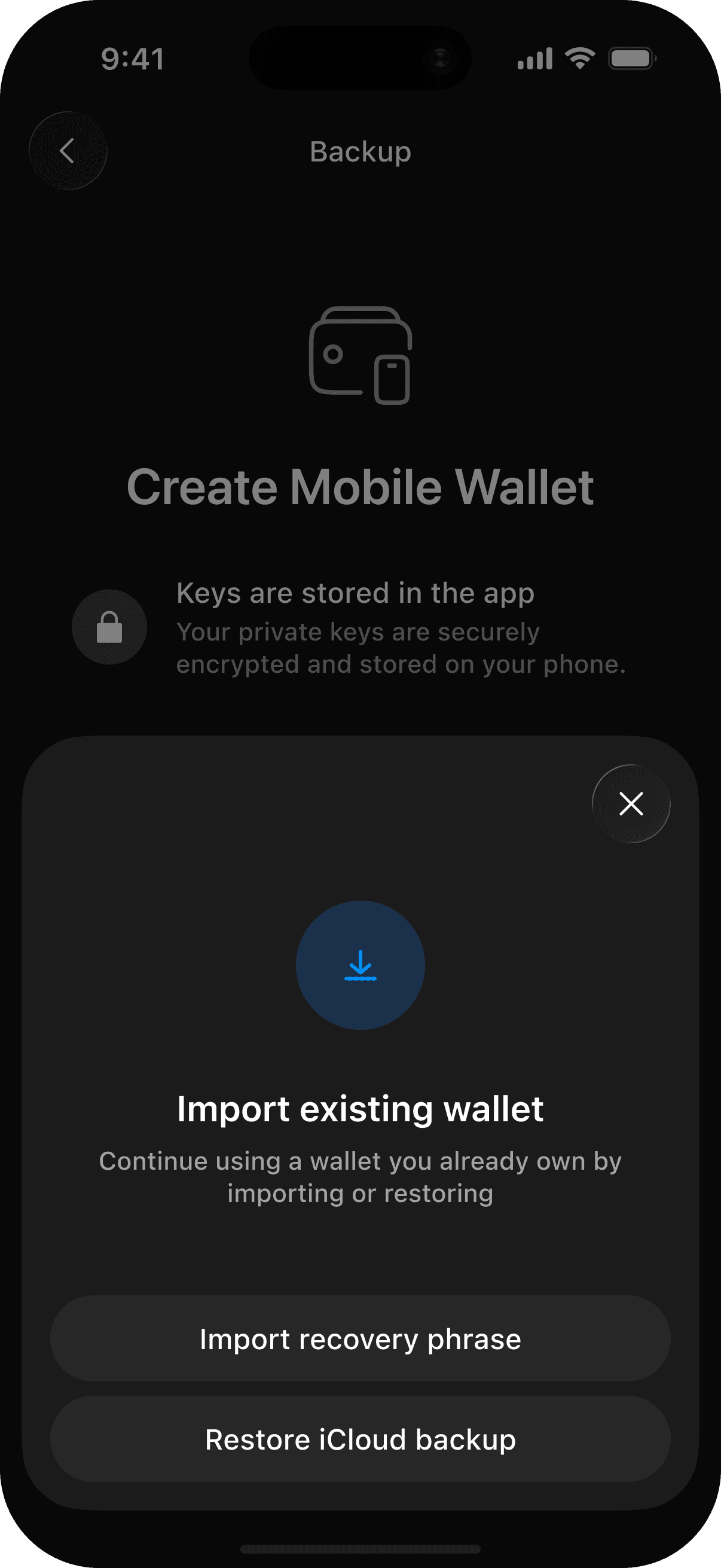
Tap Restore iCloud Backup.
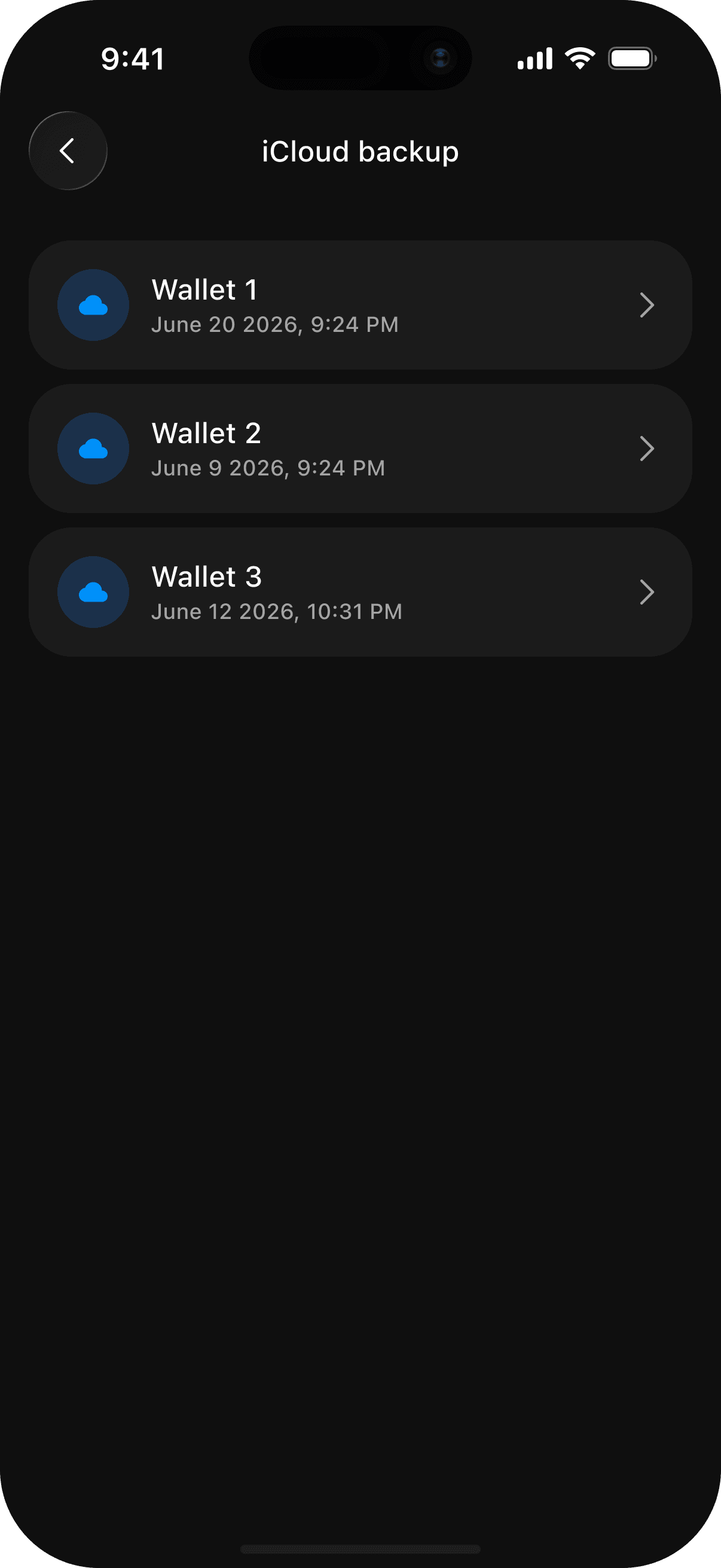
If multiple backups are available, select the one you want to restore based on the wallet name and backup creation date.
Enter your backup password. If you previously saved it in your device's password manager, your device may offer to fill it in automatically.
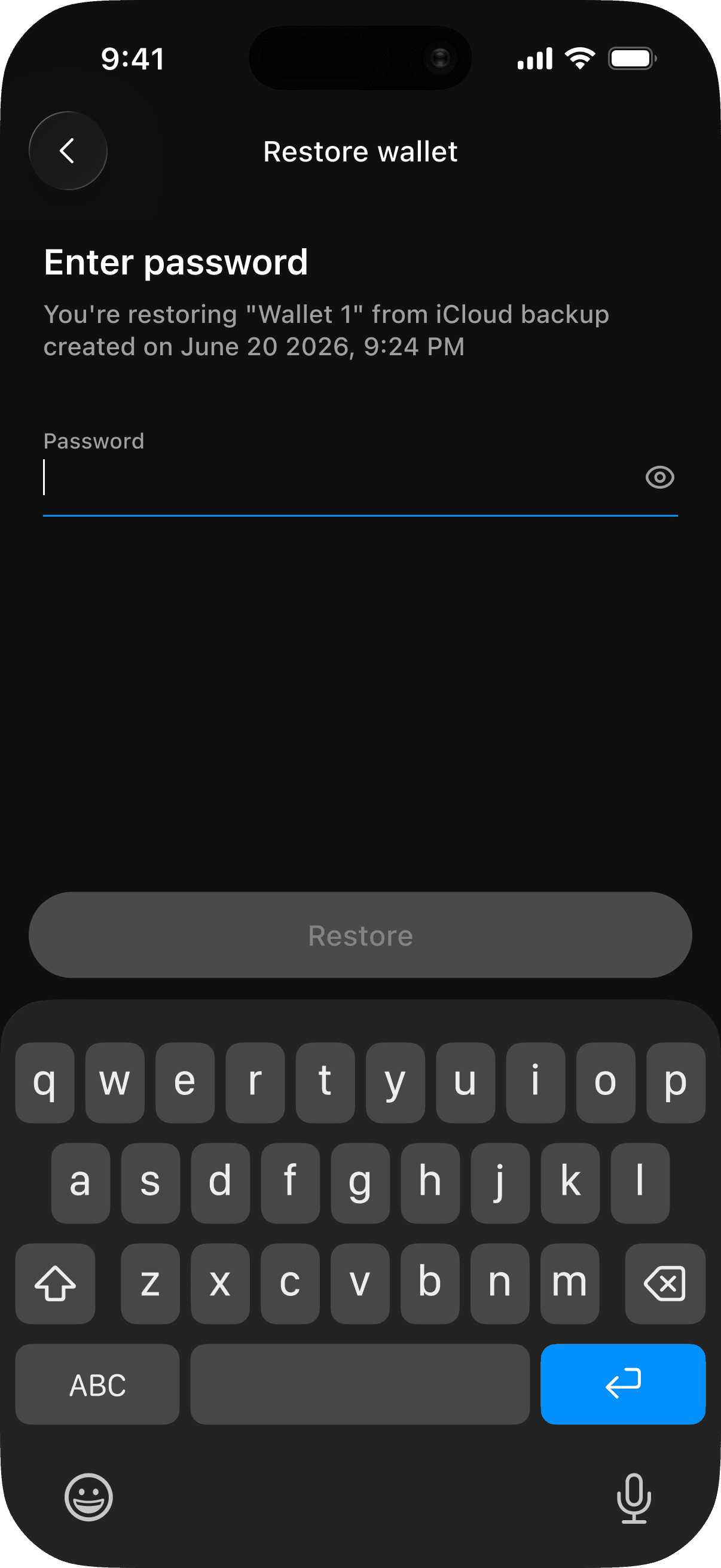
Tap Restore.
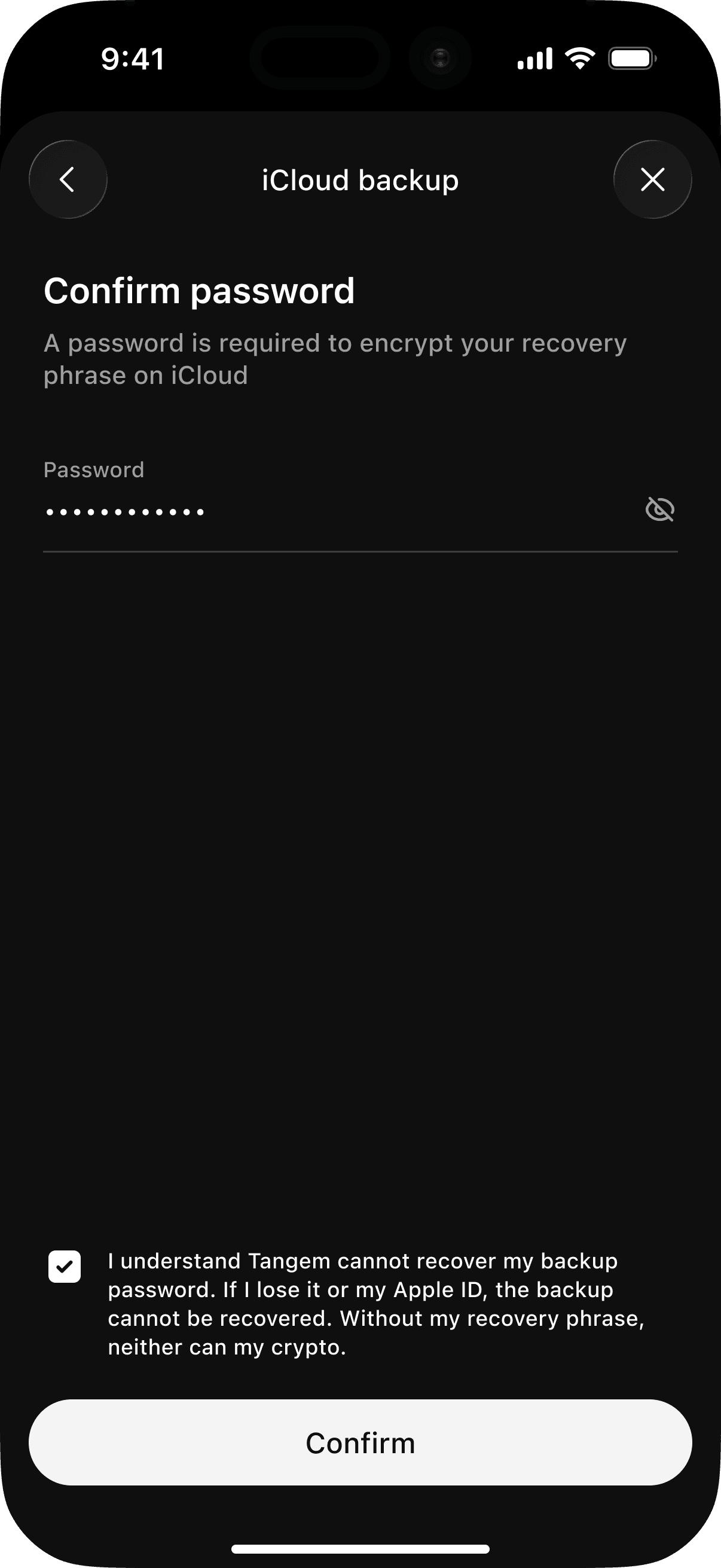
Your wallet will be restored, and you can continue using it immediately.
Important: Cloud backups can only be restored within the same ecosystem. iCloud backups can only be restored on iOS devices, and Google Drive backups can only be restored on Android devices. If you forget your backup password, the backup cannot be restored.
If you previously created a Google Drive backup, follow these steps:
Tap Restore Google Drive Backup.
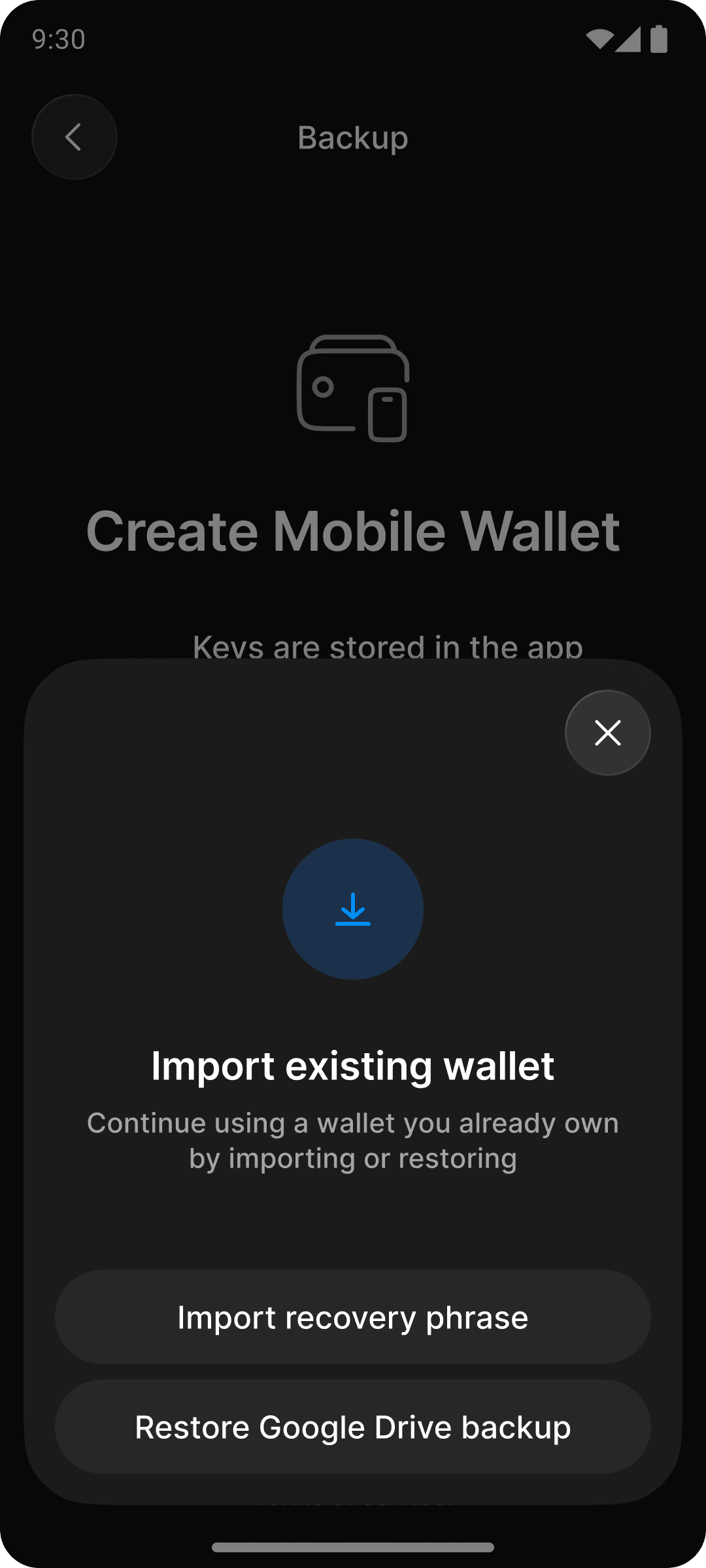
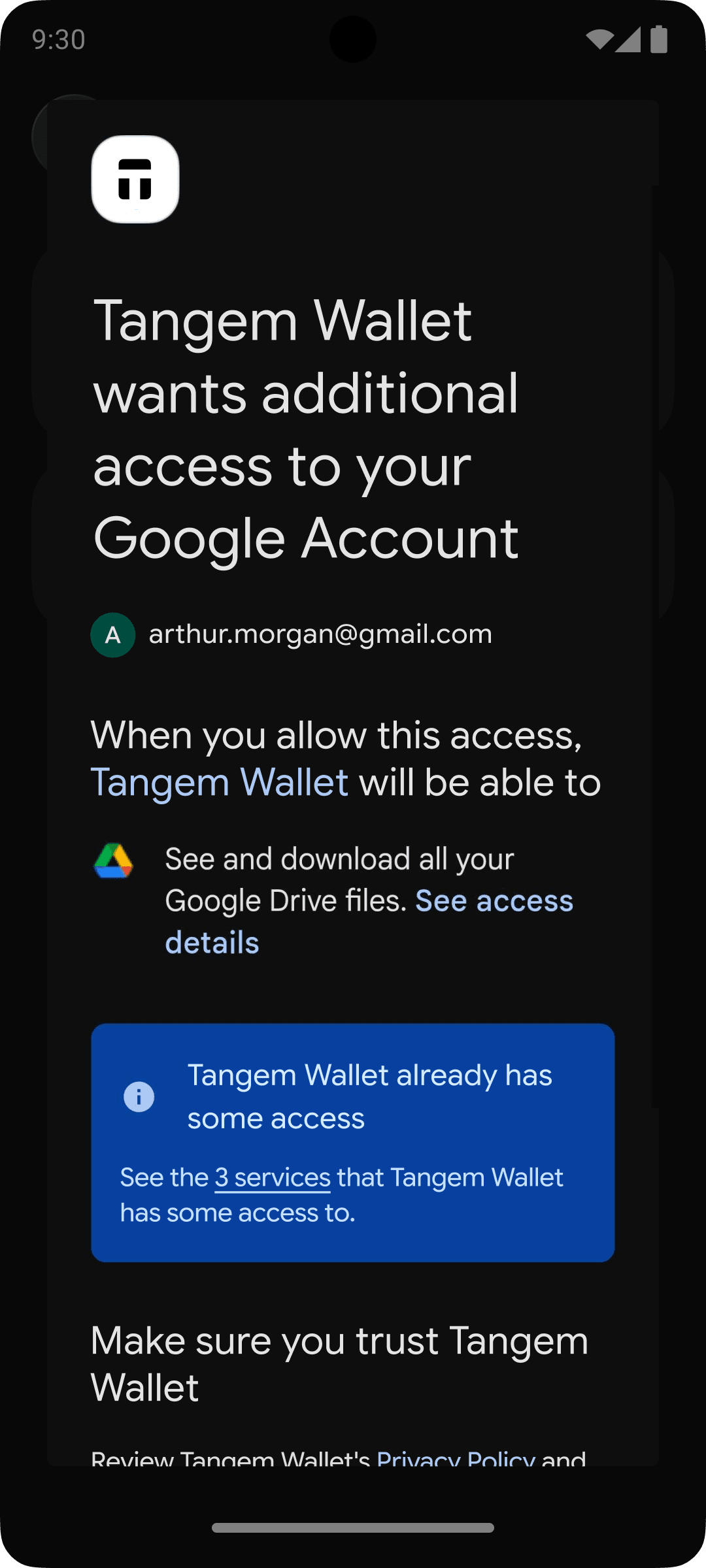
Grant the Tangem app the required permissions to access the backup file in your Google Drive.
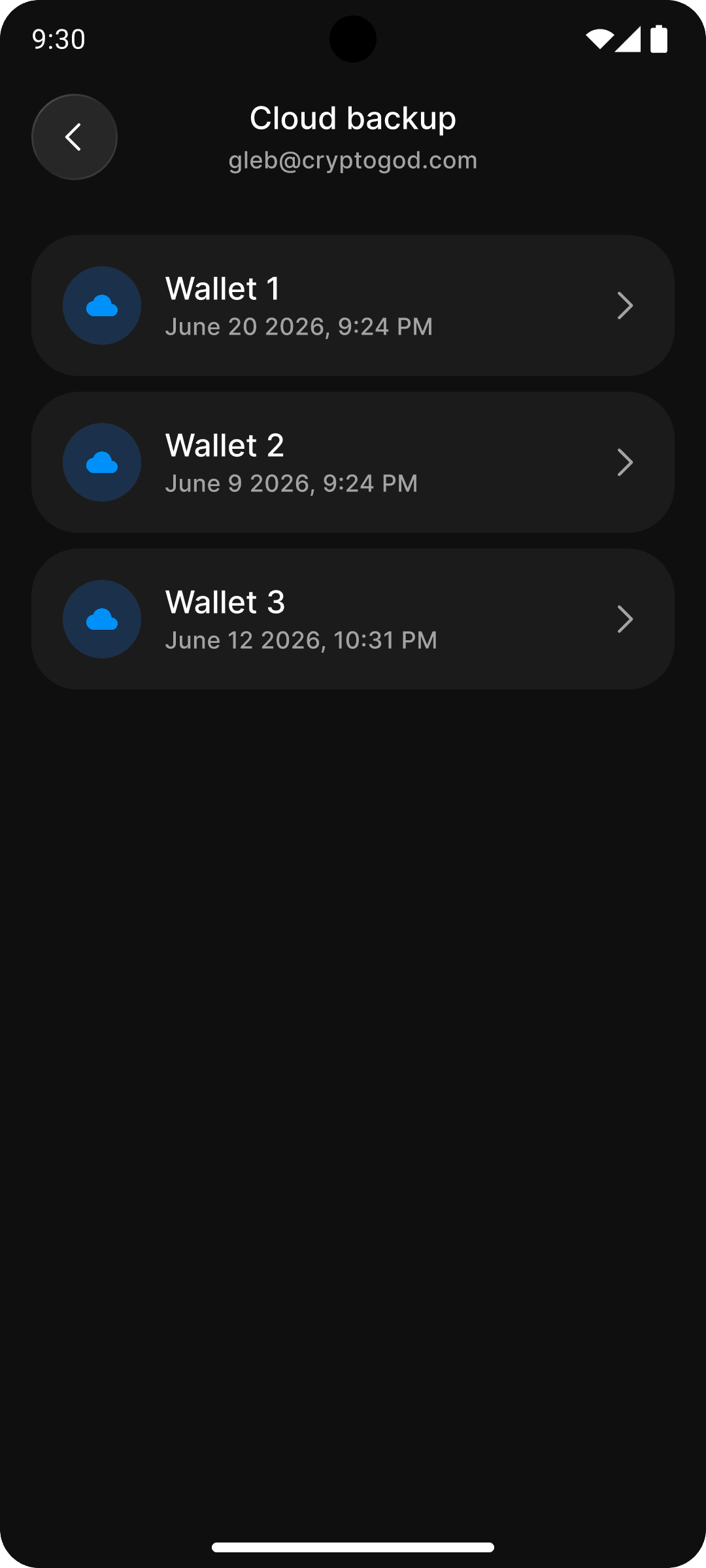
If multiple backups are available, select the one you want to restore based on the wallet name and backup creation date.
Enter your backup password. If you previously saved it in your device's password manager, your device may offer to fill it in automatically.
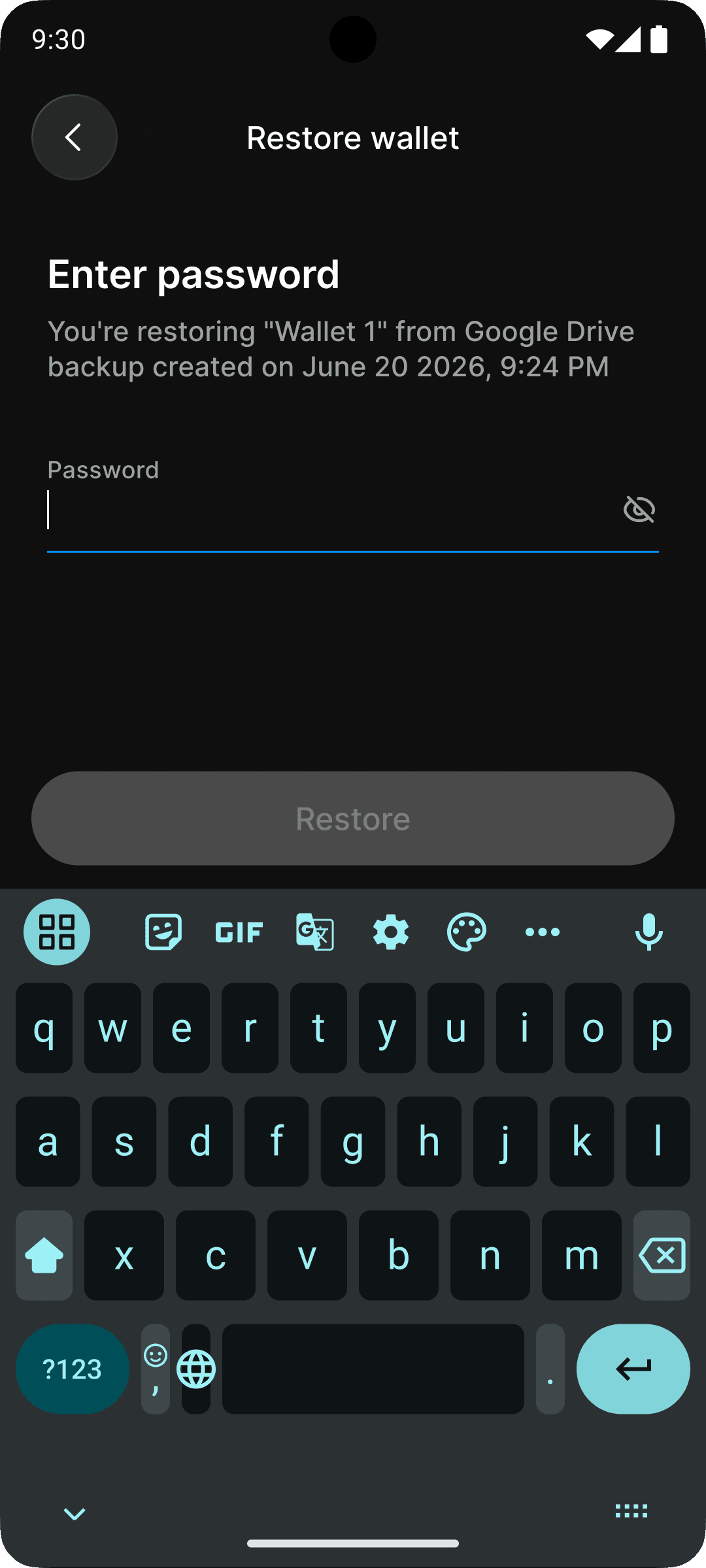
Tap Restore.
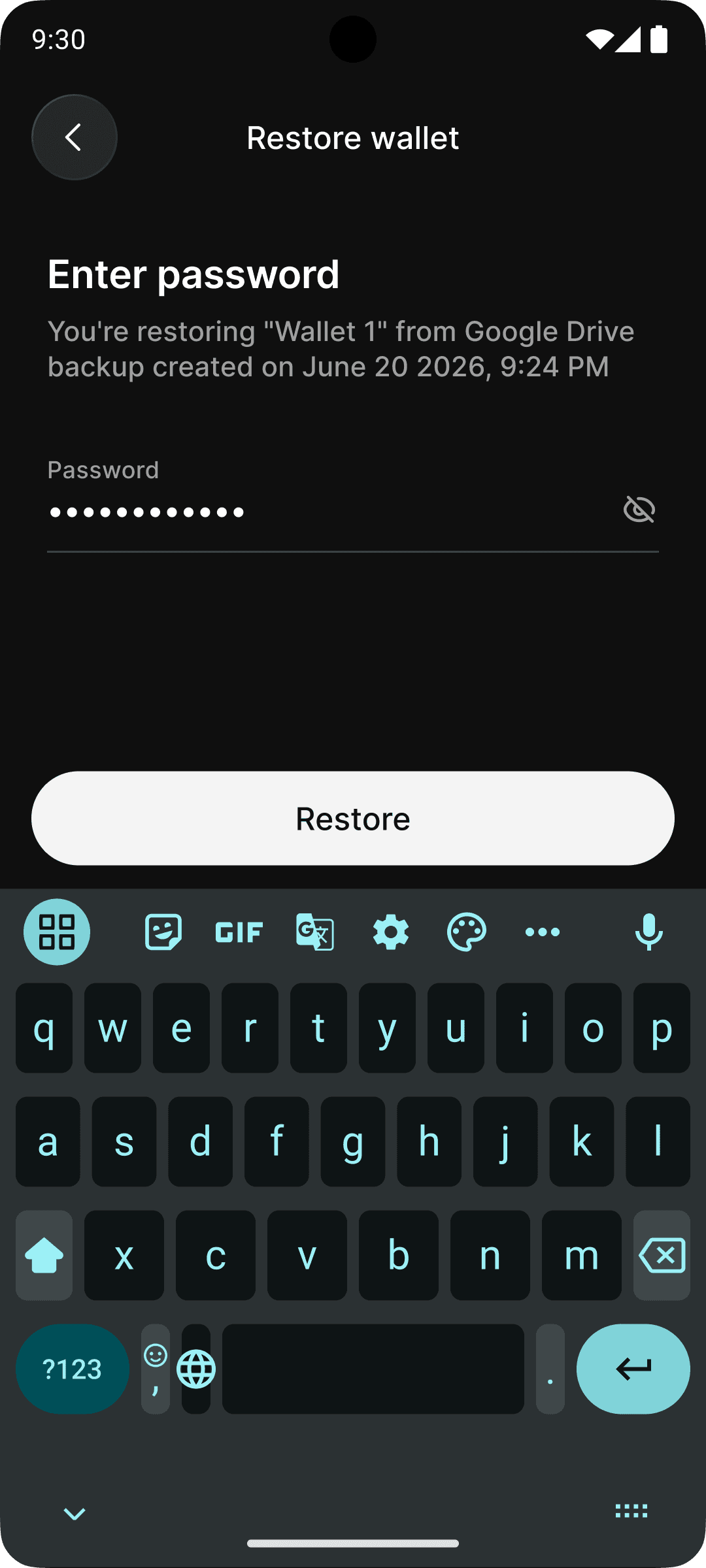
Your wallet will be restored, and you can continue using it immediately.
Important: Cloud backups can only be restored within the same ecosystem. iCloud backups can only be restored on iOS devices, and Google Drive backups can only be restored on Android devices. If you forget your backup password, the backup cannot be restored.
FAQ
What should I do if I see “Wrong seed phrase”?
Check the following:
- Number of words: The recovery phrase must contain 12, 15, 18, 21, or 24 words.
- Word order: Enter the words in the same order in which they were originally generated.
- Spelling: A recovery phrase consists of words taken from a limited, very specific, and publicly available list. We recommend that you go through the list and find all the words you have written down. If you can't find a word in the list, it means it is spelled incorrectly. Searching for similar words, such as cake/cage/cave, cool/cook, is also useful. The list is available on GitHub.
Which coins and tokens are added to my portfolio after import?
After you import a mobile wallet, Tangem automatically scans the supported networks and adds any coin or token with a balance greater than zero to your portfolio on the main screen. A progress bar shows the network verification status during the scan, and you can interact with tokens that have already been added without waiting for the process to finish.
When the scan completes, a banner with a link to Manage tokens appears in case anything is missing and you want to add it manually.
Notes:
- This feature is available only in the Mobile Wallet.
- Supported assets:
- All native coins
- Tokens on the following networks — all supported EVM-compatible chains, Aptos, Cardano, Kaspa, Sei, Solana, Stellar, Sui, TRON, XRP Ledger.

