シードレスへ。SWITCH30で30%OFF。10/26まで



Tangem Payの設定方法と使い方ガイド
カードの有効化・入金・Apple Pay/Google Payへの追加・PIN設定・出金・凍結/解除・トラブルシューティングまでを解説。
コーヒーの購入、サブスクリプションの支払い、旅行の予約など、Tangem PayならVisa対応店舗で安全なセルフカストディ型決済が可能です。
このガイドでは、カードの有効化から入金、トラブル時の対処法まで、すべての手順をわかりやすくご案内します。
Tangem Payカードの有効化方法
- Tangemアプリを最新バージョンにアップデートし、ログインします。
Get cardをタップします。
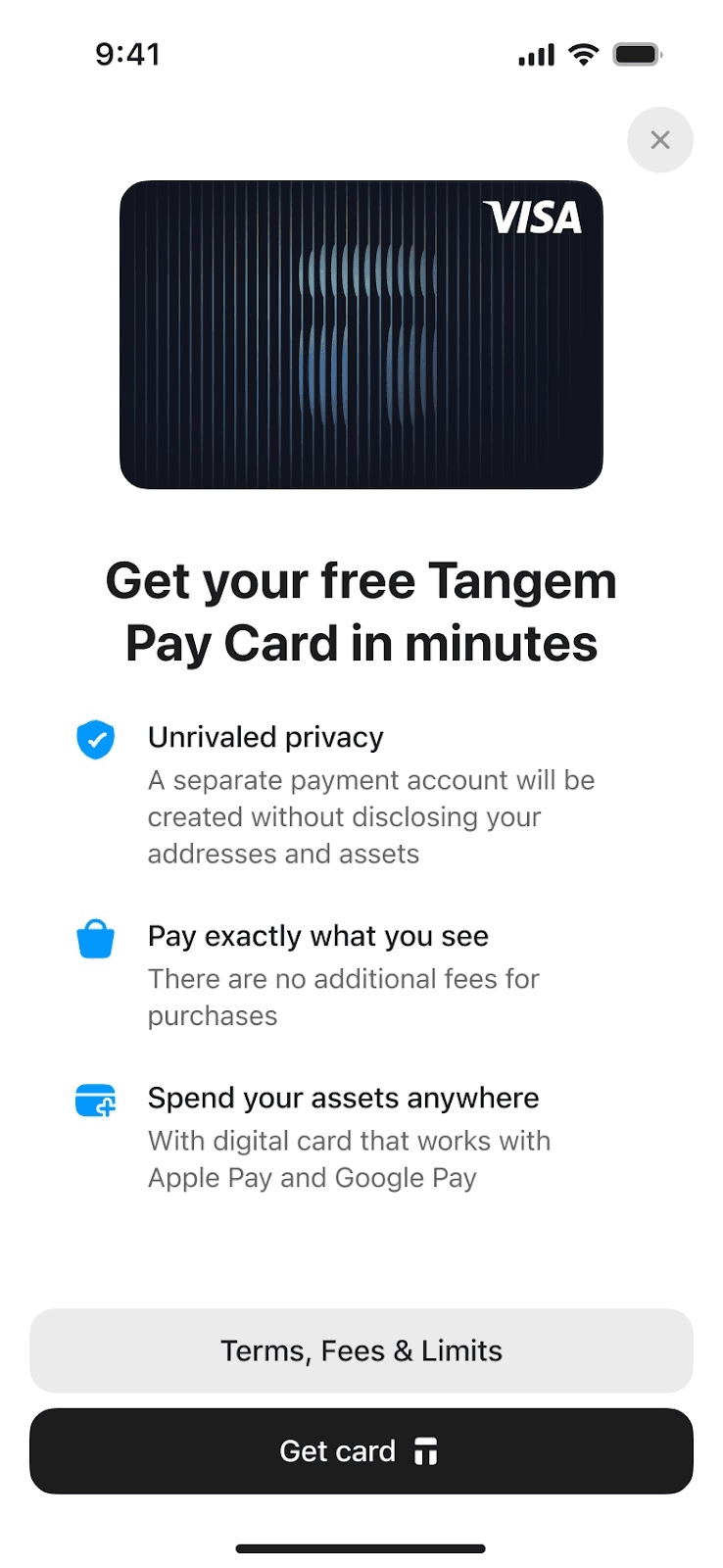
- Tangem Walletをスキャンして認証します。
居住国を確認し、Continueをタップします。
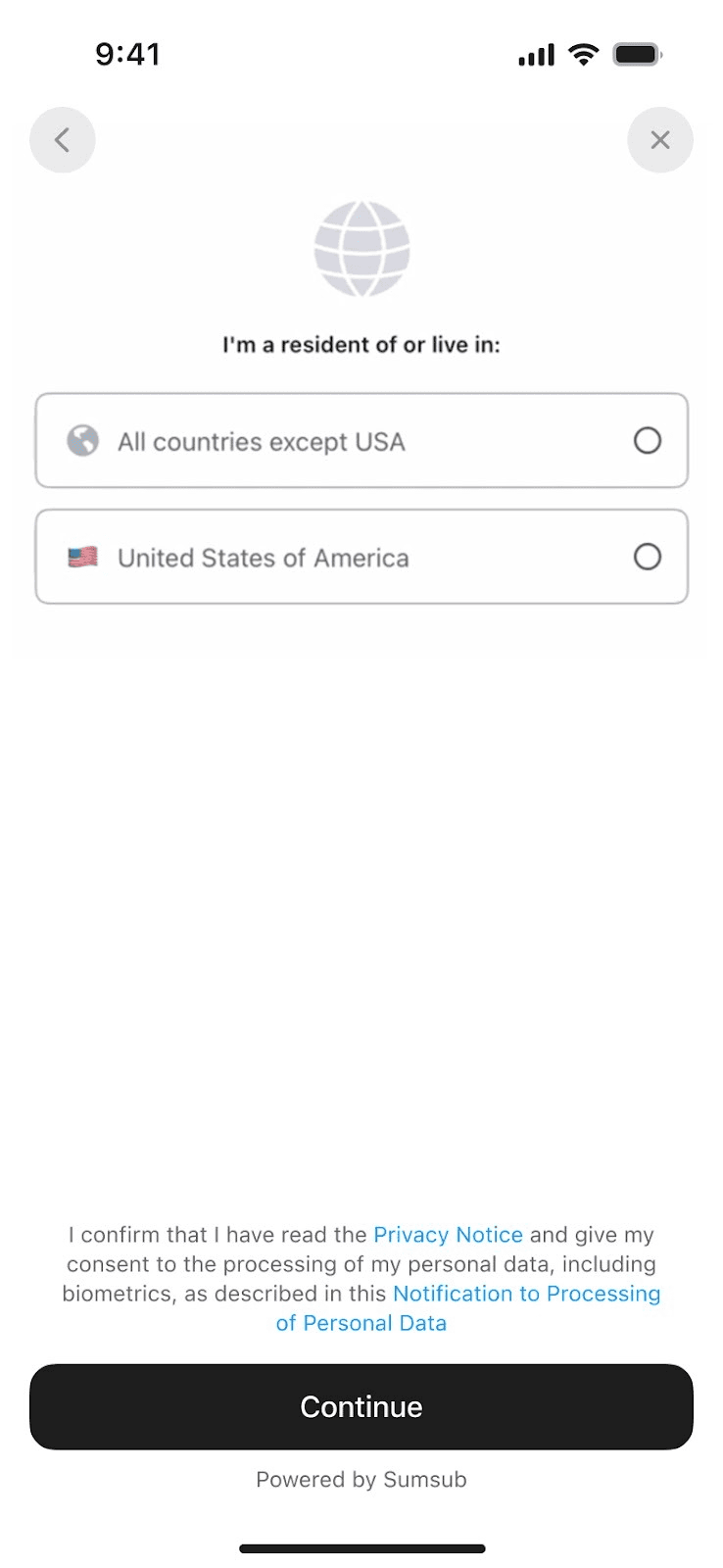
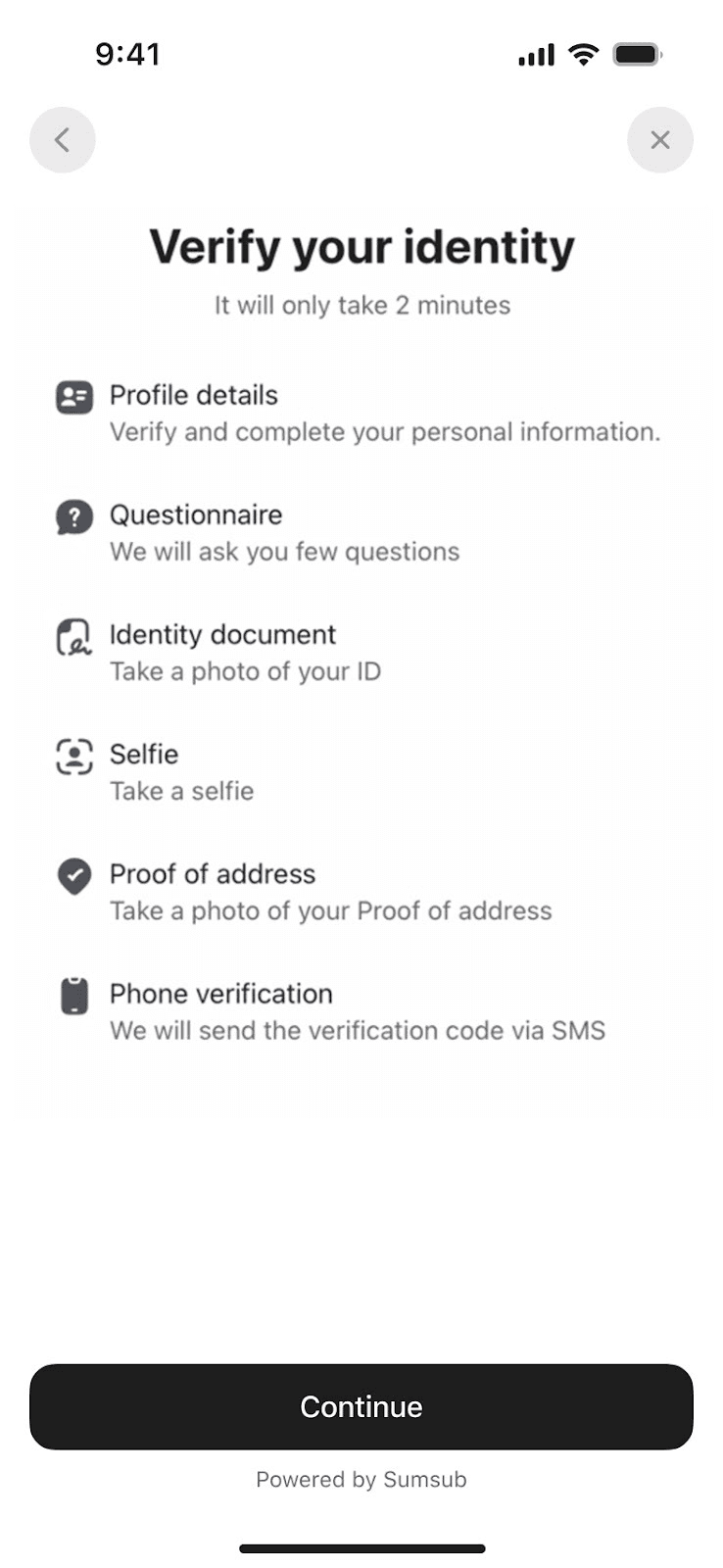
Continueをタップし、KYCパートナーのSumsubで2分ほどで本人確認を行います。
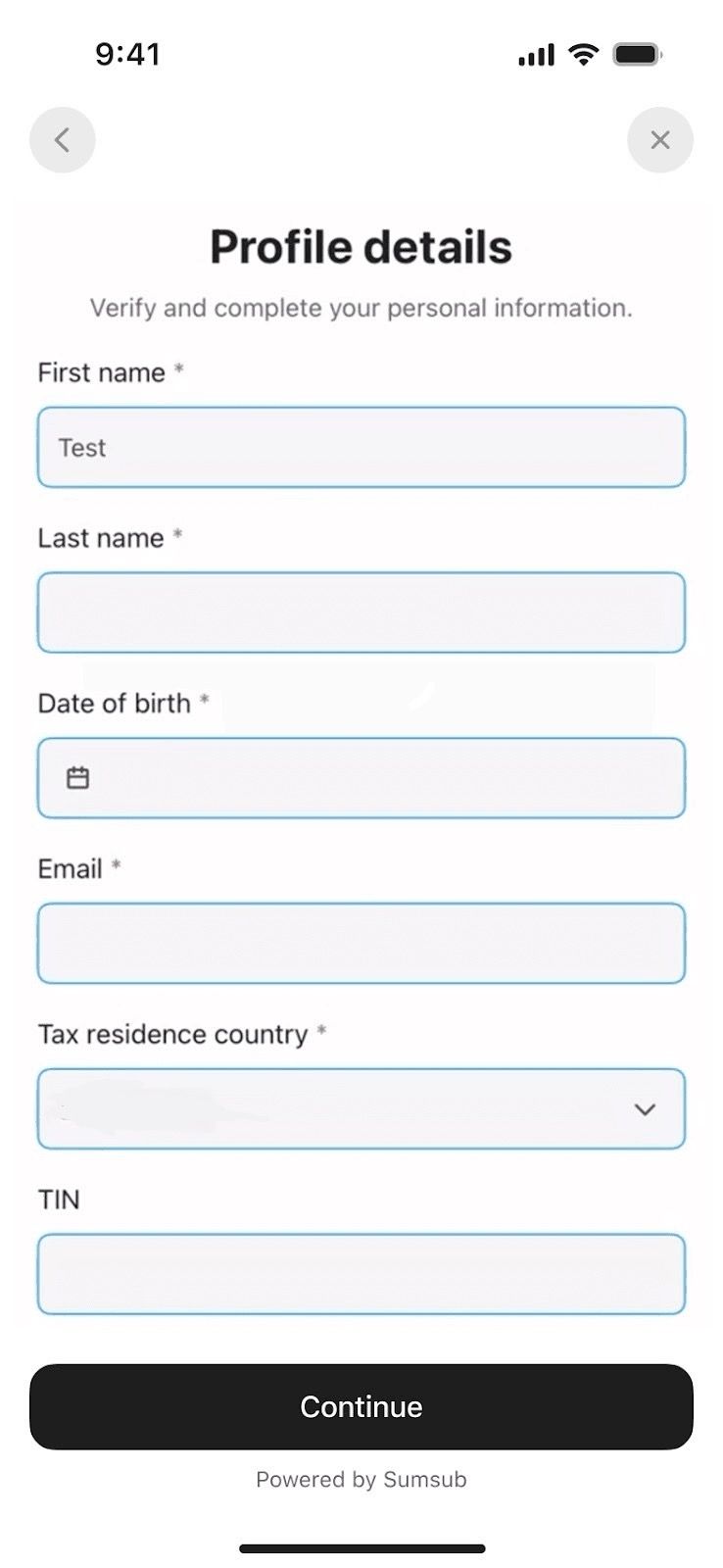
氏名・メールアドレス・生年月日など必要事項を入力し、Continueをタップします。
本人確認が完了するまで数分お待ちください。
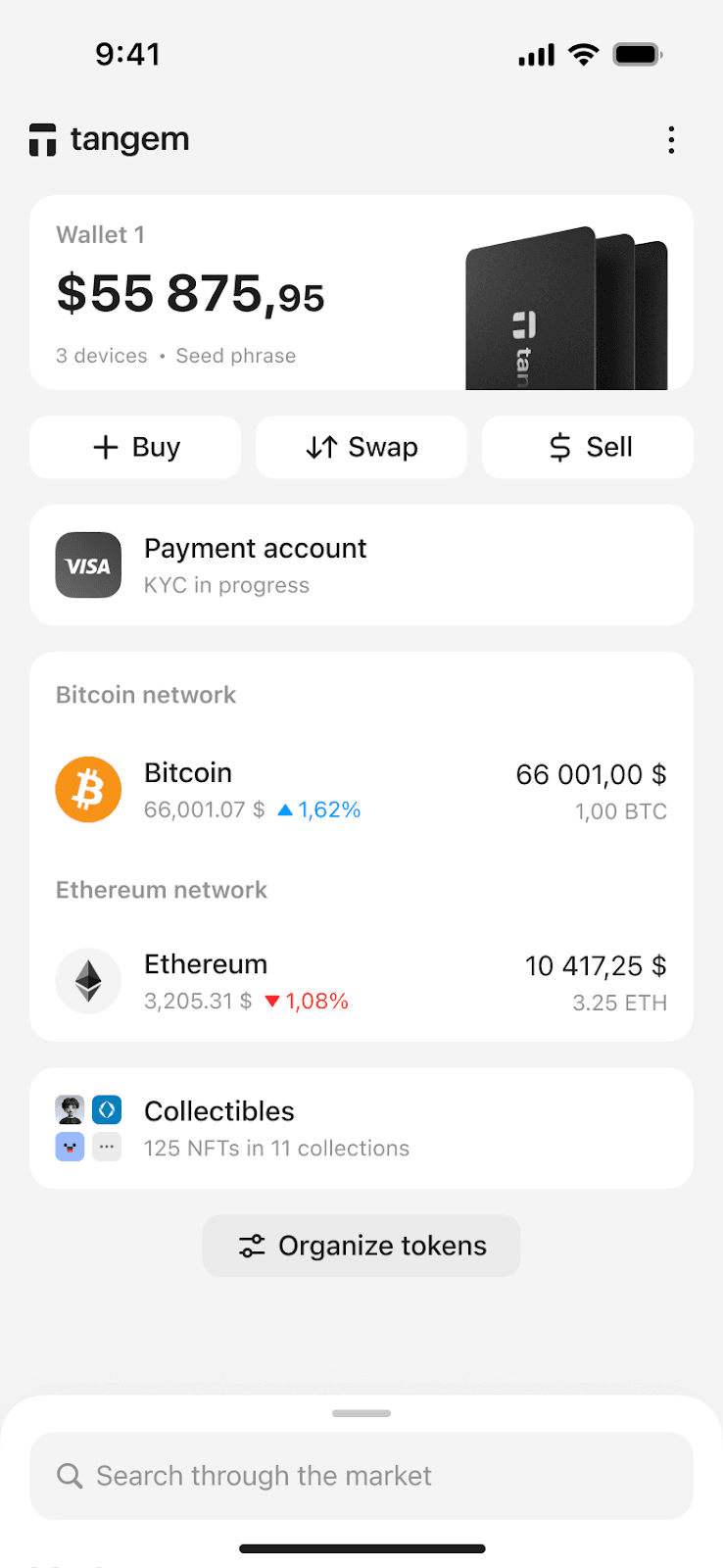
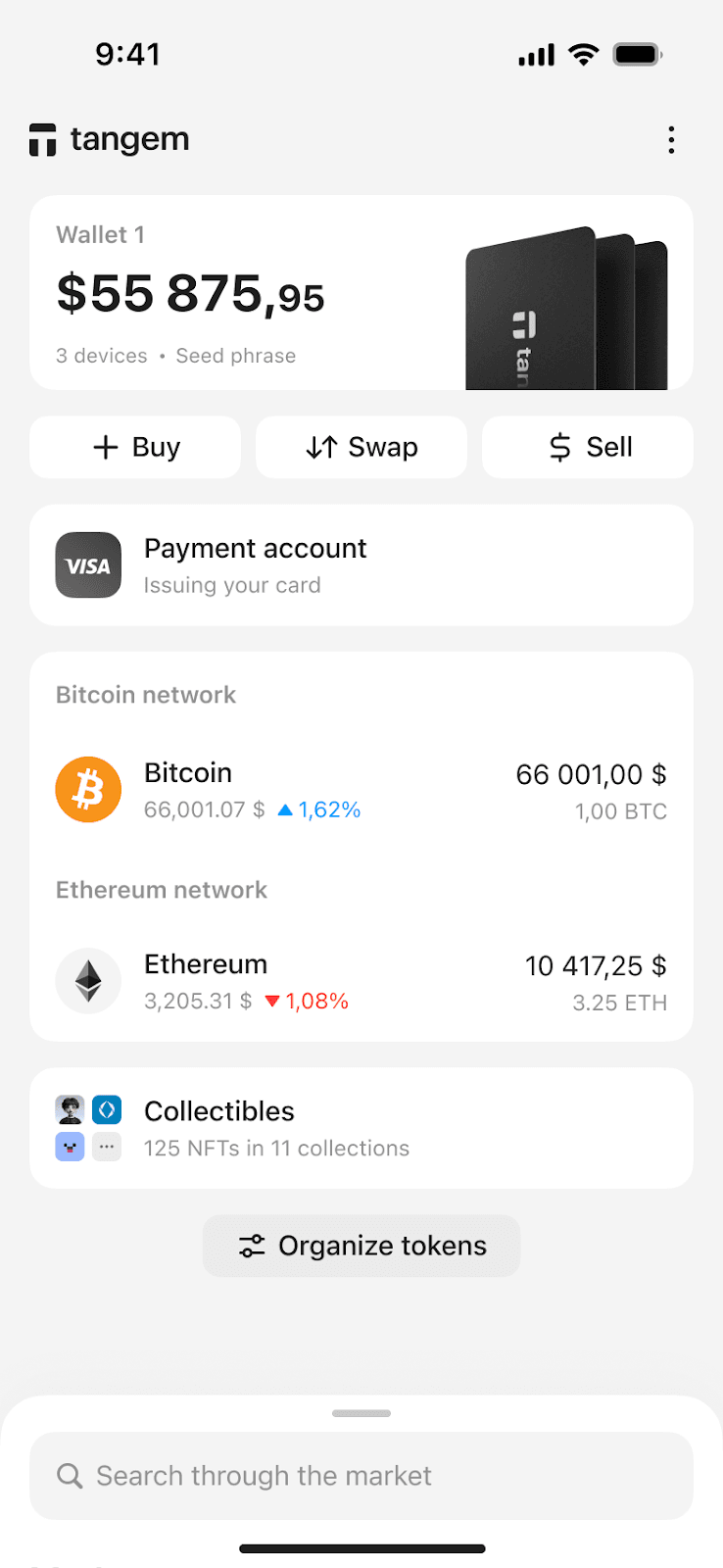
完了後、VISAカードが発行され、Tangem Wallet内の決済アカウントに紐付けられます。これでPolygon上のUSDC受取が可能になります。
Apple Payにカードを追加する方法
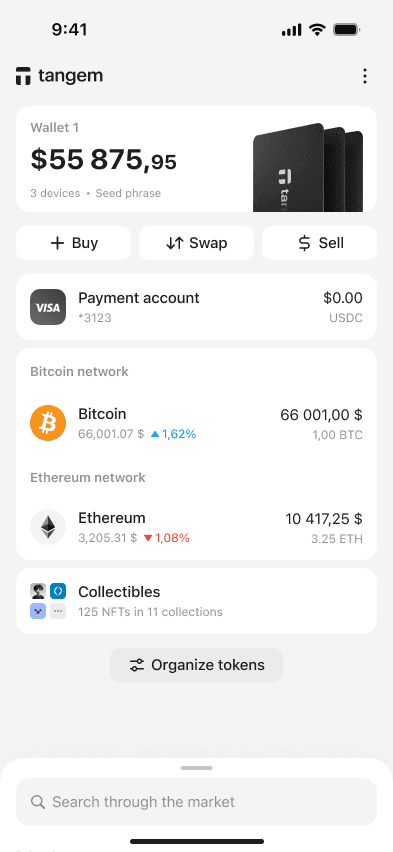
ホーム画面でPayment accountをタップします。
Add your card to Apple Payバナーをタップします。
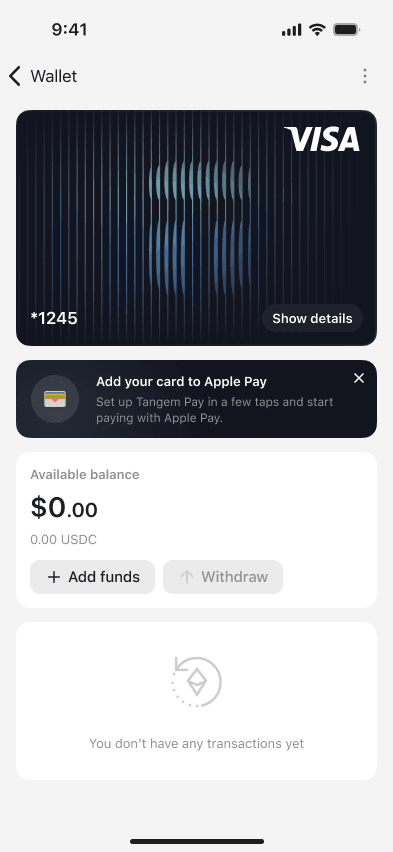
Show detailsをタップし、カード番号・有効期限・CVCを表示します。
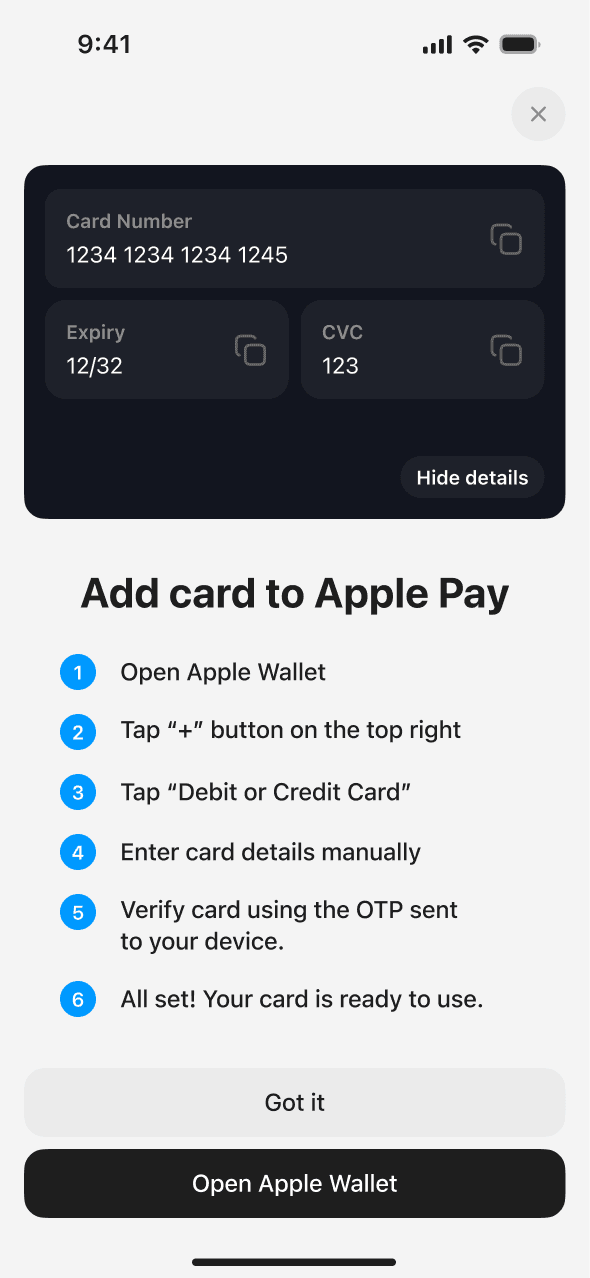
- Apple Walletを開きます。
- 「+」をタップし、デビットまたはクレジットカードを選択します。
- カード情報を手動で入力します。
- アプリに送信されたOTPで認証します。
- 完了です。
Google Payにカードを追加する方法
ホーム画面でPayment accountをタップします。
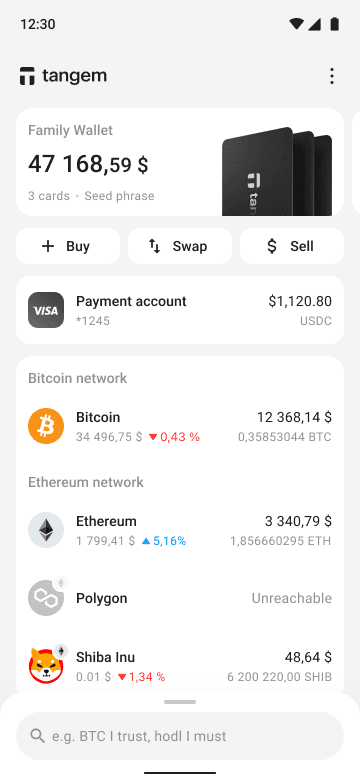
Add your card to Google Payバナーをタップします。
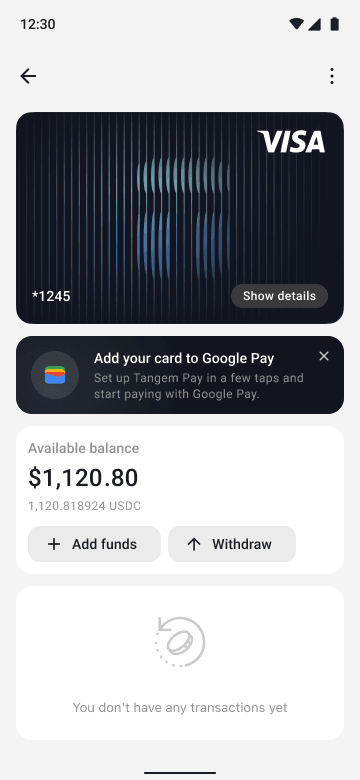
Show detailsをタップし、カード番号・有効期限・CVCを表示します。
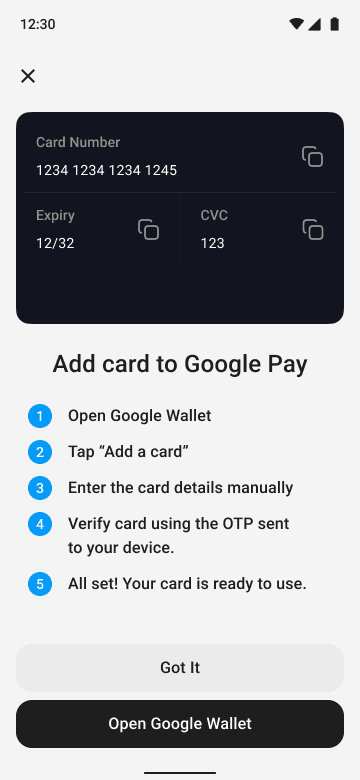
- Open Google Walletをタップします。
- Add a cardをタップします。
- カード情報を手動で入力します。
- アプリに送信されたOTPで認証します。
- 完了です。
PINコードの設定方法
アプリでTangem Payを開きます。
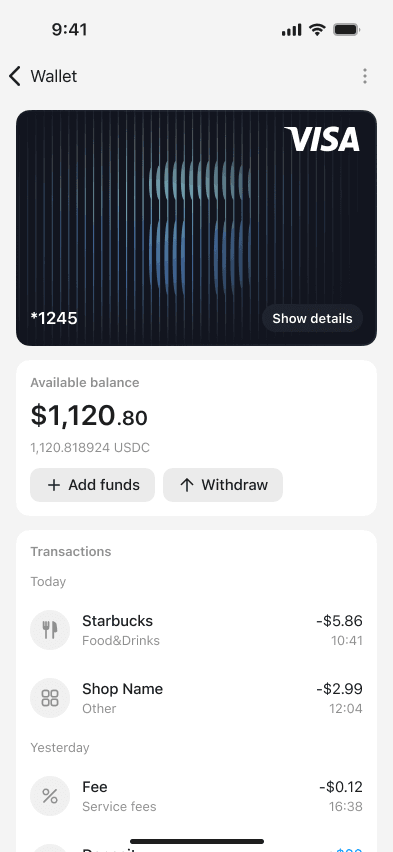
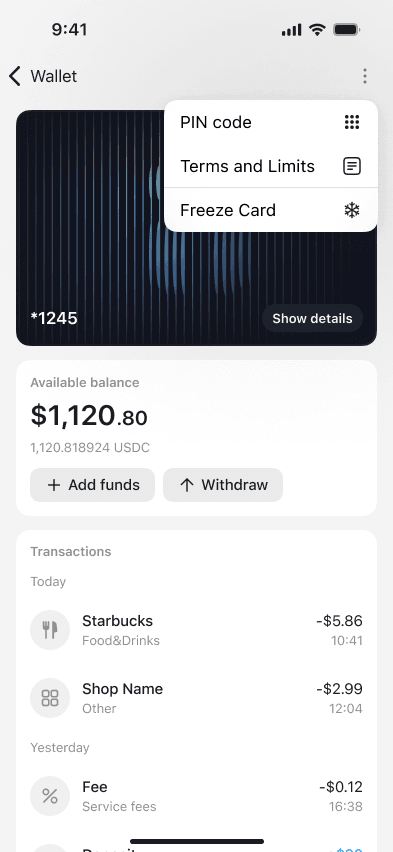
three-dot menuをタップし、PIN codeを選択します。
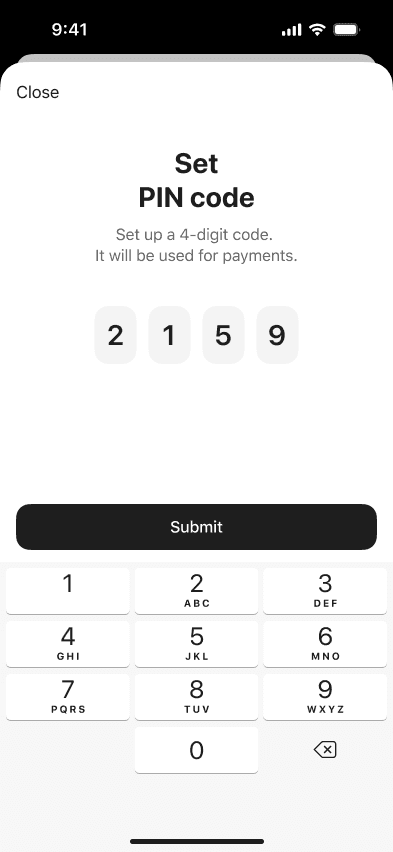
4桁のPINコードを入力し、Submitをタップします。
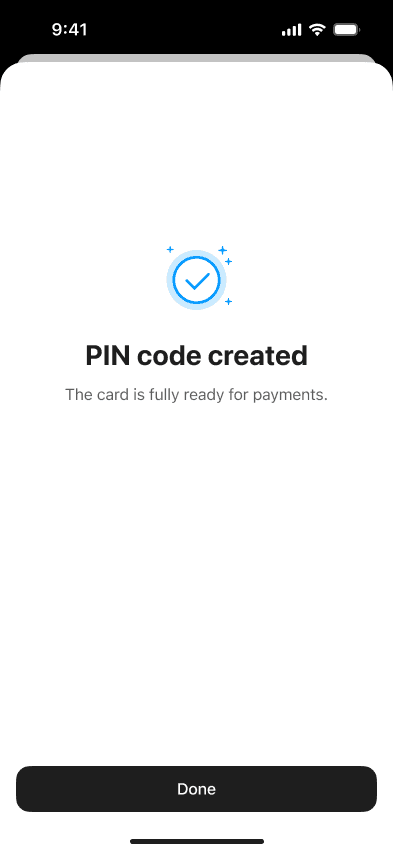
Doneをタップしてホーム画面に戻ります。
Tangem Payカードへの入金方法
Tangem Payへの入金方法は2通りあります。
方法A:暗号資産を直接入金
対応資産をTangem Payのアドレス宛に送金します。アドレスのコピーやQRコードのスキャンが利用できます。
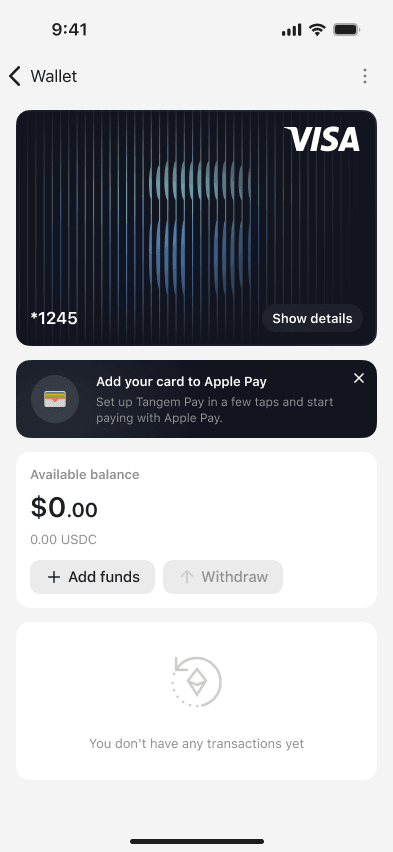
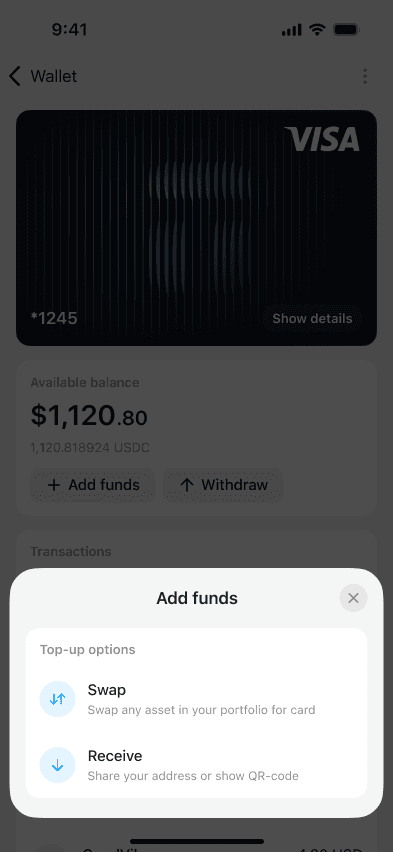
Add fundsをタップします。
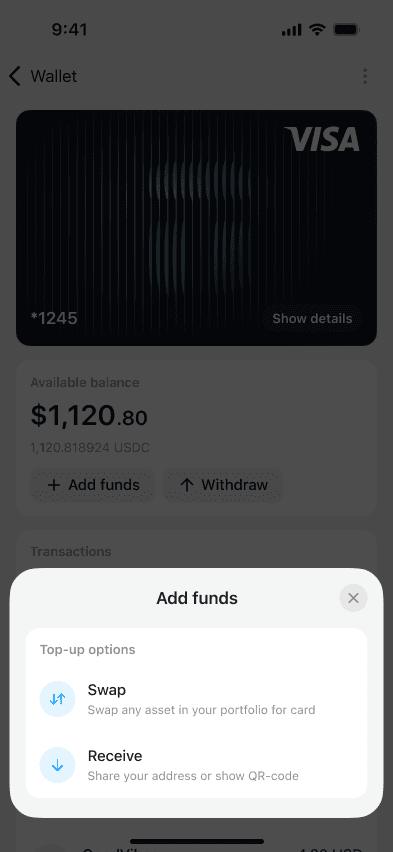
Receiveを選択します。
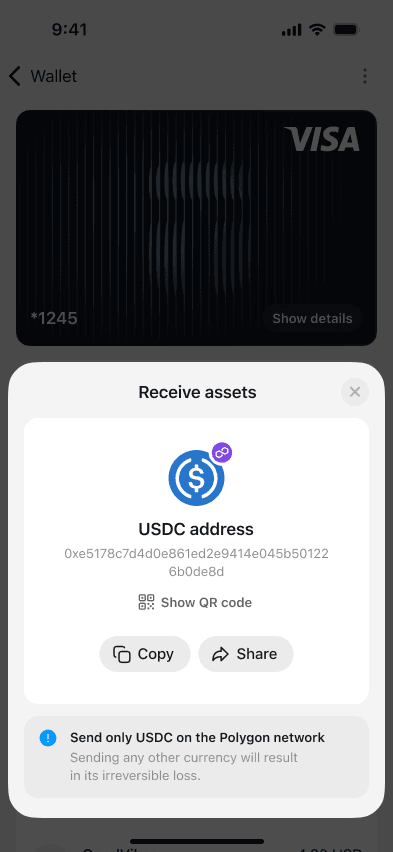
Polygon上のUSDCアドレスをコピーし、送金元に共有します。
方法B:アプリ内スワップを利用
アプリ内で暗号資産の購入・スワップ・残高調整が可能です。
Add fundsをタップします。
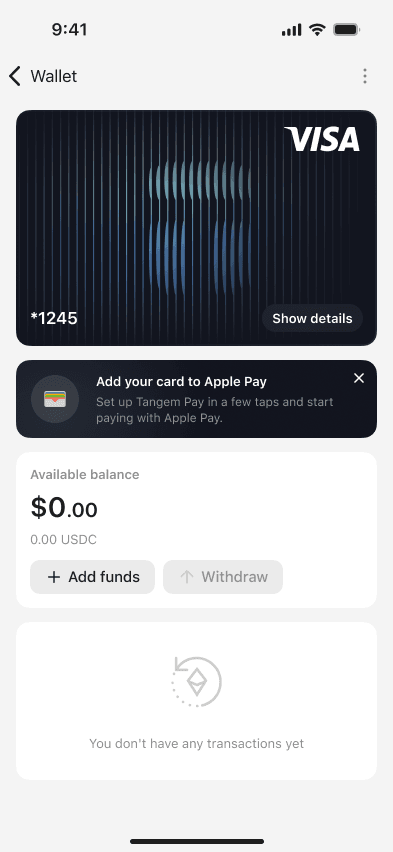
Swapを選択します。
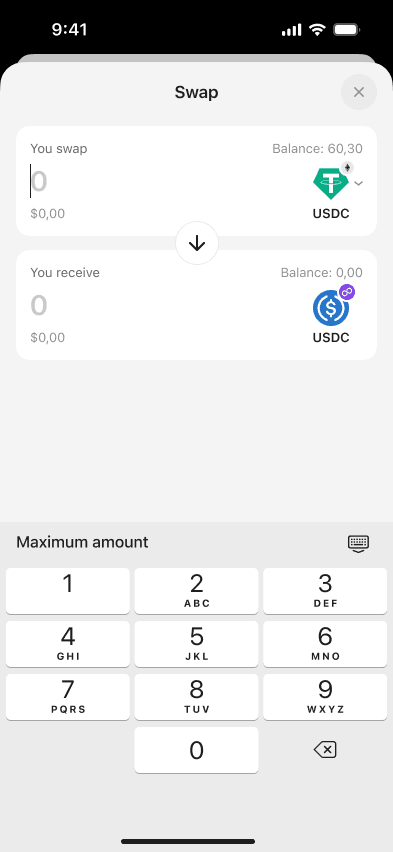
希望する資産と金額を入力し、USDCへスワップします。
Swapをタップします。
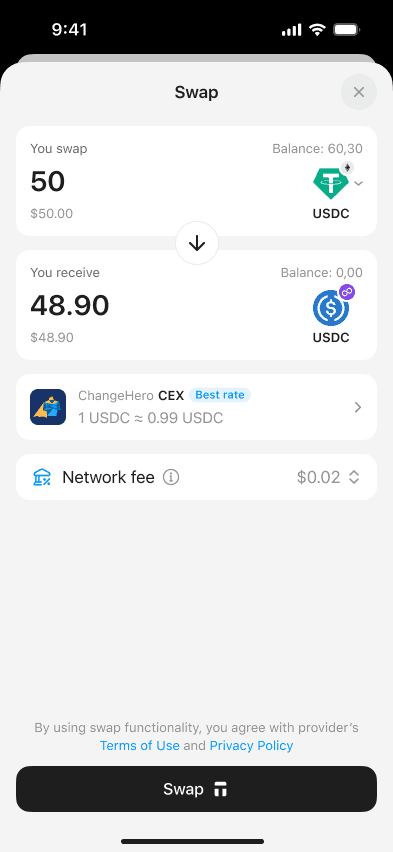
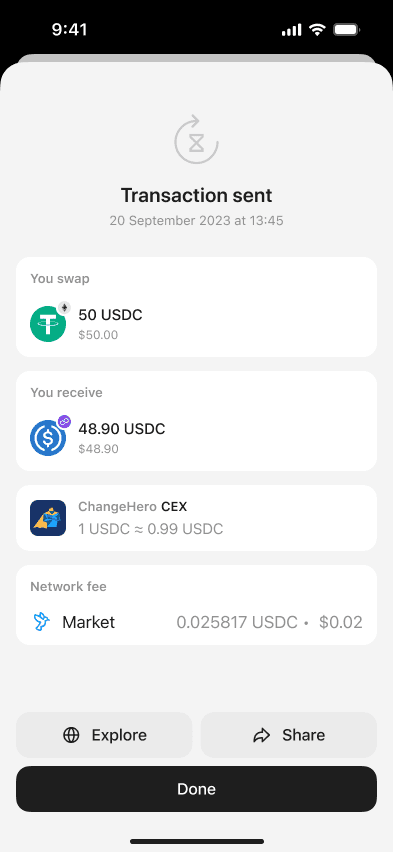
アクセスコードまたは生体認証を入力し、Tangemをタップして取引に署名します。
Tangem Payカードからの出金方法
Withdrawをタップします。
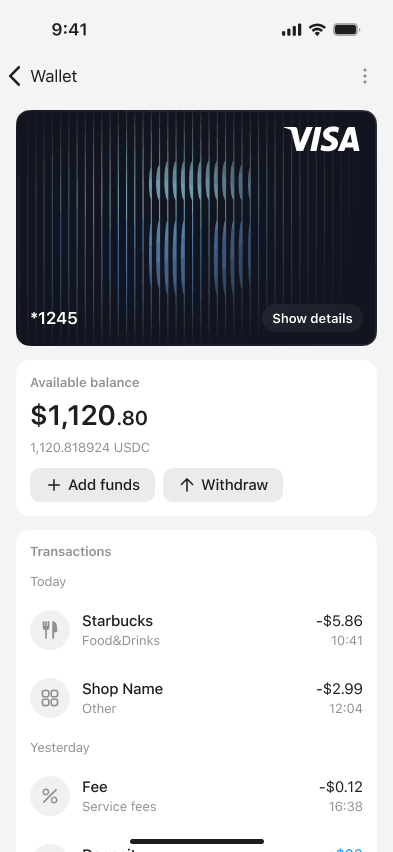
出金したい金額とスワップ先の資産を選択します。
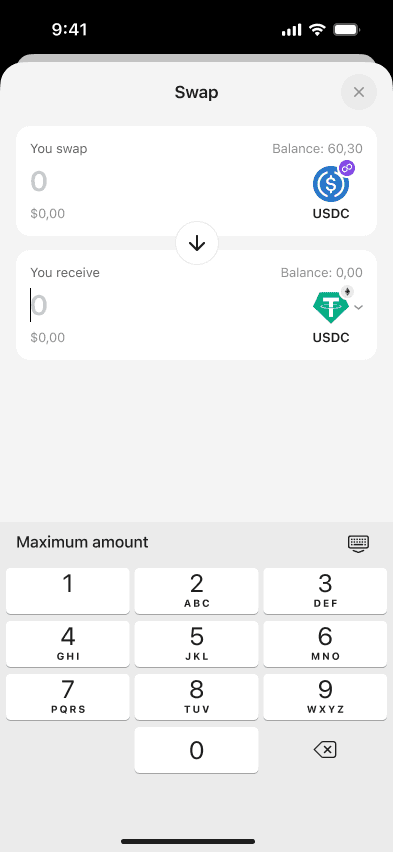
Swapをタップします。
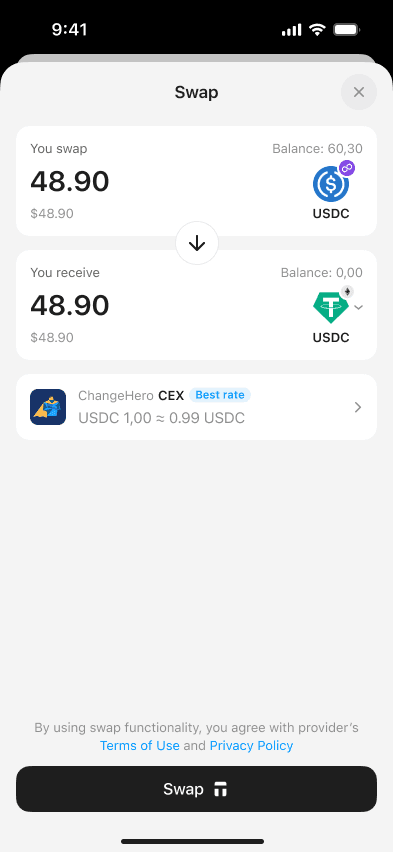
アクセスコードまたは生体認証を入力し、Tangemをタップして取引に署名します。
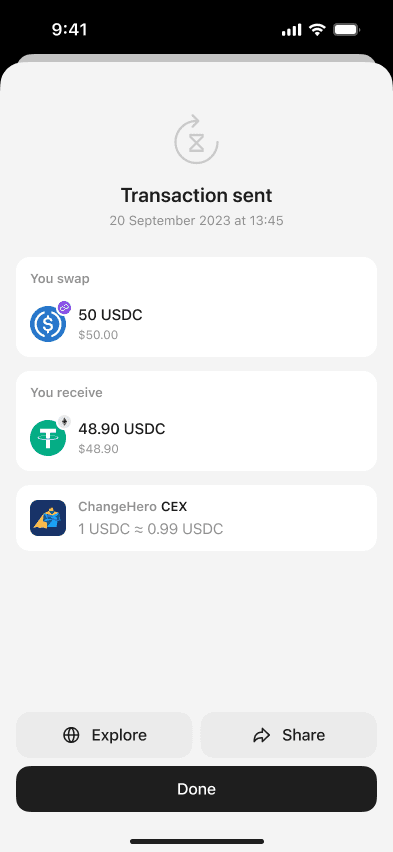
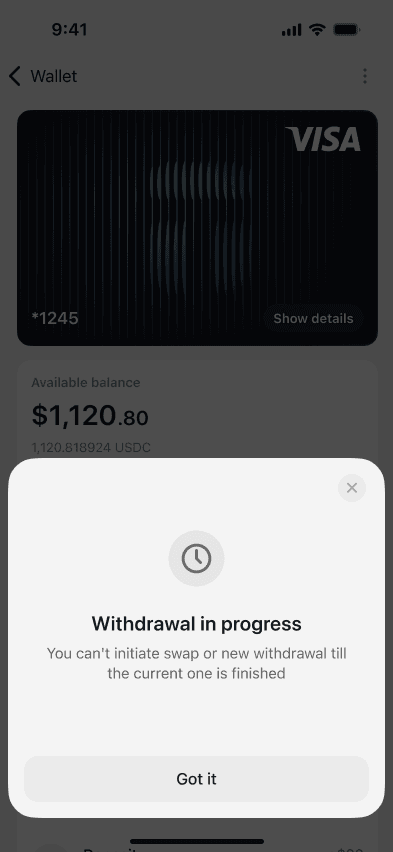
出金処理中は、次の出金操作はできません。
Tangem Payカードの凍結・解除方法
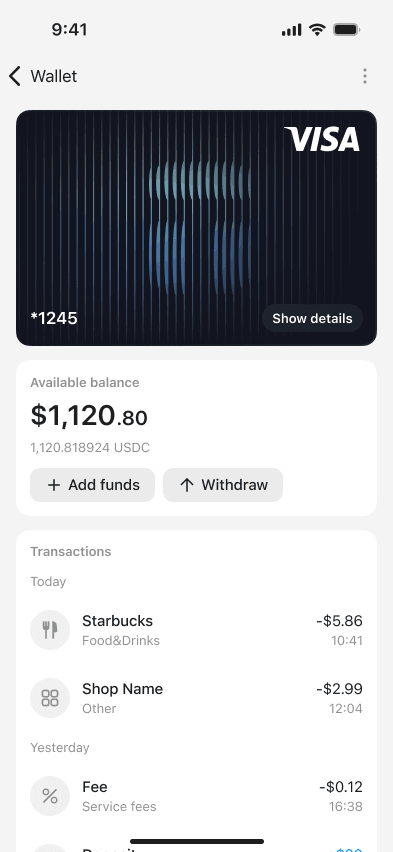
アプリでTangem Payを開きます。
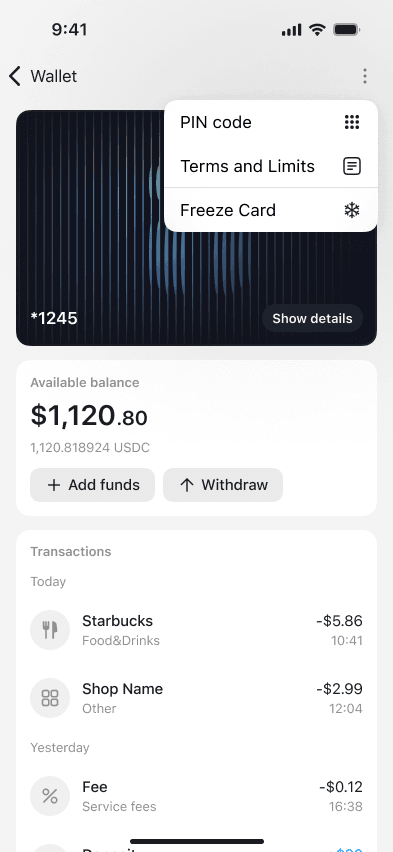
three-dot menuをタップし、Freeze Cardを選択します。
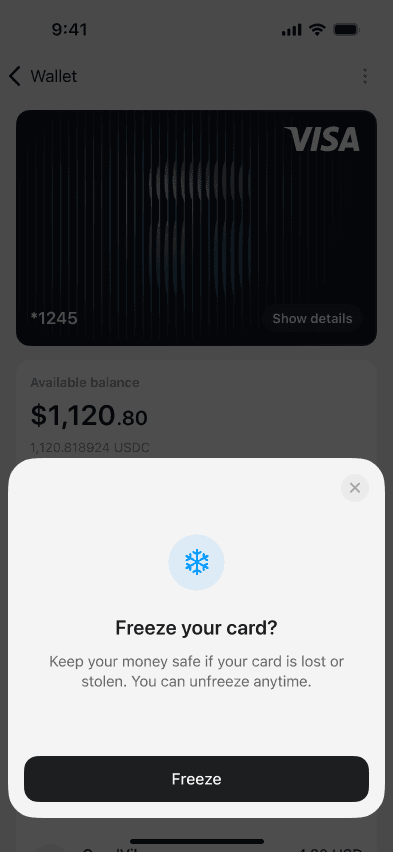
Freezeをタップします。
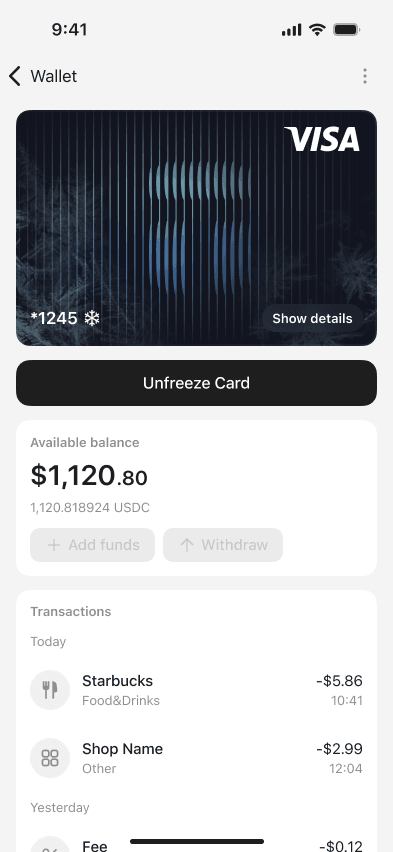
カードの利用を再開する場合は、Unfreeze Cardをタップします。
エラーとトラブルシューティング
Tangem Payは現在、バーチャルVisa決済アカウントとして提供されています。セットアップやカード発行はバックエンドサービスに依存しているため、一時的にサービスが利用できない場合や、アプリが決済アカウントと同期できない場合、「Failed to issue card」「Pin code unavailable」「Payment account sync needed」「Tangem Pay is temporarily unavailable」などのエラー画面が表示されることがあります。
Pin code unavailable / PIN is not set.
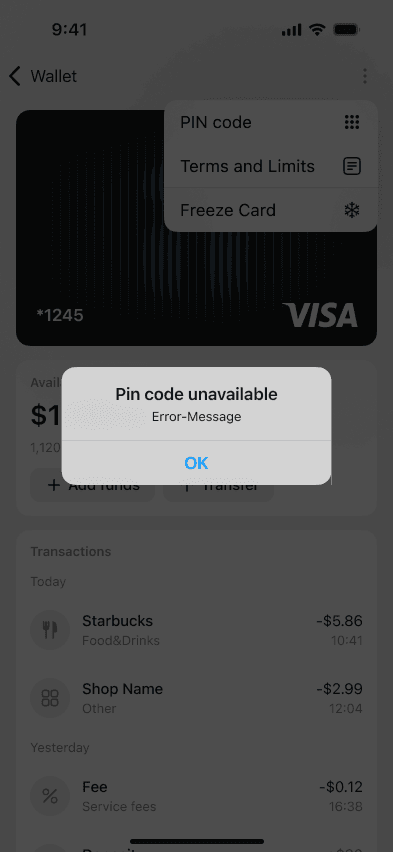
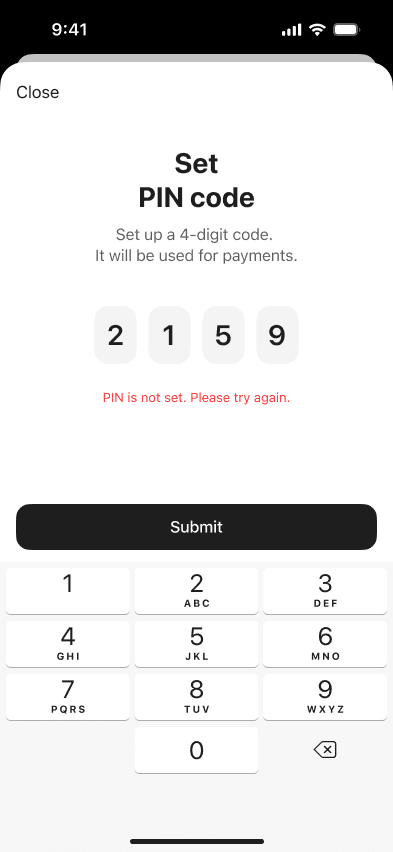
このメッセージは、アプリが決済パートナーからPIN情報を取得・変更できない場合に表示されます。
主な原因
- 発行元側の障害やメンテナンス
- アプリが一時的に決済サービスと切断されている
- Tangemとカード発行元間の接続や同期エラー
対処方法
- インターネット接続が安定しているか確認
- Tangemアプリを完全に終了し再起動
- 数分後に再度お試しください(発行元の障害は通常すぐに復旧します)
- 問題が解消しない場合は、アプリを最新バージョンにアップデート
バックエンドが復旧すると、PIN設定が再び利用可能になります。
Failed to issue card. A technical error has occurred. Please contact support.
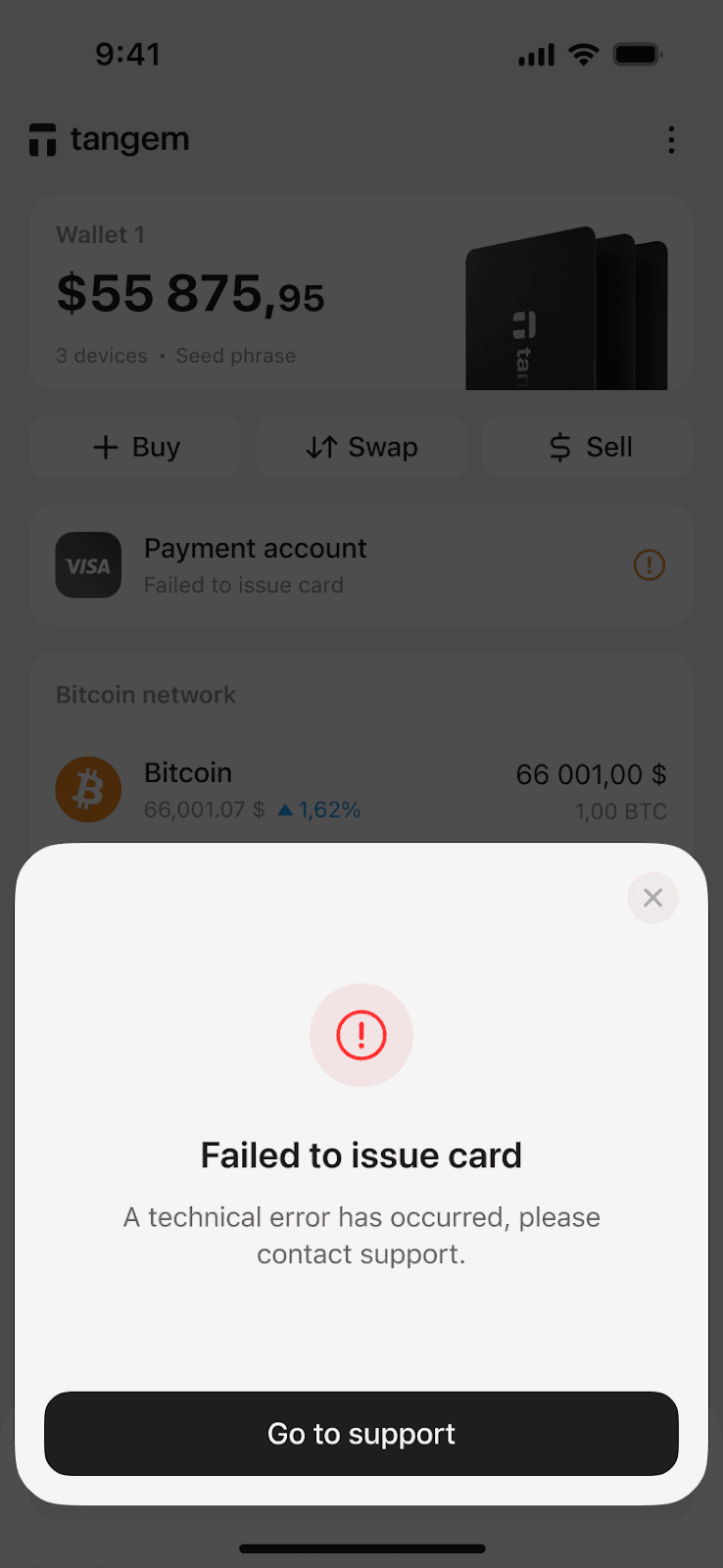
Tangem PayでVisaカードの発行が完了できませんでした。カード自体がまだ作成されていないため、決済アカウントも有効化されません。
原因
- カード発行元側の一時的な障害
- 地域やKYC要件により発行が制限されている
- 発行元がリクエストを拒否した
- サービスの過負荷やダウンタイム
対処方法
- アプリを閉じて再度発行手順をお試しください
- アプリが最新か確認
- 複数回試しても解決しない場合はサポートへご連絡ください
- 多くの場合、Tangem Wallet側の問題ではなく発行元の障害が原因です。
Tangem Pay is temporarily unavailable. The service is currently unreachable.
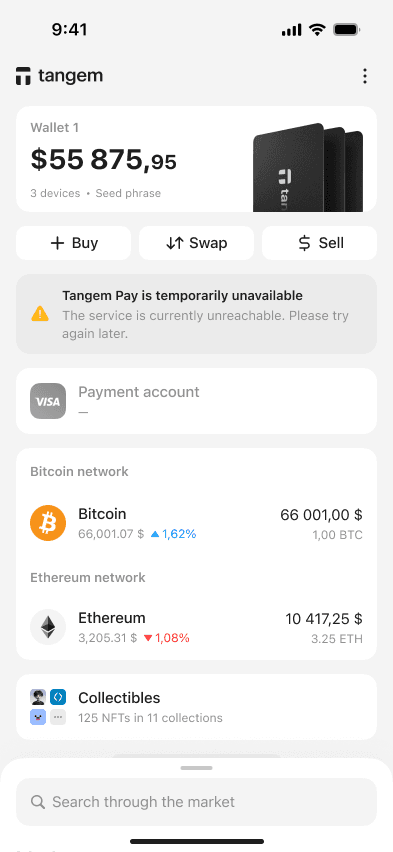
このメッセージはバックエンド障害時に表示されます。Tangem Payがカード発行やアカウント同期、PIN設定・更新、残高表示などのパートナーサービスに接続できません。
原因
- 発行元のメンテナンスや障害
- 予期しないシステム障害
- ネットワークのルーティング問題
対処方法
- 数分後に再度お試しください
- アプリを再起動
- モバイルデータやWi-Fi接続を確認
通常は短時間で復旧します。
Payment account sync needed
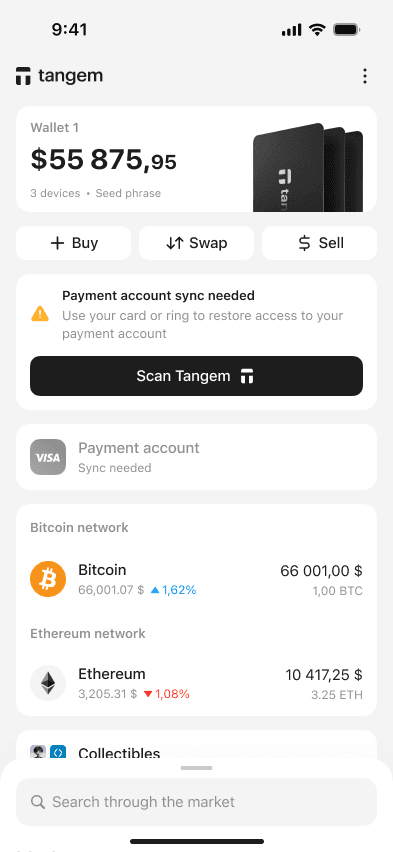
Tangem Walletをスキャンして、ウォレットとVisa決済アカウント間のセキュアなリンクを再確立してください。
原因
- 決済アカウントのセッション期限切れ
- アプリのリセットやログアウト
- 端末の切り替え
- 長期間同期していない場合
対処方法
- 「Scan Tangem」をタップ
- Tangem WalletをスマートフォンのNFCエリアにかざす
- セキュア同期が完了するまで待つ
これで決済アカウントの表示とアクセスが復元されます。
対処法まとめ
Error Message | Meaning | Recommended Fix |
Pin code unavailable | 発行元との接続エラー | 待機・アプリ再起動・再試行 |
PIN is not set | PIN設定失敗 | 数分後に再試行 |
Failed to issue card | Visaカードの発行失敗 | 再試行・アプリアップデート・解決しない場合はサポートへ |
Tangem Pay temporarily unavailable | サービス障害 | 待機して再試行 |
Payment account sync needed | セキュア再認証が必要 | 「Scan Tangem」で再同期 |