


 Switch to seedless. Get 30% off with SWITCH30 till Nov 02


How to Add a Crypto Card to Google Pay: Android Guide
This article is available in the following languages:

Tap-to-pay requires both a phone that supports Google Pay contactless payments and a crypto wallet app that issues a compatible debit card. Google Pay in-store payments require Android 9.0 or later, NFC, and Host Card Emulation (HCE). NFC is hardware-dependent, so some compatible Android phones lack it.
Google Pay may not work on rooted phones, custom ROMs, Android developer versions, or devices with unlocked bootloaders. Enable NFC and set Google Pay as your default payment app.
Check your phone by searching for Settings and turning on NFC. In Google Wallet, confirm Google Pay is the default. You also need a contactless payment method supported in your country; a compatible phone cannot make an unsupported card eligible.
Supported Crypto Card Issuers
Not all crypto wallets issue cards that work with Google Pay. Look for an "Add to Google Wallet" option in your app and follow the issuer's instructions.
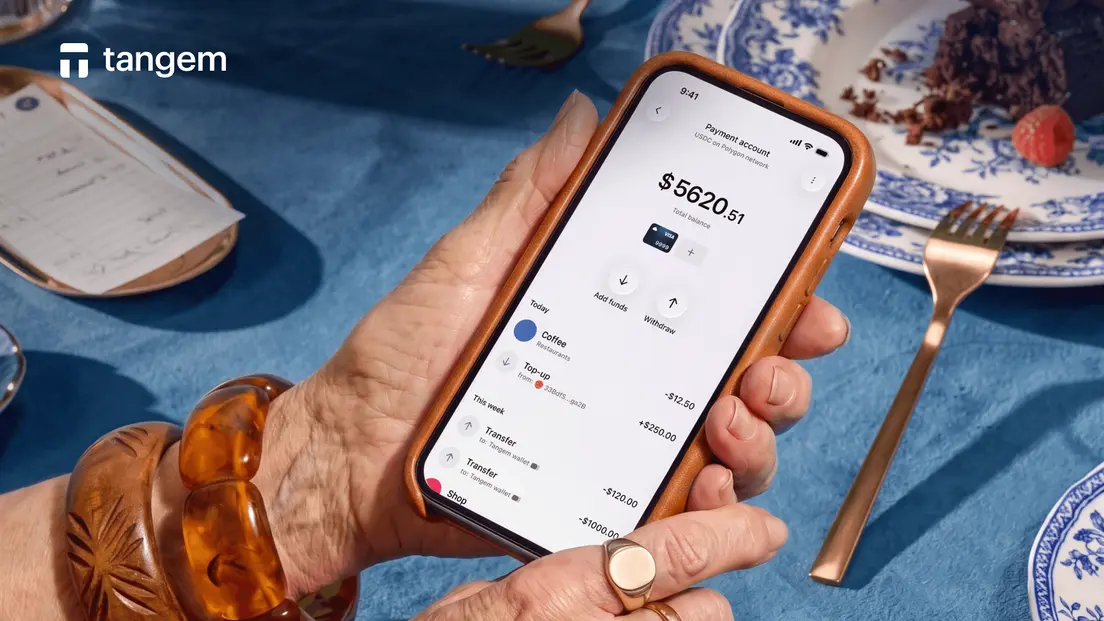
Tangem Pay is an optional, regulated payment feature integrated into the Tangem Wallet app. It provides a separate payment account funded with USDC or USDT held in non-custodial smart contract accounts. You can use a Visa card for purchases online or in-store, including through Apple Pay or Google Pay. Payments are processed through Visa and settled with merchants in fiat.
How to Set up Tangem Pay Crypto Card
Open your crypto wallet app and go to its card or payments section. For Tangem Pay, use its tab in Tangem Wallet.
Complete KYC and fund the account to display your Visa card.
Tap "Add to Google Wallet” and follow the provisioning steps. If the option is missing, ask the issuer whether it supports Google Wallet.
Enter the one-time verification code sent by SMS or email to activate the card.
For Tangem Pay, select “Get Started,” verify your identity with a government ID and face check through Sumsub, then send native USDC on Polygon from Tangem Wallet or another wallet. Funds are available after blockchain confirmation. Keep the card screen open during the Wallet handoff to check for the add-card option.
Making a Contactless Payment
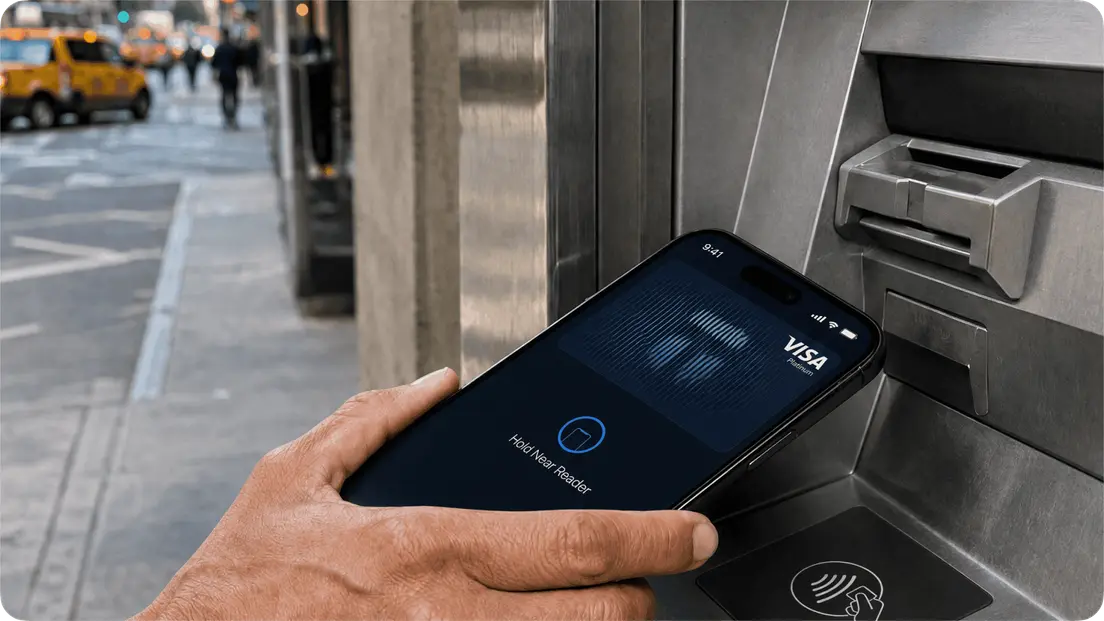
Unlock your phone and hold its back near the terminal. Google Wallet activates if it is your default payment app. The terminal processes a standard Visa transaction, and the merchant receives USD.
Tangem Pay converts USDC to USD at a 1:1 rate and routes payments through Visa.
Managing Your Crypto Card in Google Pay
In Google Wallet, tap your card and use the three-dot menu to select "Remove from this device.” This disconnects the phone but does not close the account or move your USDC. You can add the card again if the issuer and region still support it.
When changing phones, remove the card from the old device before adding it to the new one. The issuer account remains separate. Freezing a Tangem Pay card disconnects it from Visa but does not affect your on-chain USDC balance.
Troubleshooting
“Card not supported" may indicate that Google Wallet provisioning is unavailable in your region, your phone lacks Android 9+ or NFC, or it runs a non-certified ROM.
Check that NFC is on, Google Pay is the default, and Android is version 9.0 or later. If the phone meets these requirements, contact the issuer about provisioning and regional availability. If a verification code fails, wait a few minutes and request another.
Check the app and phone separately: card support may vary by region, and a phone can fail Google’s device checks even with NFC enabled. If the add-card button is missing, don’t enter card details manually; ask the issuer whether Google Wallet provisioning is available for your account and region.
Crypto cards in Google Pay: FAQ
-
Google Pay doesn't hold crypto natively. Instead, you add a crypto-backed virtual Visa card from your wallet app. Google Pay processes it as a regular card. The crypto conversion happens on your wallet provider's side.
-
Any supported Android phone running Android 9+ with NFC and HCE support can use Google Pay for contactless crypto card payments. Rooted devices and phones with unlocked bootloaders may not work even if they meet the OS and hardware requirements.
-
Tangem Pay uses USDC on Polygon as its payment balance. Its virtual Visa card spends from that funded account.
-
Your card issuer and Google Wallet both set regional eligibility. Check your wallet app's regional terms before setup.


Don't miss these 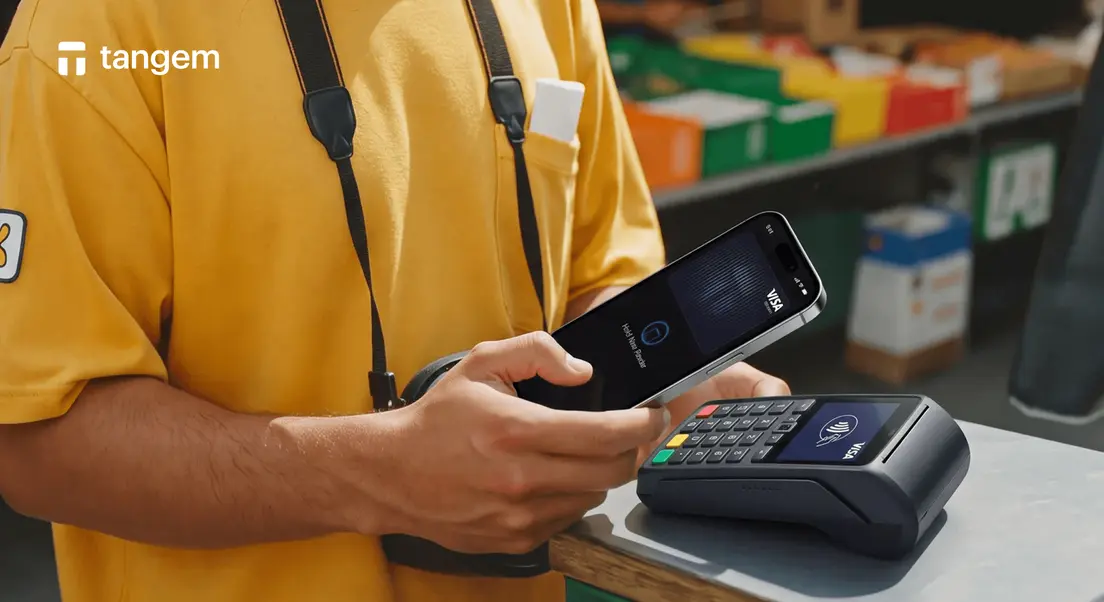



Other articles

