 Switch to seedless. Get 30% off with SWITCH30 till Nov 04


How to Activate an Old Tangem Wallet
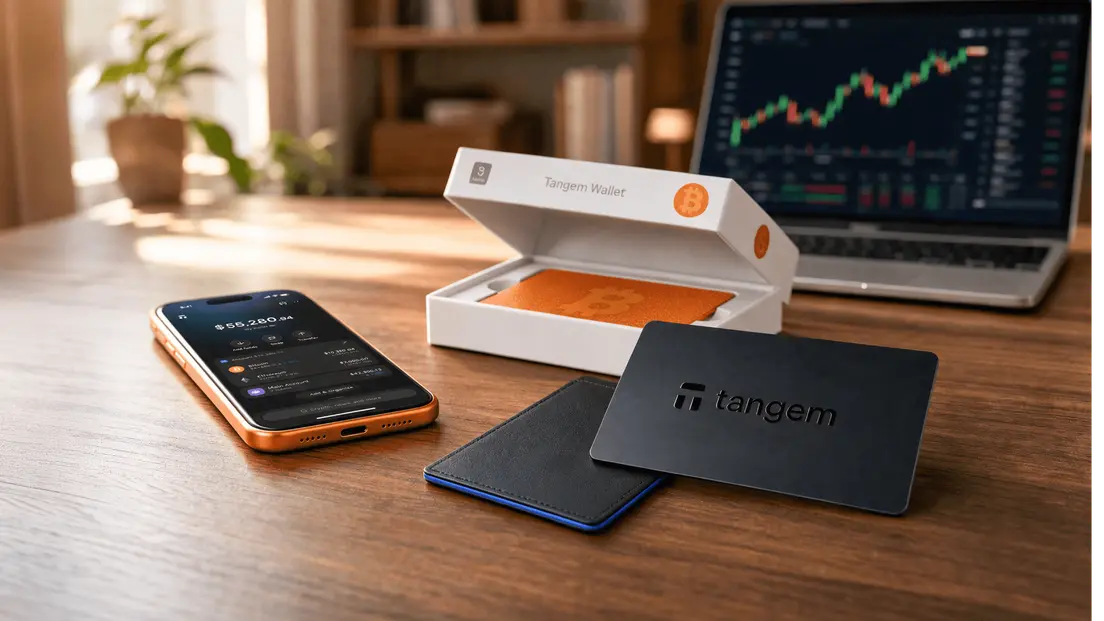
The original Tangem wallet cards were introduced in 2018. They were unique in design, resembling credit cards, and aimed to simplify cryptocurrency transactions. The older Tangem wallets were known for their easy setup process. Users could tap the card on a mobile device with NFC capability to initiate the wallet setup.
Even in their early versions, Tangem wallets supported multiple cryptocurrencies, allowing users to store different types of digital assets.
Here's how to set them up. First, ensure you have the latest version of the official Tangem app on your smartphone. To set up your Tangem Wallet without a seed phrase, you need an NFC-enabled smartphone and your Tangem Cards. Follow these steps to initialize the old Tangem Wallet:
Download and launch the official Tangem app.
Choose Scan.
Use your phone to scan the first card, then select Create wallet.
The Tangem card will then internally generate your private keys within its secure chip.
Now, it's time to create backups. We highly recommend starting the backup process immediately. You can back up your keys to your other Tangem cards. It's best to use all 2 or 3 cards to prevent any future issues.
Select Add a backup card.
Scan the second card using your smartphone.
If you have a third Tangem card, select Add a backup card, scan the third card, and then select Finalize the backup. Next, you must create an access code to safeguard your cards against brute-force attacks.
Select Continue to set an access code.
Enter your chosen access code. You can use any word, phrase, or number, and then select Continue. You can also set a unique access code for each card later.
Re-enter your access code and select Submit.
Click Scan the primary card and tap the card with the specified number on your phone. The app will scan the card for 15 seconds.
Now, scan the first backup card. Pay attention to the last four digits of each card.
Scan the second backup card.
And finally, select Continue to my wallet.
Congratulations! Your Tangem Wallet has been successfully set up. We hope you enjoy using all its features. Thank you for choosing Tangem..
Old Tangem cards FAQ
-
Yes. The original credit-card-shaped Tangem wallets introduced in 2018 can still be activated: install the latest version of the official Tangem app on an NFC-enabled smartphone, scan the card, and tap Create wallet. The card generates its private keys inside the secure chip.
-
Download and launch the Tangem app, choose Scan, scan the first card, and select Create wallet. Then add backup cards by scanning each one, finalize the backup, and create an access code to protect the cards from brute-force attacks.
-
Yes. You can back up the keys to the other cards in the set, and using all 2 or 3 cards is recommended to prevent future issues. During finalization you scan the primary card and then each backup card, paying attention to the last four digits shown for each.
-
Yes. You set one access code during setup, and you can later assign a unique access code to each card if you prefer separate codes per device.


Don't miss these 


Other articles

