


 Switch to seedless. Get 30% off with SWITCH30 till Nov 02


How to Add a Crypto Card to Apple Pay: Step-by-Step (2026)
This article is available in the following languages:

A virtual card exists digitally rather than on plastic. It has the same details as a physical card: a card number, expiration date, CVV, cardholder name, and billing address. Because it lives in an app, it can be added directly to Apple Wallet for contactless payments or used online by entering those details at checkout.
Before you add anything to Apple Pay, check three things:
- Your iPhone supports NFC (iPhone 6 or later does)
- Your crypto wallet app is installed, and your account is active
- Your virtual card has a funded balance
No balance means the transaction is declined at the terminal, just like a regular card running low on funds.
Compatible Devices
Apple Pay works on iPhone, iPad, Mac, and Apple Watch. For in-store contactless payments, you'll use an iPhone or an Apple Watch. The NFC chip handles the tap; authentication uses Face ID, Touch ID, or your Apple Watch passcode.
Supported Crypto Cards
Not every crypto card can be added to Apple Wallet. The card must be issued on the Visa or Mastercard network, and the issuer must support digital wallet provisioning. The practical test: open your wallet app and look for an "Add to Apple Wallet" button on the card screen. If it's there, provisioning is supported. If it isn't, the card program doesn't allow it yet.
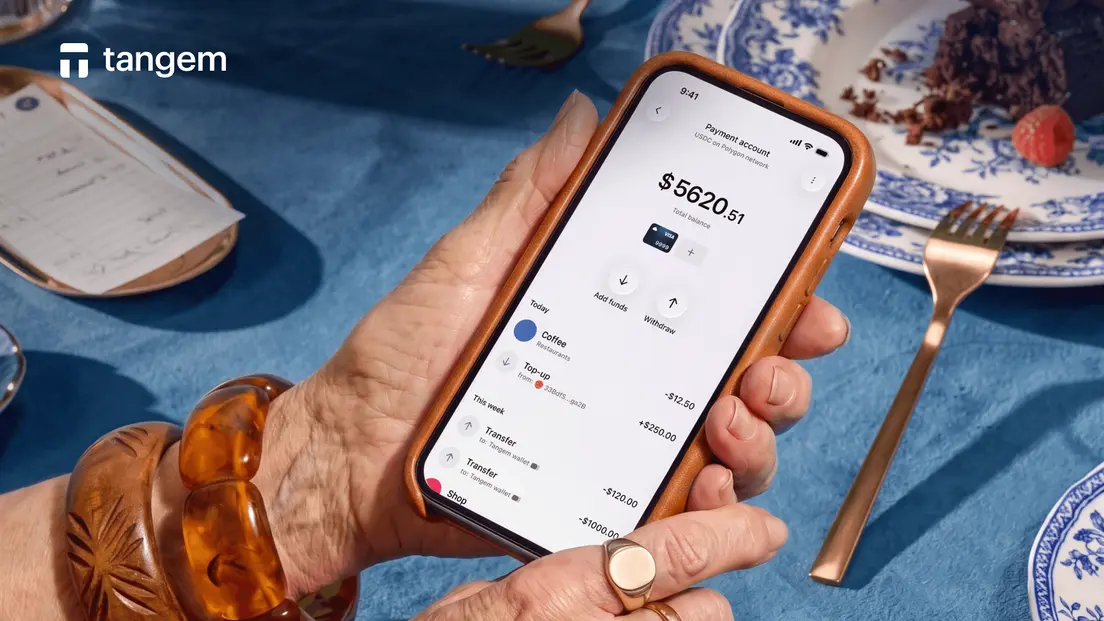
Tangem Pay is an optional, non-custodial regulated payment feature in the Tangem Wallet app, launched in December 2025.
The Visa card can be added to Apple Pay or Google Pay. Funds are held in stablecoins at the time of purchase and are converted 1:1 to USD. The merchant receives USD. The Visa network processes the transaction like any other card payment.
Step-by-Step: Adding Your Crypto Card to Apple Pay
Here's the sequence:
Step 1: Open Your Crypto Wallet App
Launch the app that issued your virtual card. Make sure you're logged in and that your card account is active. If your provider requires KYC (identity verification), that step must be completed before the card is usable.
Step 2: Navigate to Your Virtual Card
Find the card section of the app. You'll see your virtual card details: the card number, expiration date, and CVV. This is the card you're adding to Apple Wallet.
Step 3: Tap "Add to Apple Wallet"
Look for an "Add to Apple Wallet" button on the card screen. Tap it. Your app will hand off to the Apple Wallet provisioning flow. You may be asked to agree to the card issuer's terms at this point.
Step 4: Verify and Activate
Apple Wallet will ask you to verify the card. This usually means confirming via a one-time code sent to your email or phone, or completing a short verification step inside the wallet app. Once verified, the card appears in Apple Wallet and is ready to use.
That's it. Four steps from app to wallet.
Making Your First Crypto Payment with Apple Pay
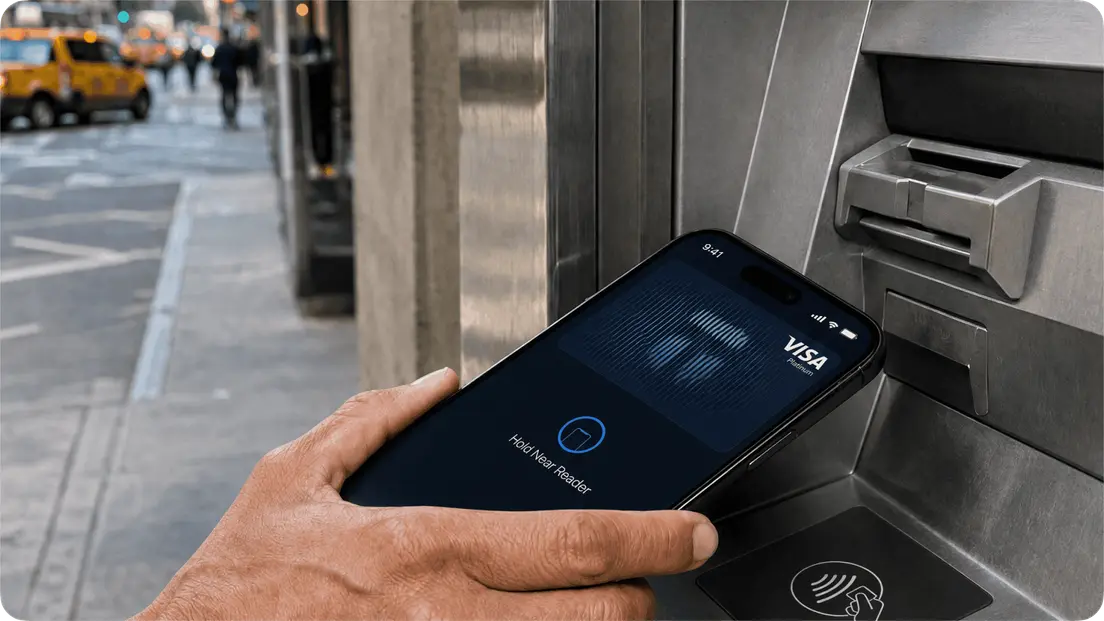
Walk up to any NFC-enabled payment terminal. Double-click the side button on your iPhone (or raise your wrist on Apple Watch), authenticate with Face ID or Touch ID, and hold the device near the terminal. Apple Pay sends the card credentials over NFC.
The terminal processes a standard card transaction. The merchant receives fiat currency, not cryptocurrency. Your card balance decreases by the purchase amount. If your balance is too low, the transaction is declined, and nothing is charged. The remaining balance stays on the card.
Using Crypto Apple Pay on Apple Watch
A virtual card provisioned to Apple Pay works on Apple Watch, subject to the card issuer's Apple Pay support. Once the card is in Apple Wallet on your iPhone, open the Watch app, go to Wallet & Apple Pay, and add the card to your watch.
At the terminal, double-click the side button on the watch and hold it near the reader. This is the most convenient setup for quick purchases: no phone required, no unlocking, just a tap.
Troubleshooting Common Issues
The "Add to Apple Wallet" button doesn't appear. Your card program may not support digital wallet provisioning. Contact your card issuer to confirm.
The card was added but payment is declined. Check your balance first. If the balance is sufficient, confirm the card is set as your default card in Apple Wallet, or select it manually before tapping.
The terminal doesn't respond to the tap. Not every terminal supports NFC. Older point-of-sale hardware may require a physical card or chip insertion. A virtual-card-only setup has no fallback in that situation.
- Your phone dies mid-purchase. Apple Pay requires a powered device. If your battery is dead, you can't pay. A virtual-card-only setup doesn't give you the independent fallback that a physical card would.
These aren't edge cases. There are real limits to plan around.
Crypto cards in Apple Pay: FAQ
-
Crypto cards issued on the Visa or Mastercard network that support digital wallet provisioning can be added to Apple Pay. Check your wallet app for an "Add to Apple Wallet" button. If it's there, your card is compatible.
-
Apple Pay does not process cryptocurrency directly; a crypto-backed card turns a funded card balance into a standard card transaction.
-
The service itself charges no fees. Your crypto card provider may charge a conversion spread when converting crypto to fiat. Standard Visa/Mastercard foreign exchange markups may apply for international purchases.
-
The transaction will be declined, just like a regular card with insufficient funds. Most wallet apps let you set up alerts so you know when your balance is running low.


Don't miss these 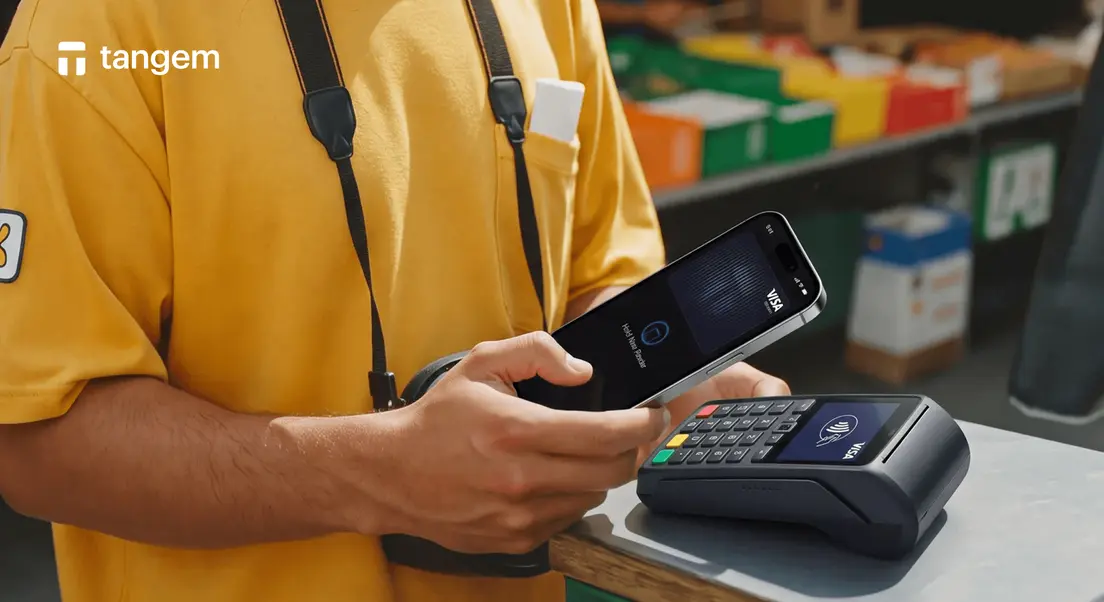




Other articles

