


 Switch to seedless. Get 30% off with SWITCH30 till Oct 26
How to Use the Address Book in Tangem Wallet
This article is available in the following languages:
Crypto addresses are long strings of random characters. You must copy and paste the address every time you send funds to the same recipient. A single wrong character can send your funds to the wrong place.
Tangem Wallet now has an Address Book. The Address Book lets you save a recipient's address one time. You can then select the address for any future transfer, instead of copying and pasting it again.
The Address Book is a good solution for recurring transfers. Recurring transfers include sending funds to the same exchange account, to another personal wallet, or to a trusted recipient. The Address Book makes the Send flow more convenient, reduces the risk of manual errors, and increases your confidence when you work with wallet addresses.
This guide shows two tasks. The first task is how to add and save an address. The second task is selecting a saved address when you send crypto.
What is the Address Book?
The Address Book is a list of saved addresses in Tangem Wallet. You can add an address to the list one time. You can then select the address for any future transfer.
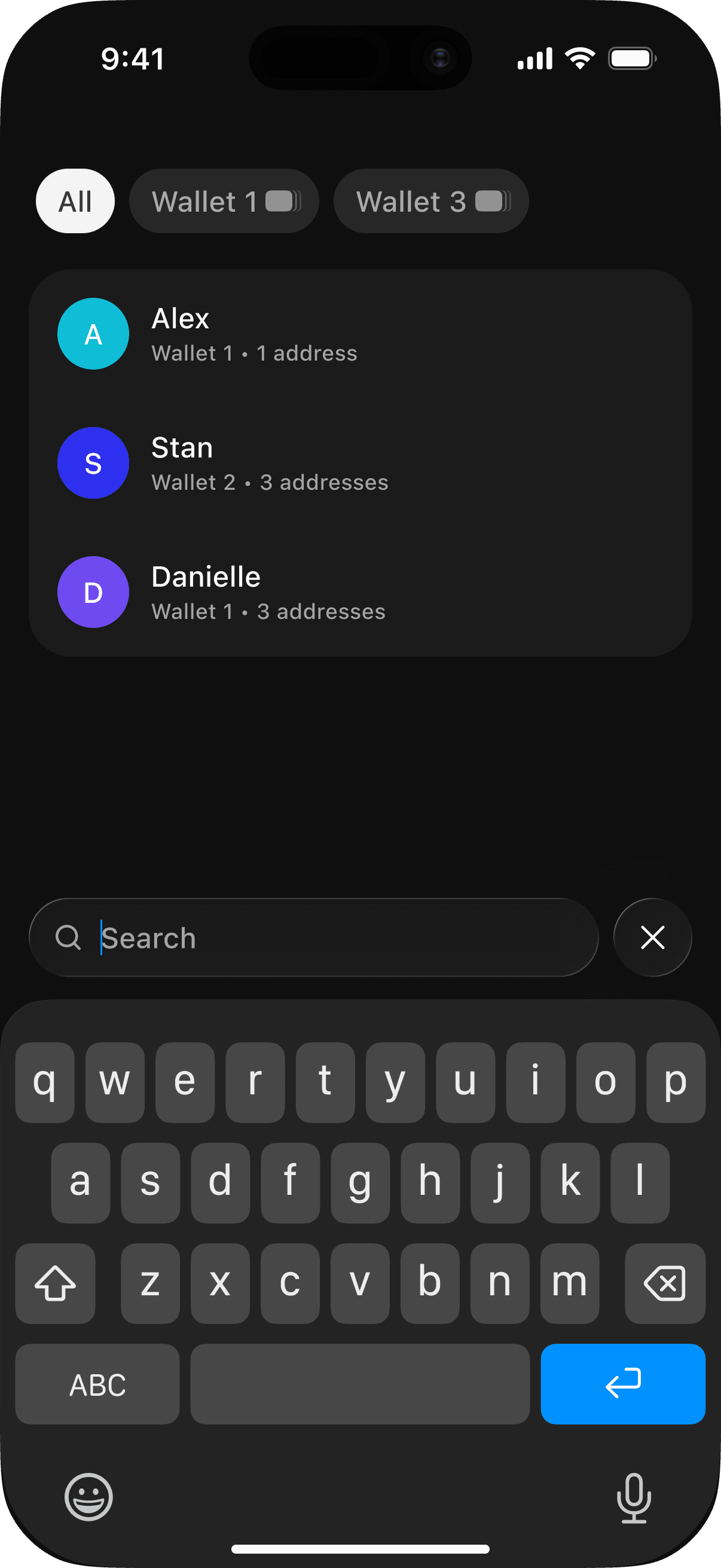
The Address Book helps with recurring transfers. Recurring transfers include sending funds to the same exchange account, to another personal wallet, or to a trusted recipient.
How to Add and Save an Address
Follow these steps to add a new address to the Address Book.
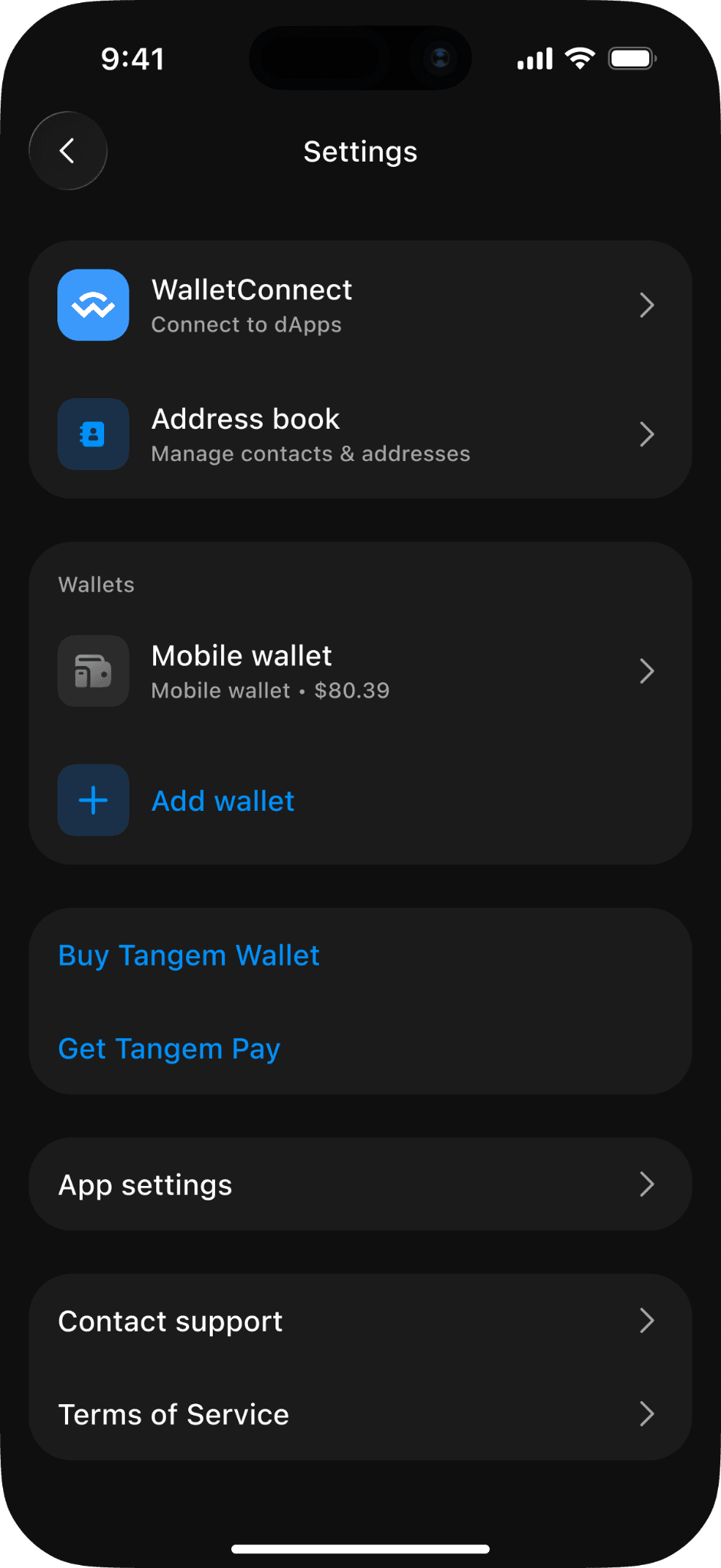
- Open the Tangem app and tap the three dots at the upper-right corner of the homepage.
Tap Address book.
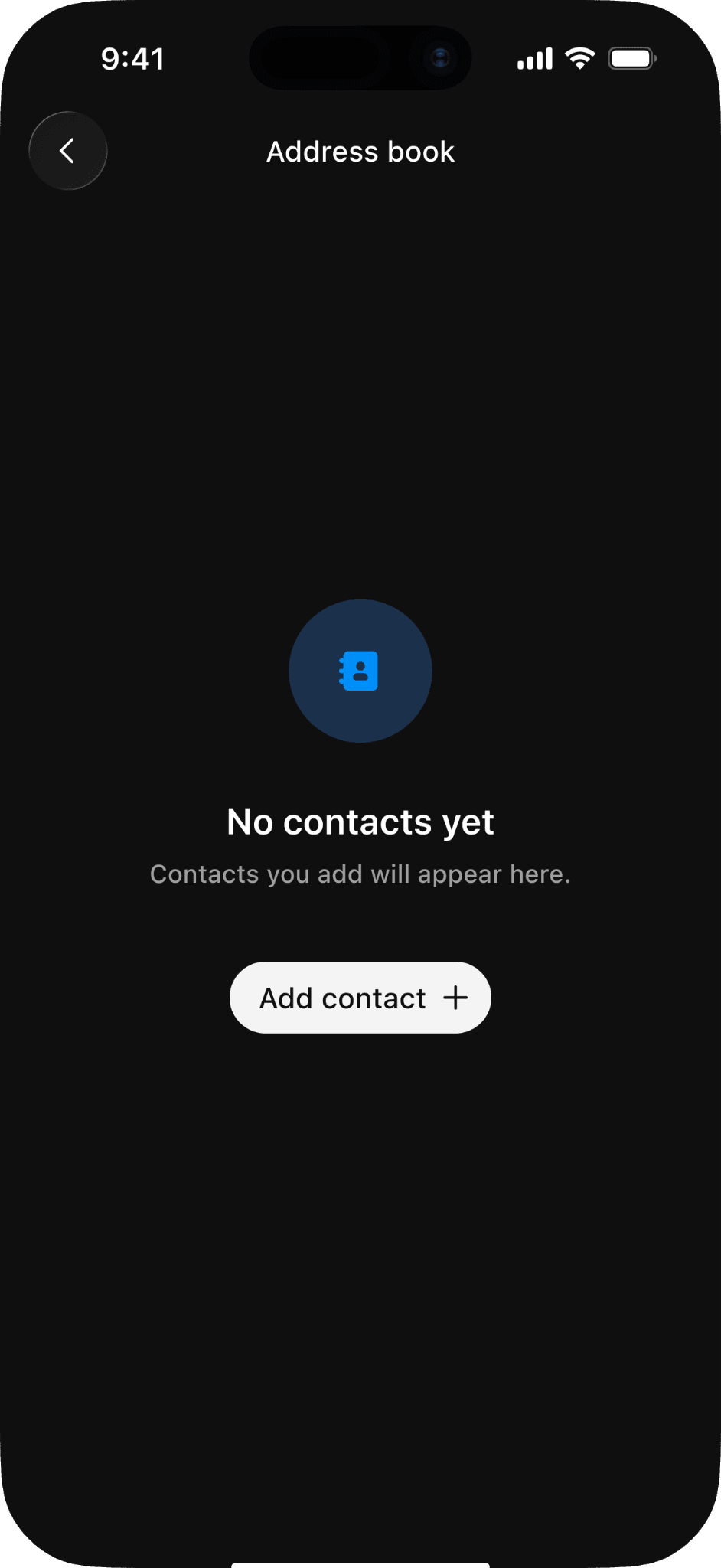
Tap Add contact +.
Enter a name for the address. Use a name and color that help you identify the contact.
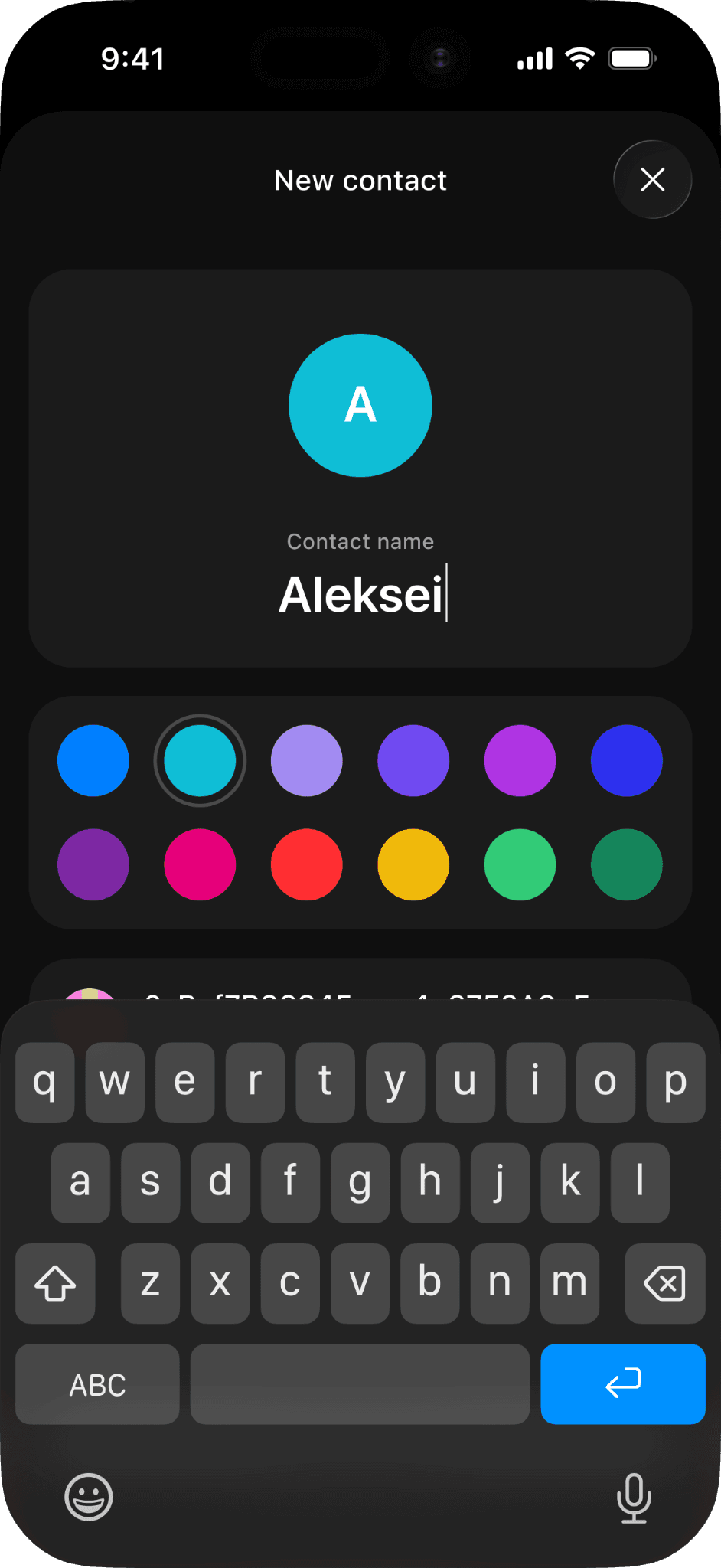
Enter the contact address. You can also paste the address or scan a QR code.
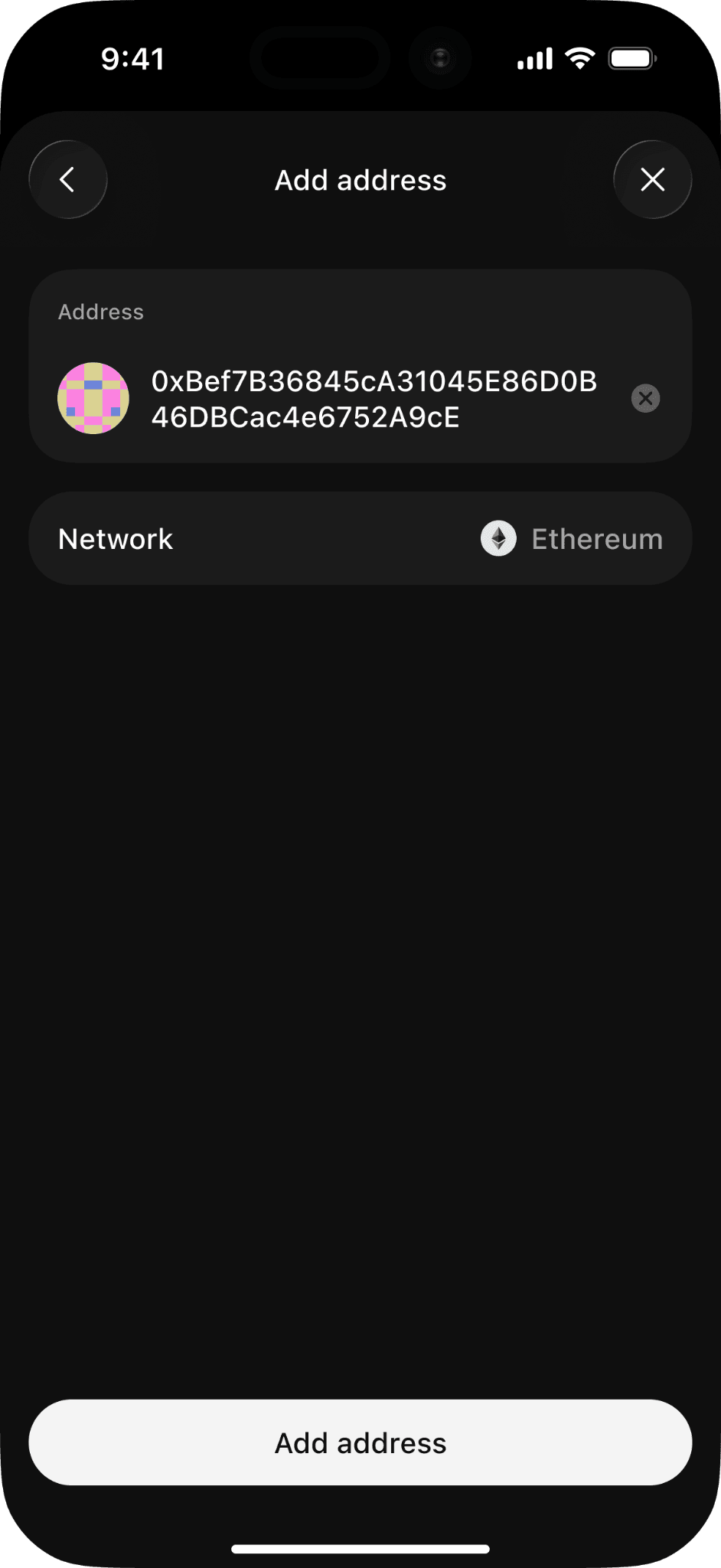
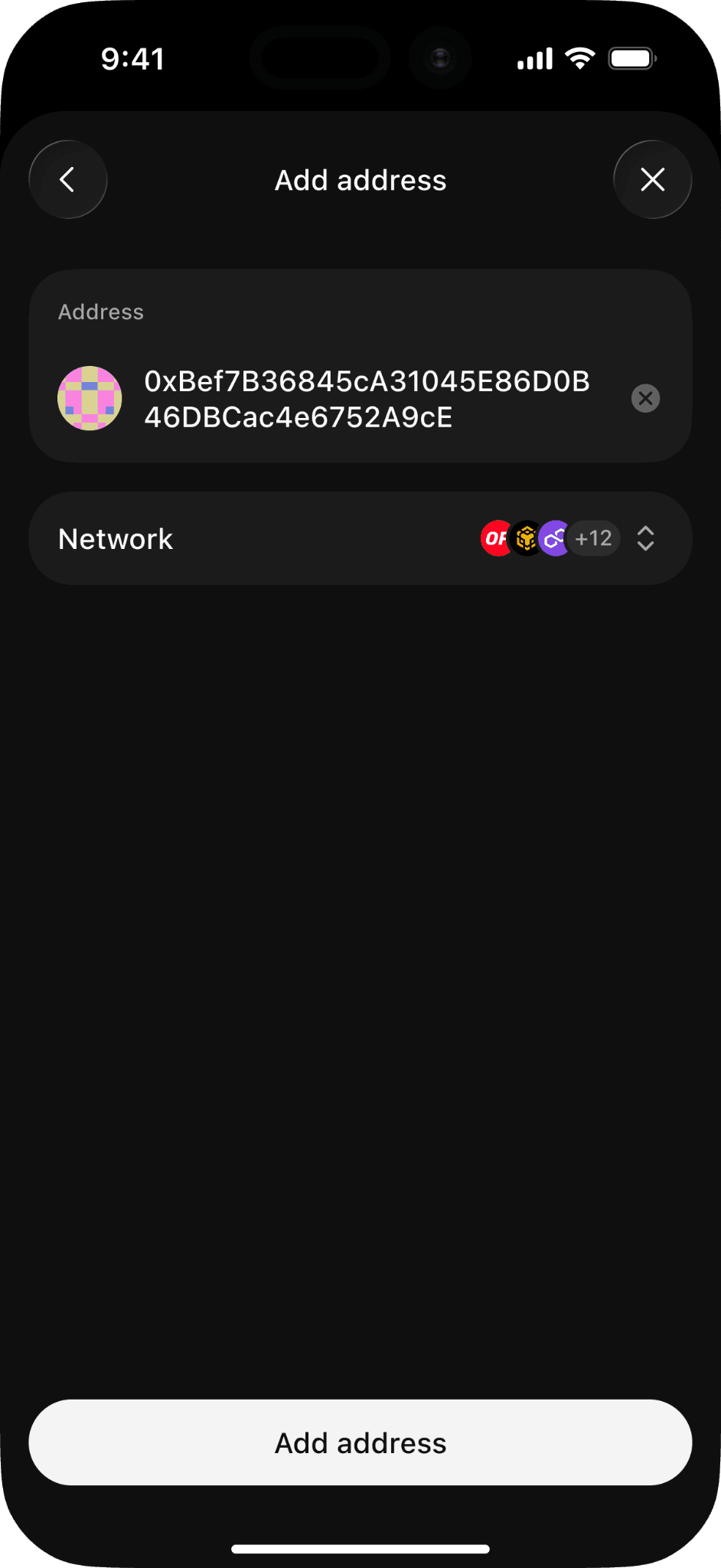
Select the network for the address. You can add multiple networks.
Choose the wallet you want to save the contact to and tap Add contact.
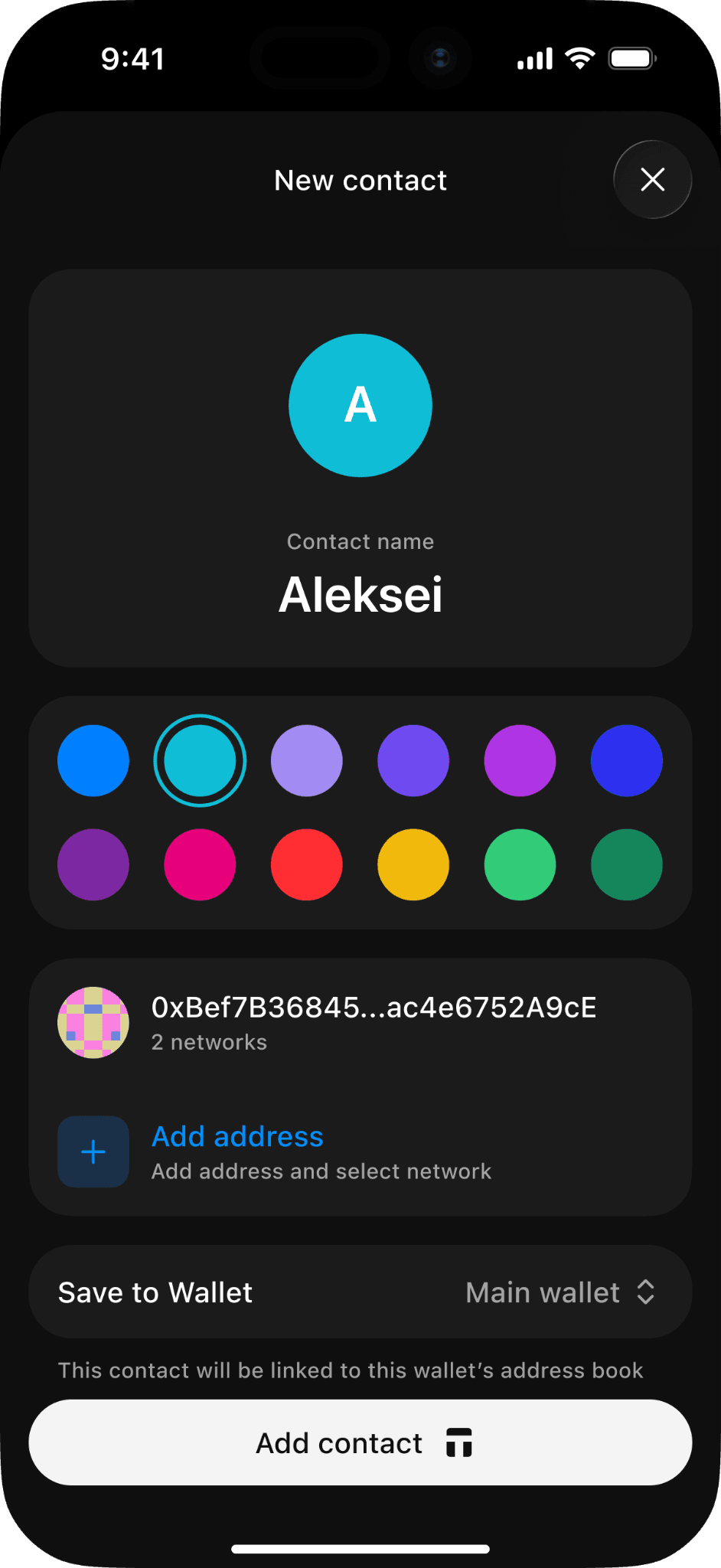
- Enter your biometrics/access code and scan your Tangem hardware (if applicable) to save the contact to the Address book.
The app adds the address to your Address book. You can now select this address in any future transfer.
How to Choose an Address When Sending
Follow these steps to send crypto to a saved address.
- Open Tangem Wallet.
- Tap Transfer.
- Select the asset that you want to send.
- Tap Send.
- Enter the amount.
- Select a saved contact from the list in the Address book bar. (The app fills in the recipient address for you. You do not need to type or paste the address.
- Check the network. Confirm that you’re sending to the correct one.
- Review the transaction details.
- Confirm and send the transaction.
How to Manage Saved Addresses
You can edit or remove a saved address at any time.
- Open the Tangem app and tap the three dots at the upper-right corner.
- Go to the Address book.
- Tap the contact that you want to manage.
- Tap the name to change it
- Tap the address to remove or edit it
- Tap Delete contact to remove the contact from the Address book.
- Confirm saved changes with biometrics/access code, and scan your Tangem hardware (if applicable).
The Address Book saves your trusted addresses in Tangem Wallet. You can add an address one time and reuse it for future transfers. The feature makes the Send flow faster, reduces the risk of errors, and increases your confidence for repeat transactions.
FAQ
-
Yes. You can save an address for each network that you use.
-
The app validates the address format. The app cannot confirm the recipient's identity. Always check the address before you confirm a transfer.
-
No. Your Address Book syncs between your devices in encrypted form. Tangem does not store your saved addresses on a server.
-
The Address Book supports the assets and networks available in Tangem Wallet. Check the app for the current list of supported assets.
-
The Address book can hold up to 20 addresses per contact. The number of contacts is unlimited