 Переходьте на seedless. Знижка 30% з SWITCH30 до 26 жовт.
How to Back Up to iCloud or Google Drive
Cloud Backup lets you securely store an encrypted backup of your Tangem Mobile Wallet in your iCloud (iOS) or Google Drive (Android) account. Your wallet can then be restored on another device using the same Apple ID or Google Account.
Your recovery phrase is encrypted before being uploaded to the cloud. Only you know the password used to encrypt the backup, and Tangem cannot access or recover it.
Before you begin
- Cloud Backup is available for Tangem Mobile Wallet only.
- Your backup is encrypted with a password that you create.
- You must remember this password. If you lose or forget it, your cloud backup cannot be restored.
- Cloud Backup only works within the same ecosystem:
- iCloud → iCloud (iOS)
- Google Drive → Google Drive (Android)
- Restoring a backup between iOS and Android is not supported. To move between platforms, use your recovery phrase instead.
Step-by-step guide
Choose one of the following ways to start:
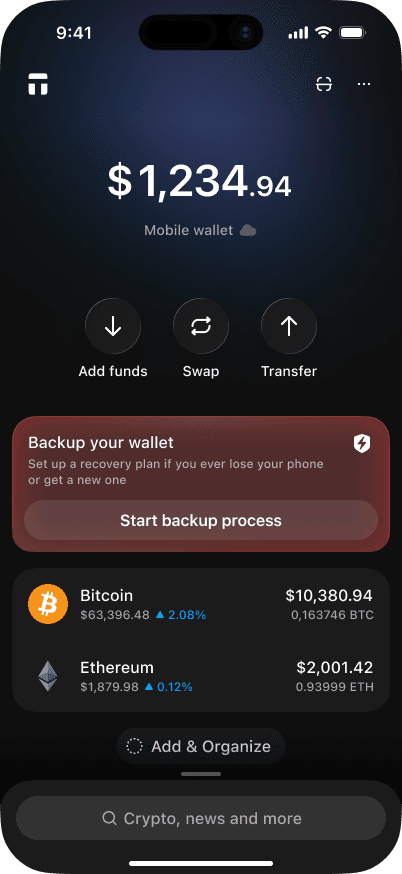
From the backup notification:
On the wallet home screen, tap Start backup process in the notification below the total balance, if available.
From the wallet settings:
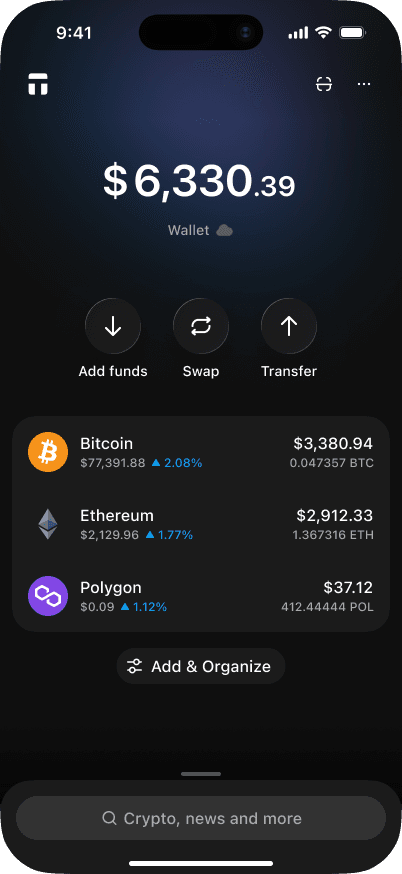
On the wallet home screen, tap the three dots in the upper-right corner.
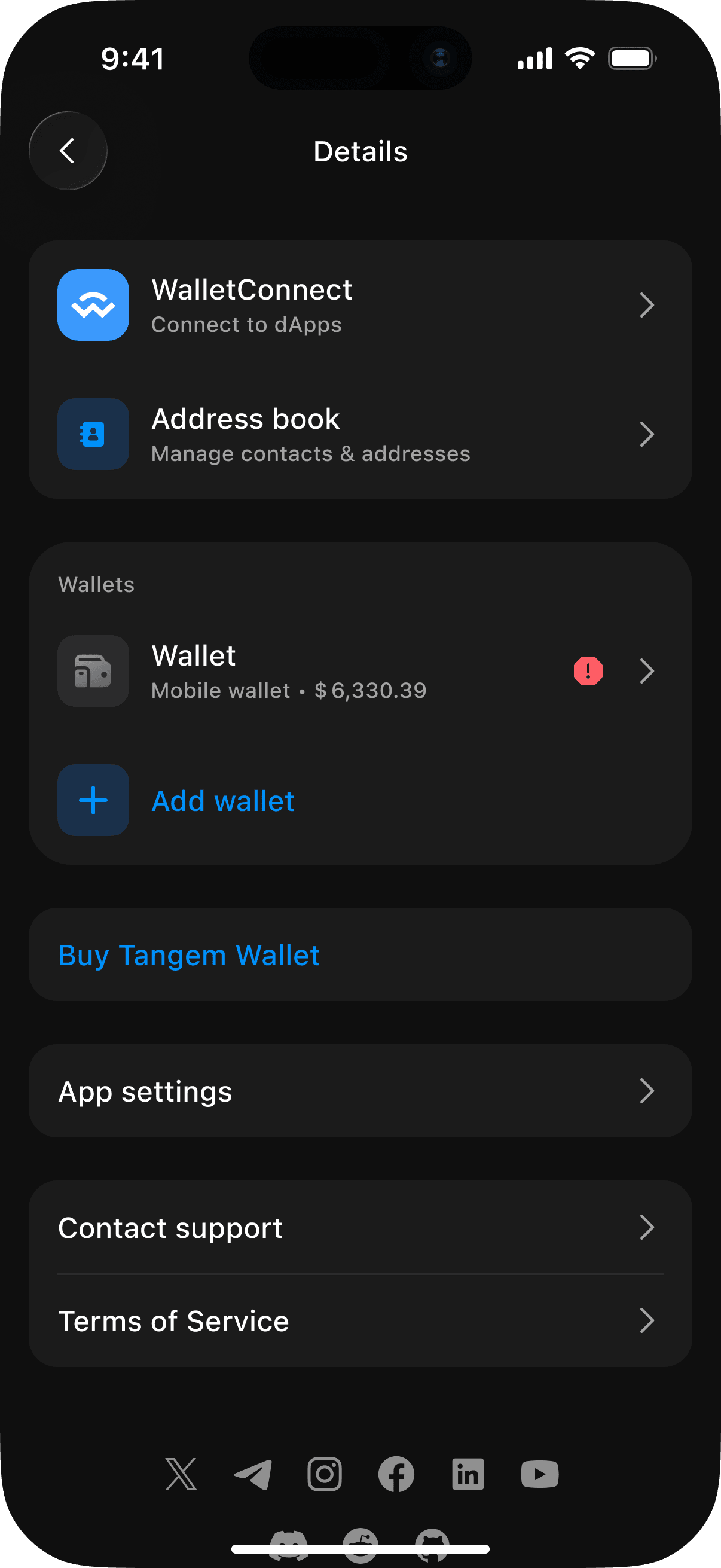
Select the Mobile Wallet you want to back up.
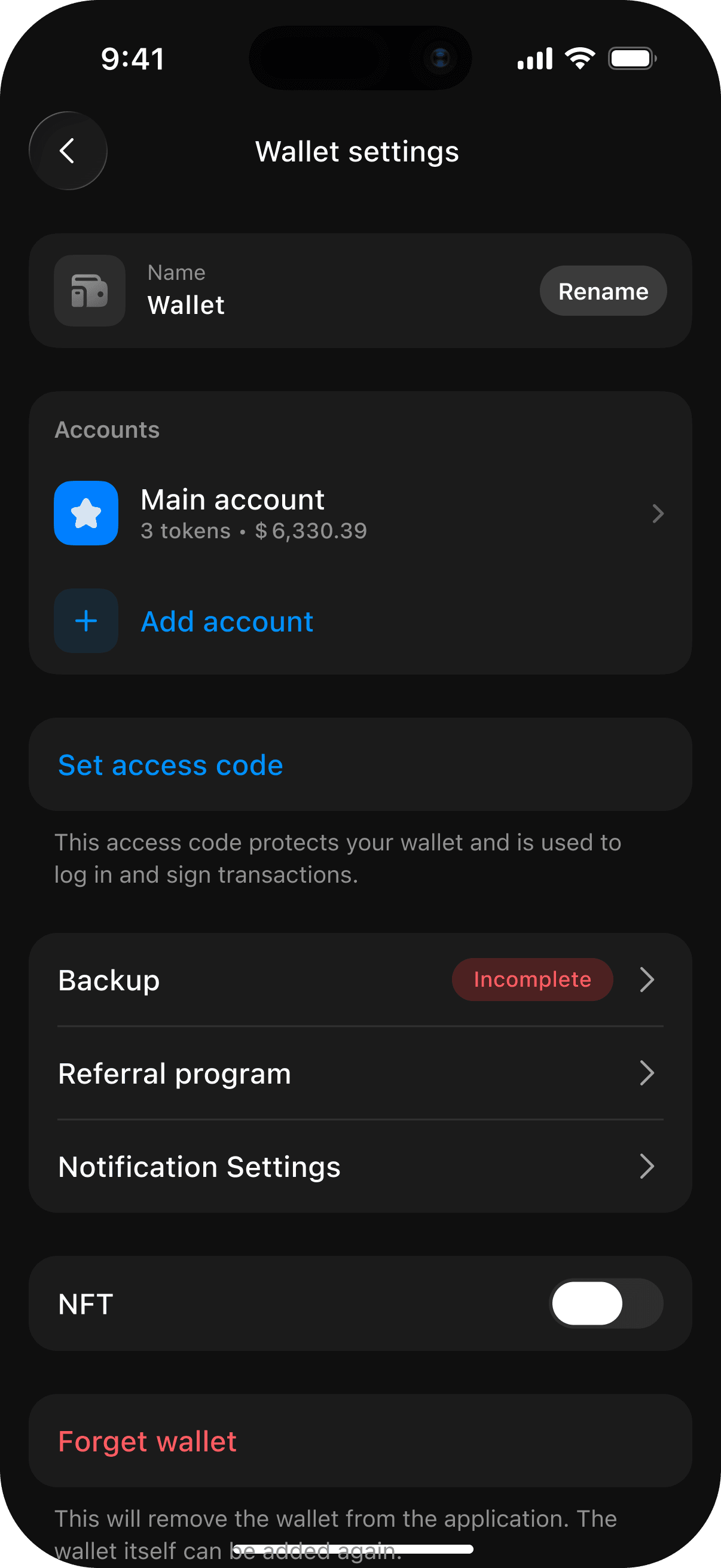
Tap Backup.
Then:
Select iCloud Backup.
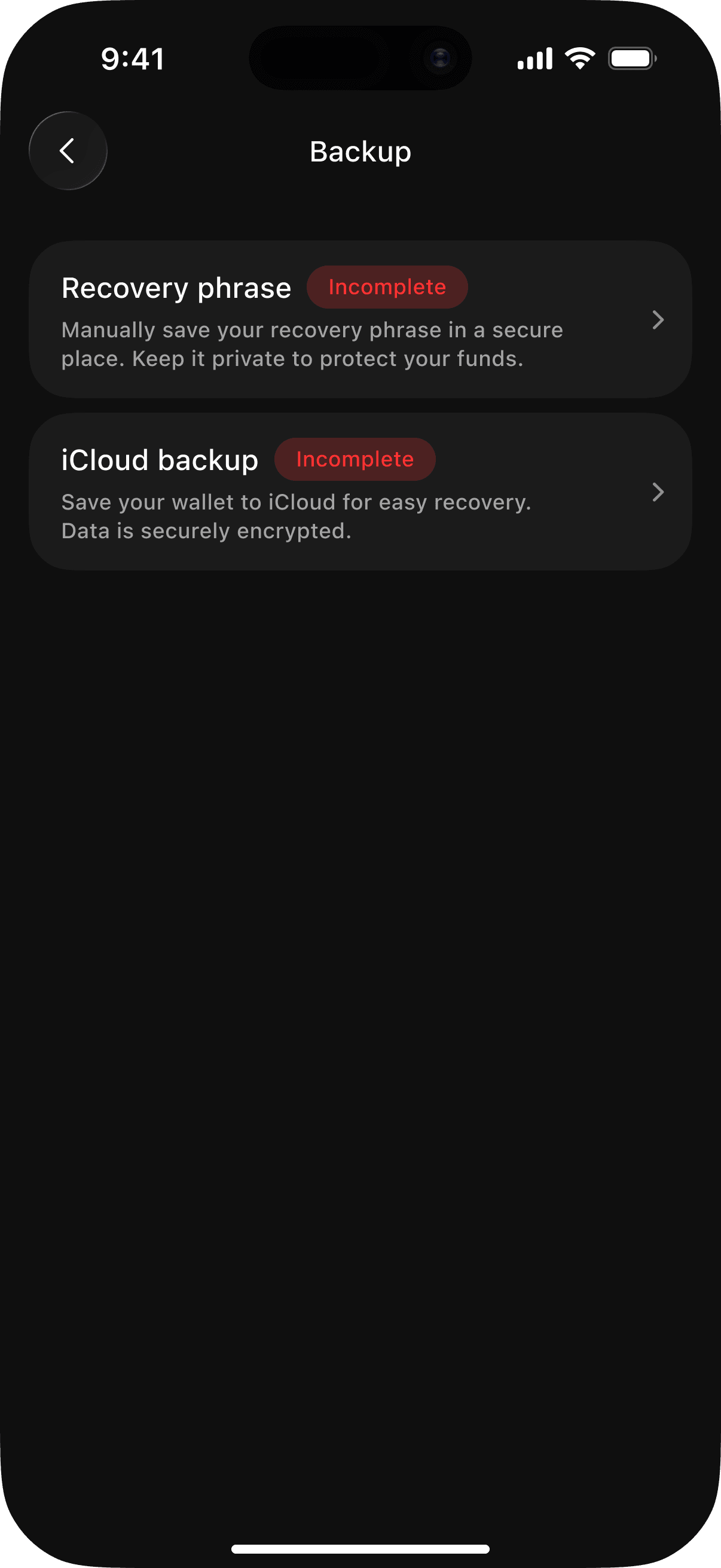
Create a password to encrypt your backup.
The password must contain at least 8 characters, including uppercase and lowercase letters, numbers, and symbols.
Weak and average passwords cannot be used.
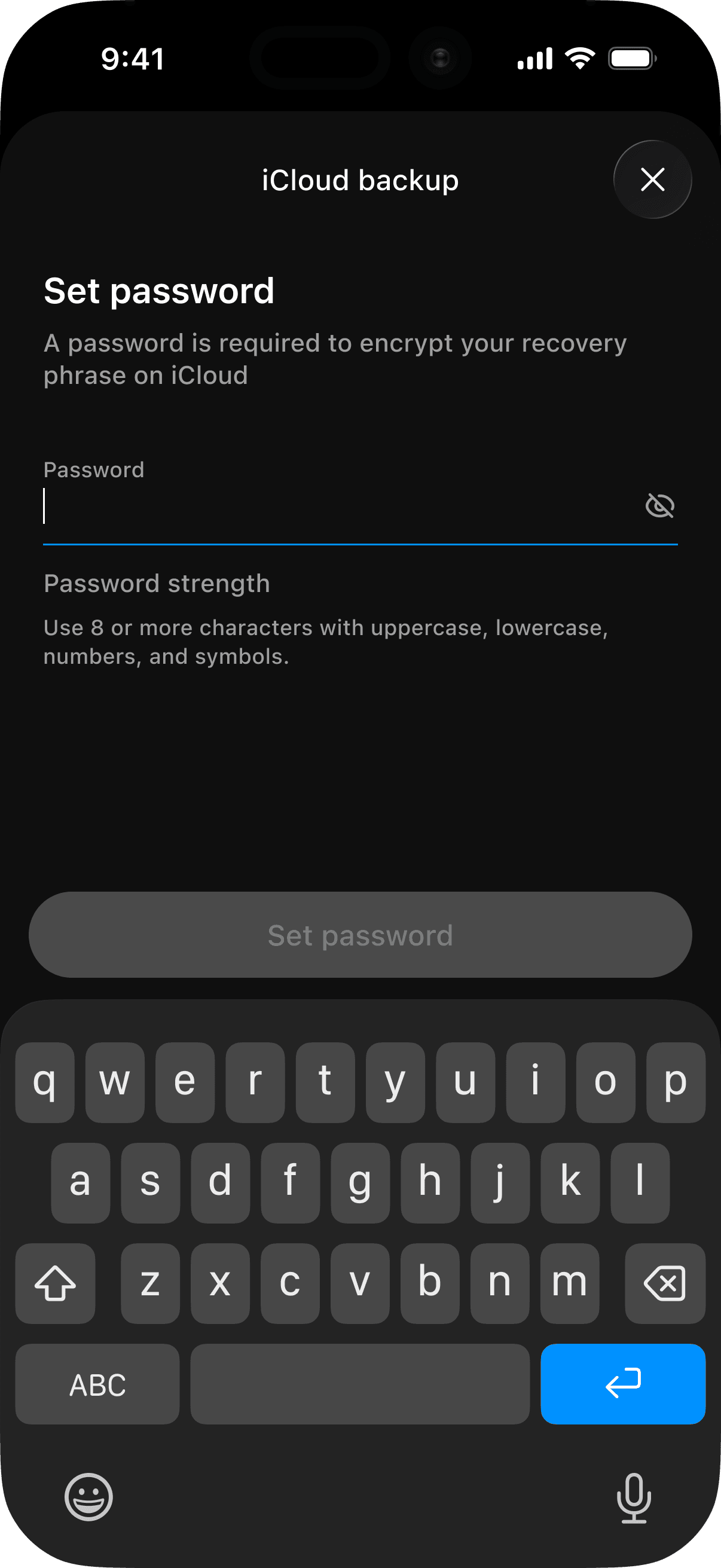
Confirm the password.
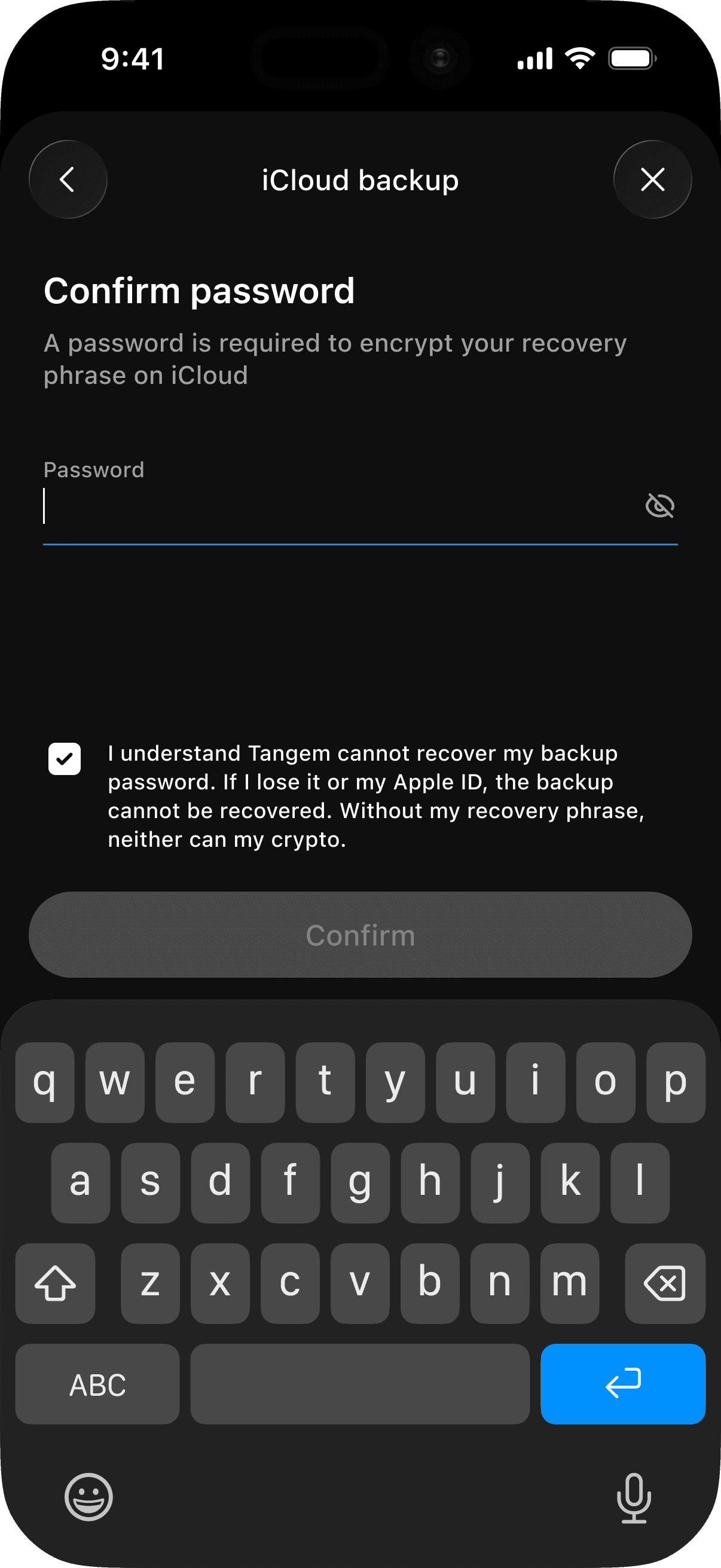
Read and acknowledge the warning that you will not be able to restore the backup if you forget the password. Tap Confirm.
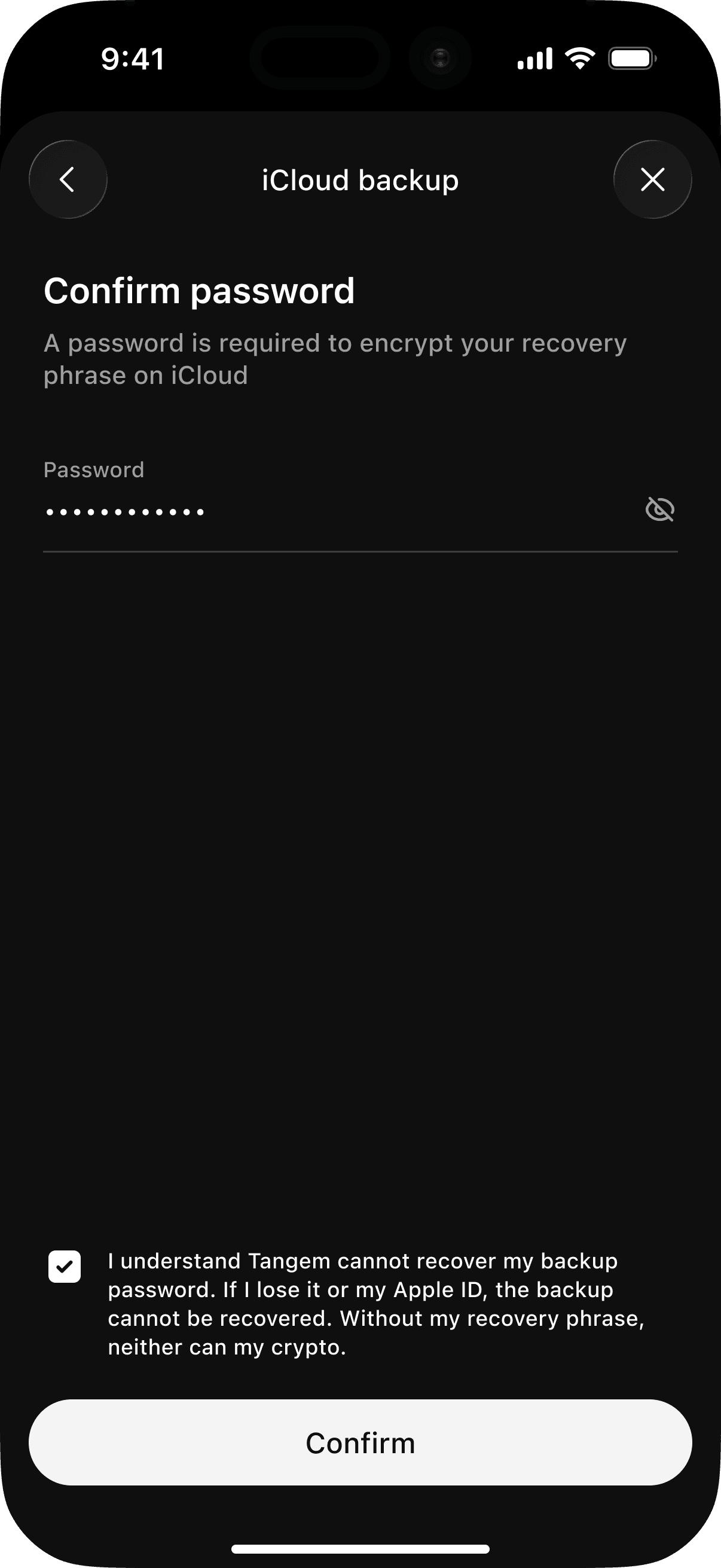
- If prompted, confirm the action using your access code or biometrics.
Your wallet is now securely backed up to iCloud.
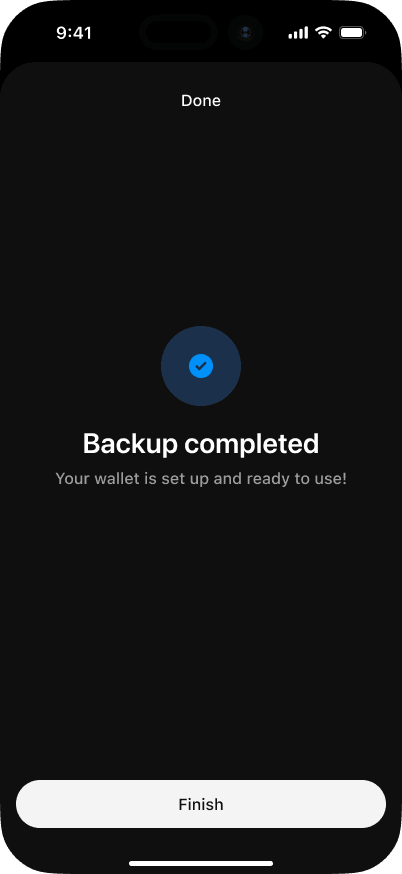
Important: Do not delete the backup file from iCloud. Deleting it may permanently prevent you from restoring your wallet.
Note: After the backup is created, your phone may offer to save the backup password in its password manager — iCloud Keychain on iPhone or Google Password Manager on Android. This is an optional system feature managed by your device, not by Tangem, and it is not required to complete the backup. Whether you save the password there or not, you must still be able to provide it to restore the wallet — Tangem cannot recover it for you.
Choose one of the following ways to start:
From the backup notification:
- On the wallet home screen, tap Start backup process in the notification below the total balance, if available.
From the wallet settings:
On the wallet home screen, tap the three dots in the upper-right corner.
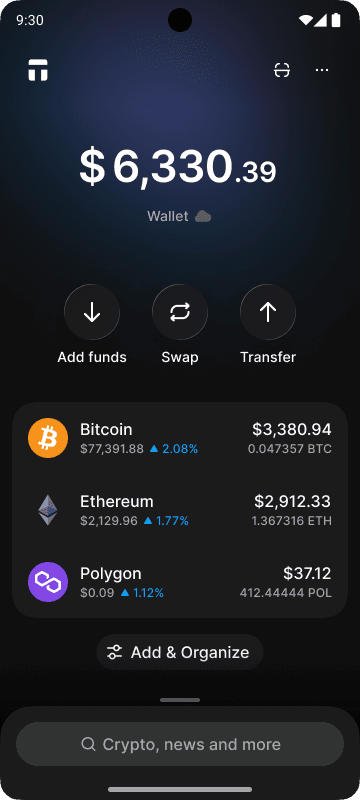
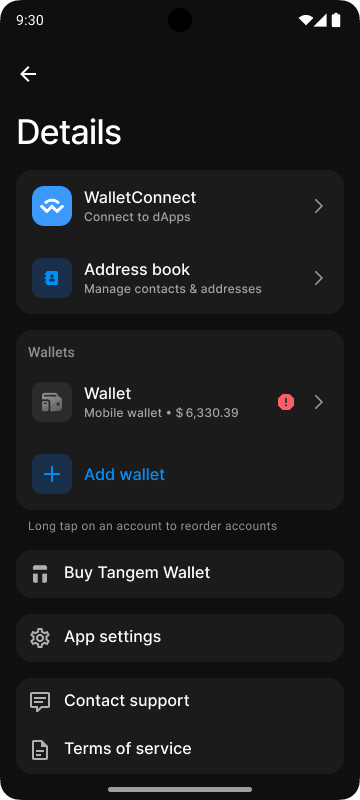
Select the Mobile Wallet you want to back up.
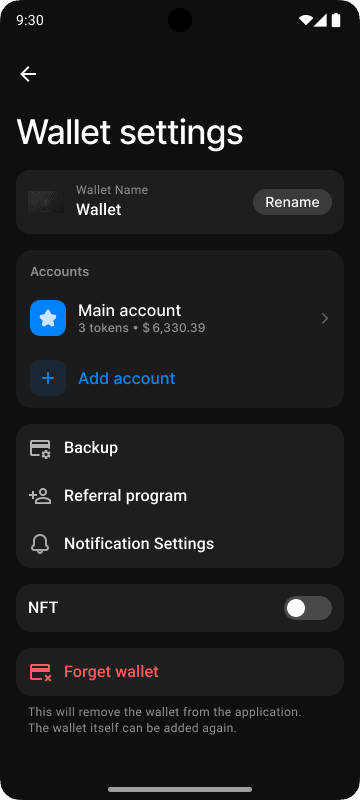
Tap Backup.
Then:
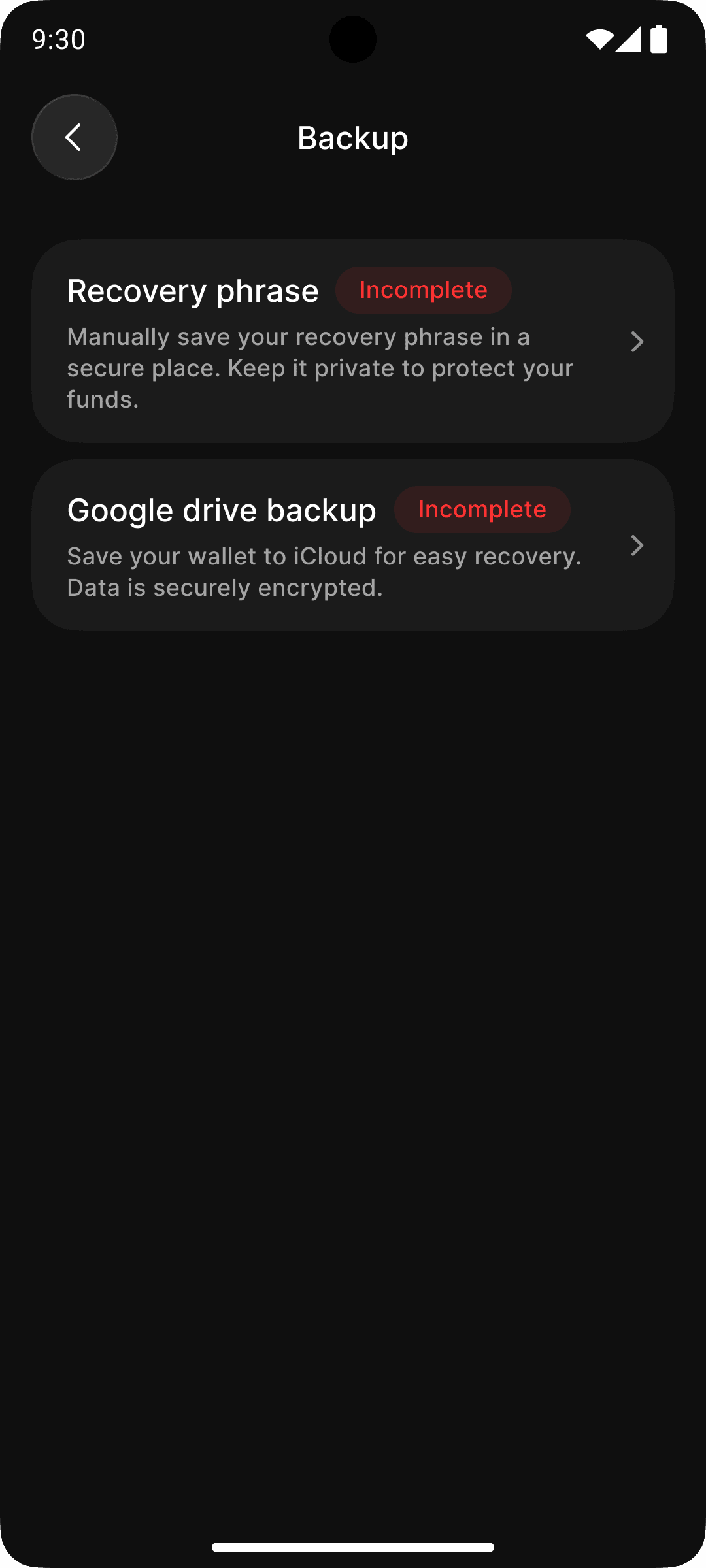
Select Google Drive Backup.
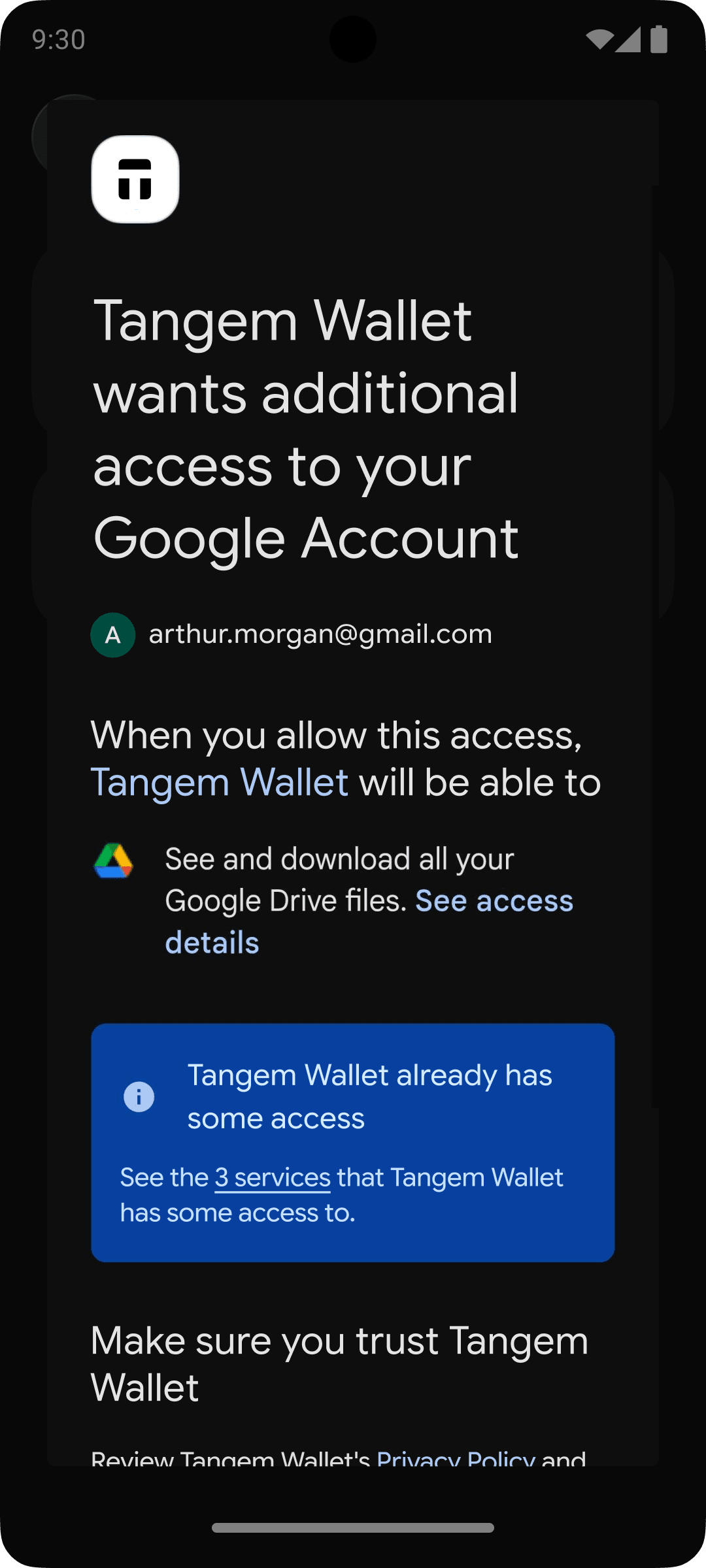
Grant the Tangem app the required permissions to save the backup file to your Google Drive.
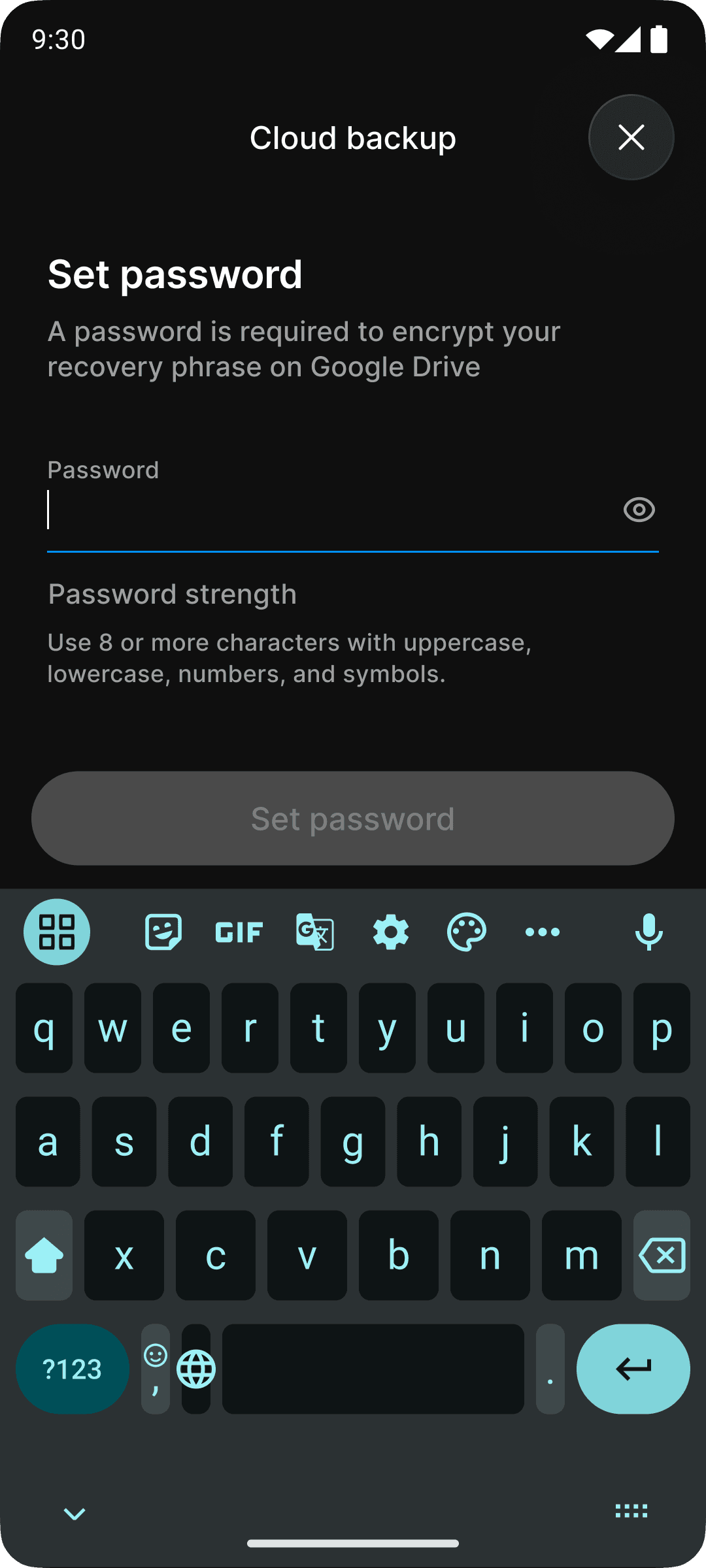
Create a password to encrypt your backup.
The password must contain at least 8 characters, including uppercase and lowercase letters, numbers, and symbols.
Weak and average passwords cannot be used.
Confirm the password.
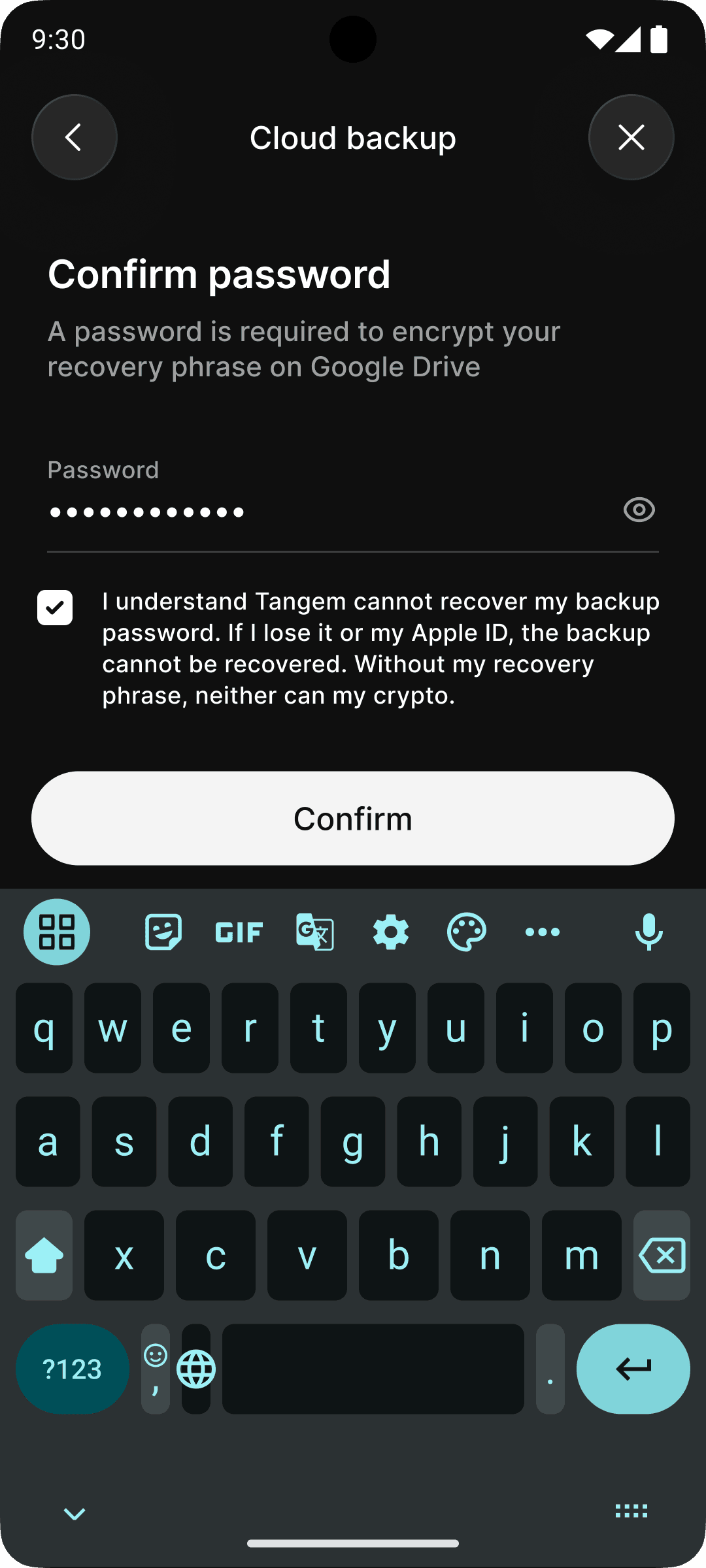
Read and acknowledge the warning that you will not be able to restore the backup if you forget the password. Tap Confirm.
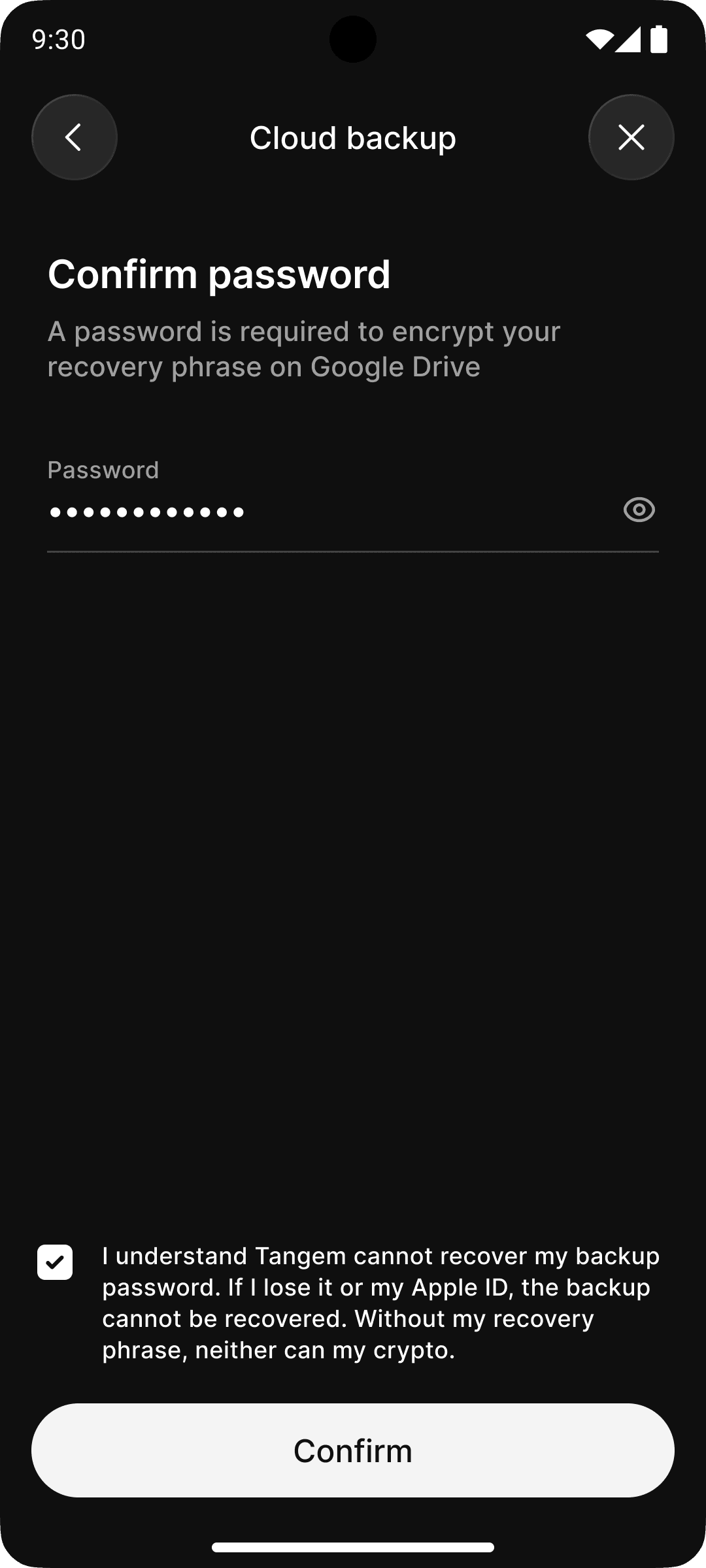
- If prompted, confirm the action using your access code or biometrics.
Your wallet is now securely backed up to Google Drive.
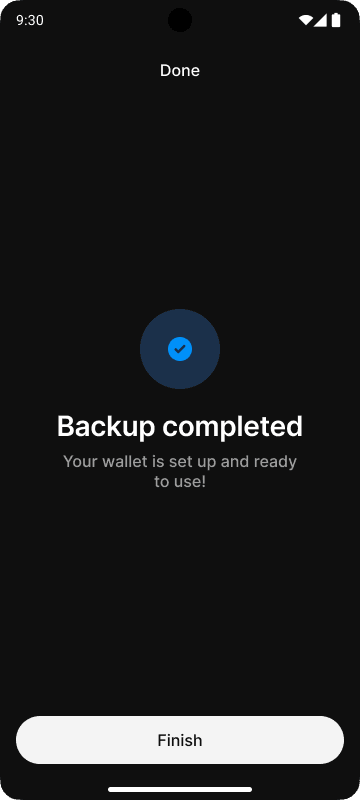
Important: Do not delete the backup file from Google Drive. Deleting it may permanently prevent you from restoring your wallet.
Note: After the backup is created, your phone may offer to save the backup password in its password manager — iCloud Keychain on iPhone or Google Password Manager on Android. This is an optional system feature managed by your device, not by Tangem, and it is not required to complete the backup. Whether you save the password there or not, you must still be able to provide it to restore the wallet — Tangem cannot recover it for you.
FAQ
Why should I back up my Tangem Mobile Wallet?
Backing up your wallet ensures that you can restore it if you lose your phone, damage it, replace it, or uninstall the Tangem app. Without either a cloud backup or your recovery phrase, you will permanently lose access to your wallet and its assets. Completing the backup ensures you can restore your wallet if needed.
Is it safe to back up my wallet to iCloud or Google Drive?
Yes. Before your recovery phrase is uploaded, it is encrypted using multiple layers of protection:
- a password that only you know;
- Argon2id key derivation to protect your password against brute-force attacks;
- AES-256-GCM encryption to protect the backup file and verify its integrity;
- unique cryptographic parameters generated for every backup.
Tangem does not store your backup password and cannot recover it if it is lost.
Store the password securely as you are fully responsible for your wallet’s backup file and the assets in it. Please ensure you can trust the security measures of your chosen cloud service, and we also recommend protecting your Apple ID or Google Account with a strong password and multi-factor authentication.
What happens if my iCloud or Google Drive account is compromised?
Even if someone gains access to your cloud account, they cannot restore your wallet without the password you created for the backup.
After the backup is created, your phone may offer to save this password in its secure password storage (iCloud Keychain or Google Password Manager). This is a feature of your device, not of the Tangem app, and whether to use it is always your choice. If you prefer to keep the password separate from the backup, store it in a different secure place.
What if my Android device doesn't support Google Services?
Cloud Backup is unavailable on Android devices without Google Services. In this case, you can still protect your wallet by securely storing your recovery phrase.
Can I restore my backup on a different platform?
No. Cloud backups are platform-specific:
- iCloud backups can only be restored on iOS devices.
- Google Drive backups can only be restored on Android devices.
If you need to move your wallet between iOS and Android, restore it using your recovery phrase instead.

