How to Upgrade to a Hardware Wallet
You can start with the Mobile Wallet for accessibility and later upgrade to a hardware Wallet without migrating funds or changing wallet addresses.
Step-by-step guide
Open the Tangem app and tap the three dots in the upper-right corner.
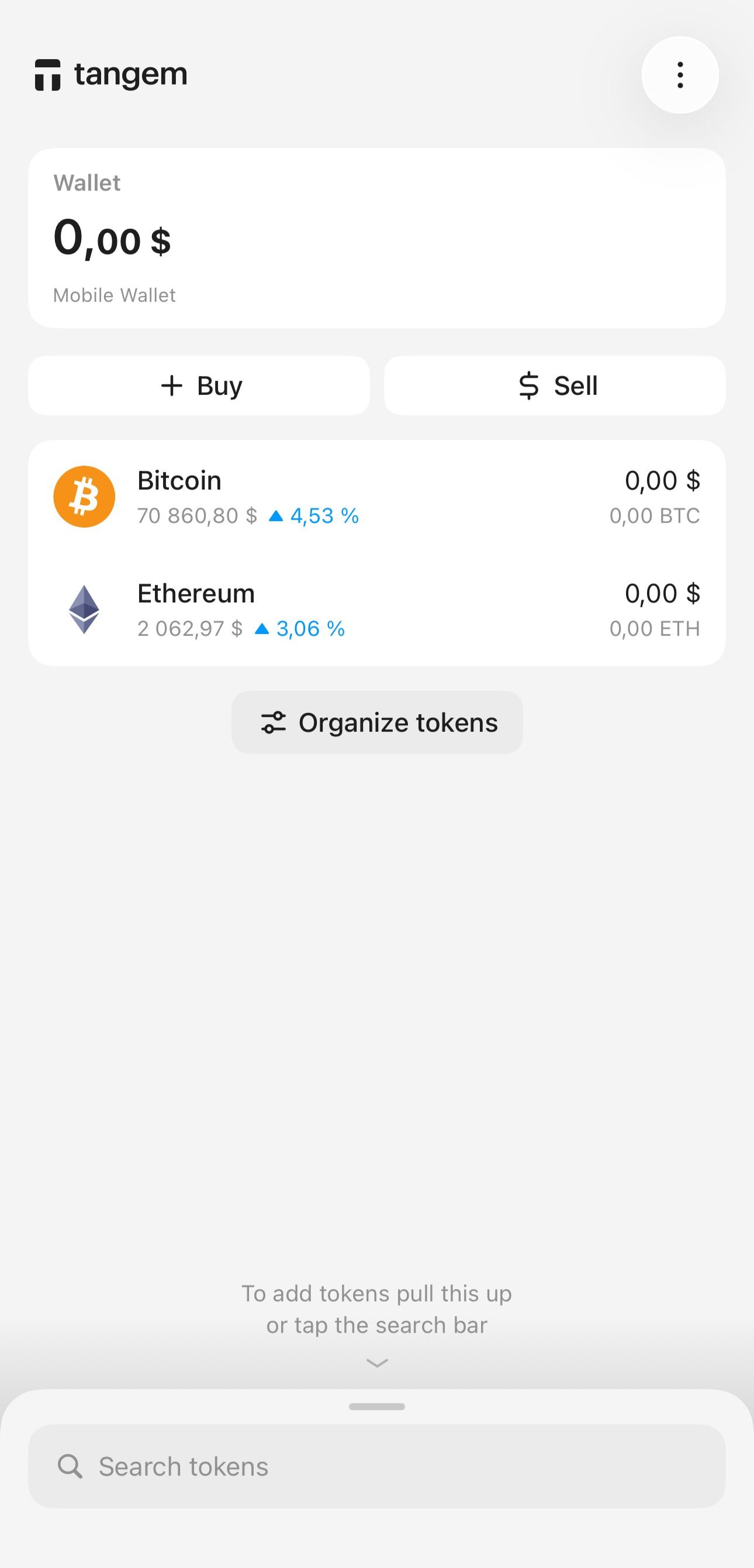
Select the Mobile Wallet you want to upgrade from the list.
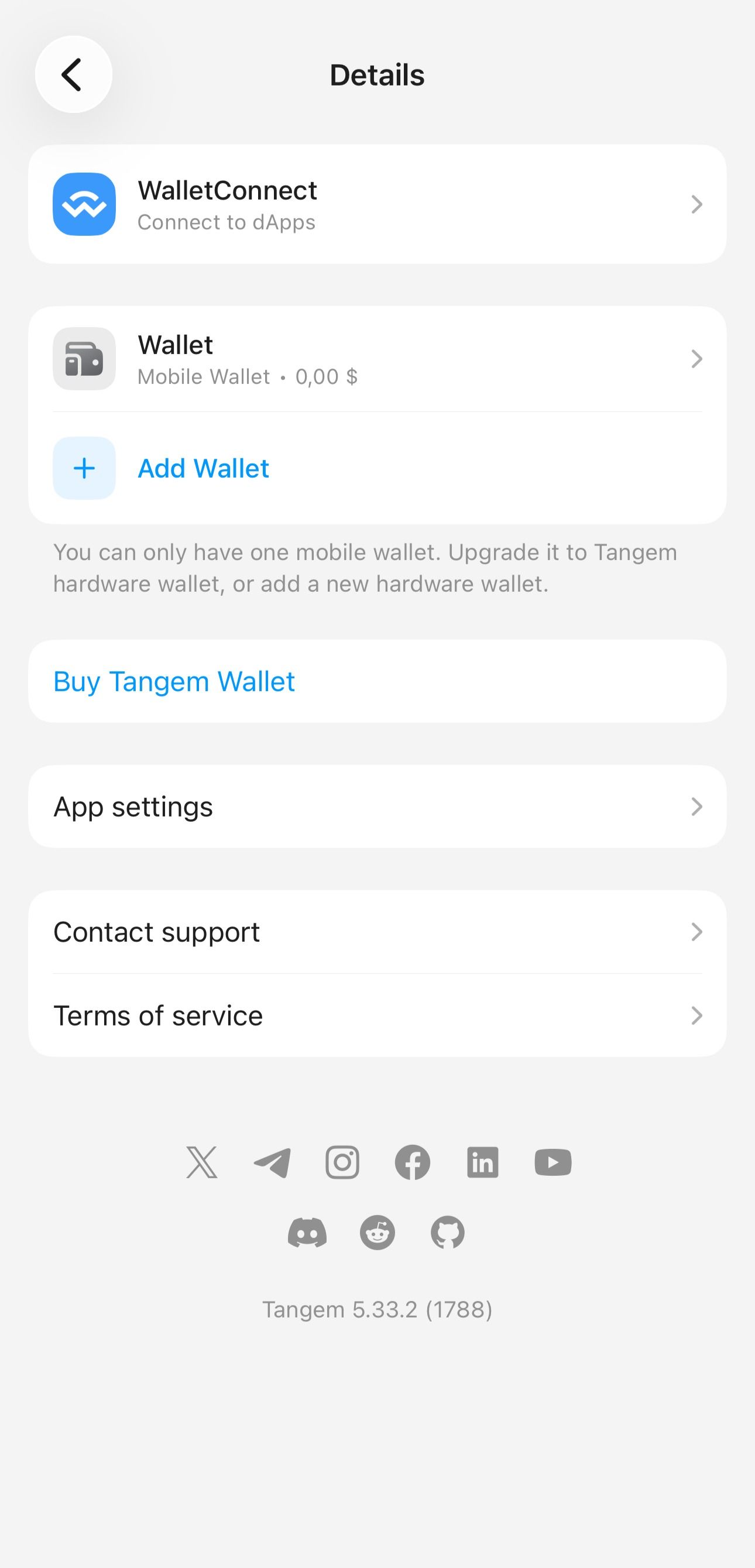
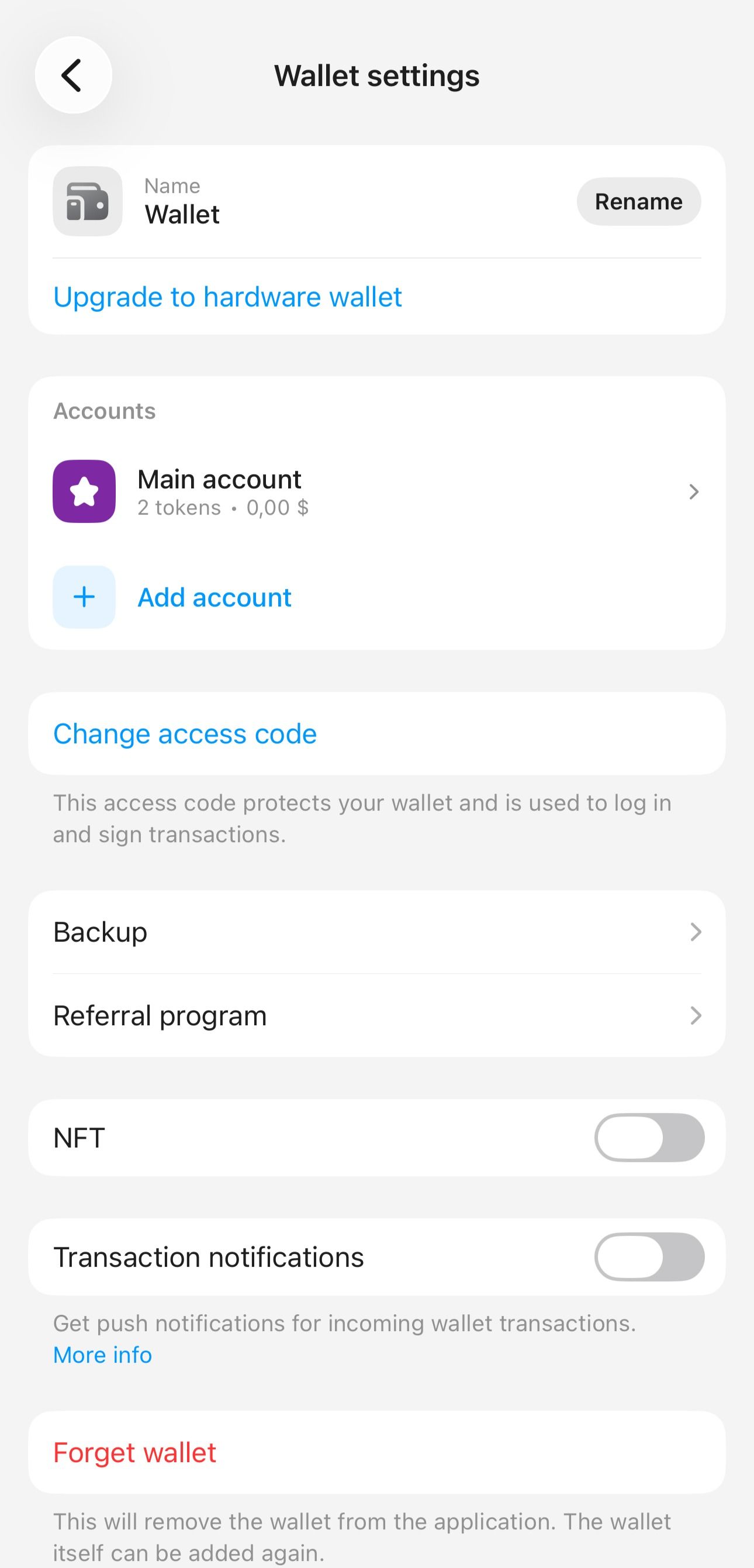
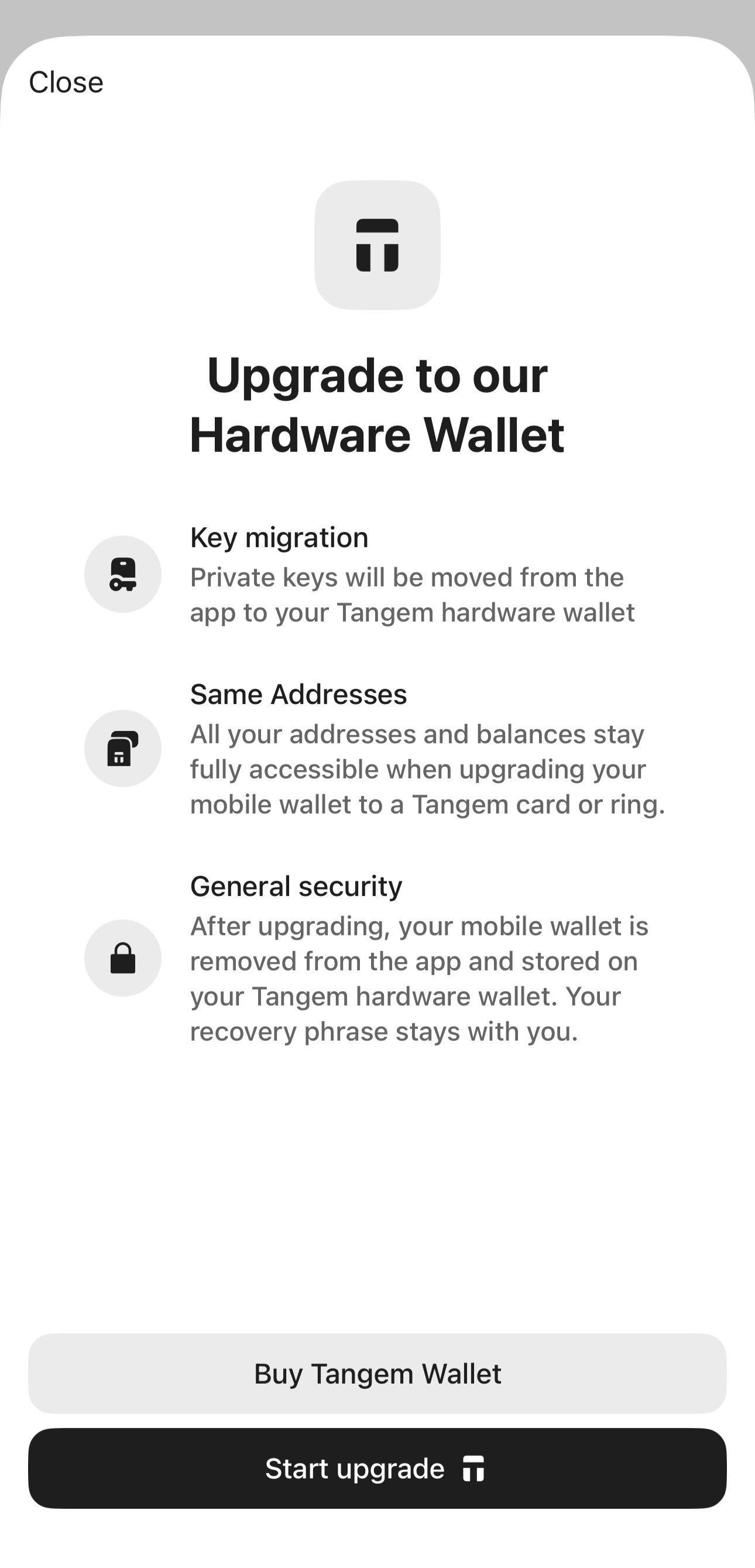
Tap Upgrade to hardware wallet.
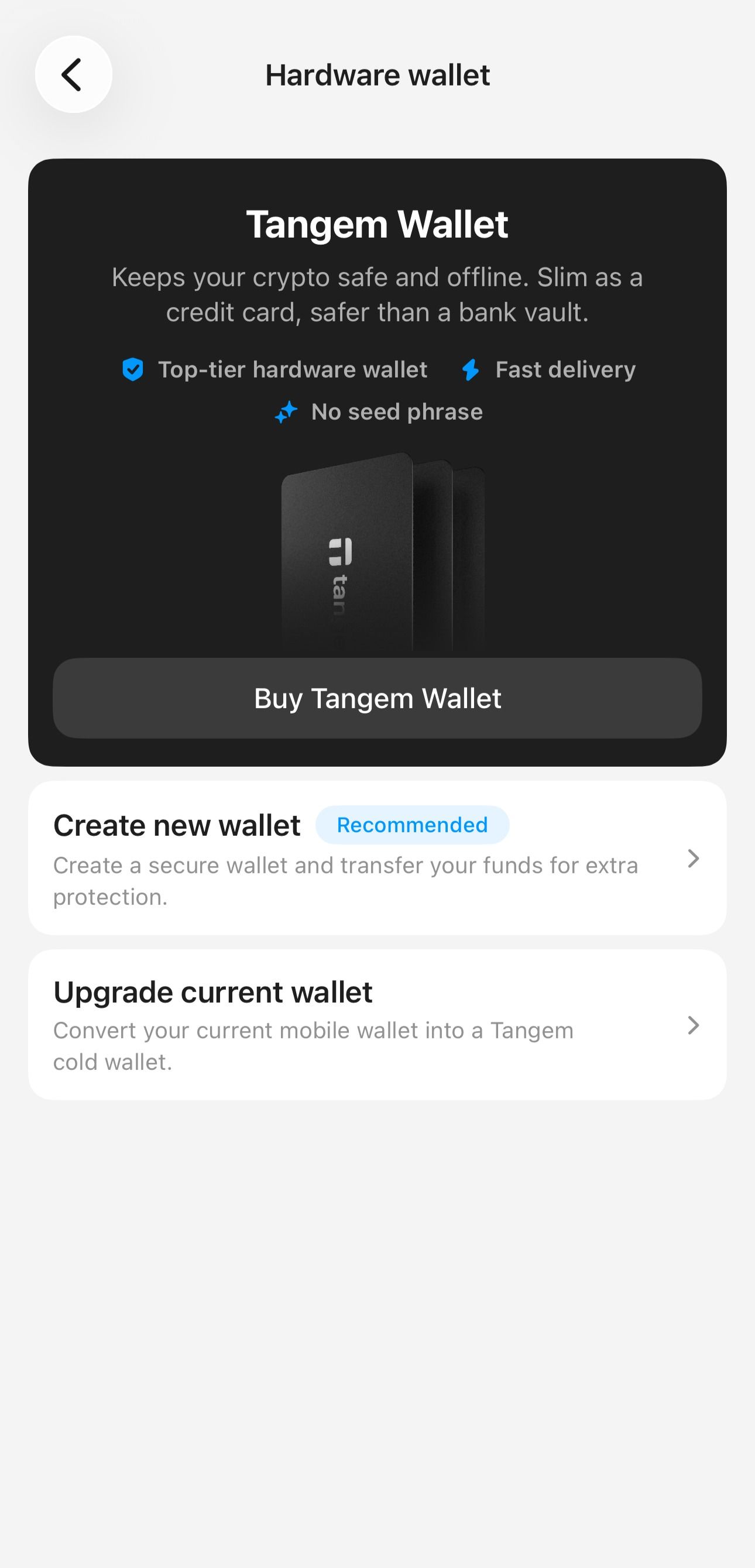
Tap Upgrade current wallet and enter your access code or biometrics.
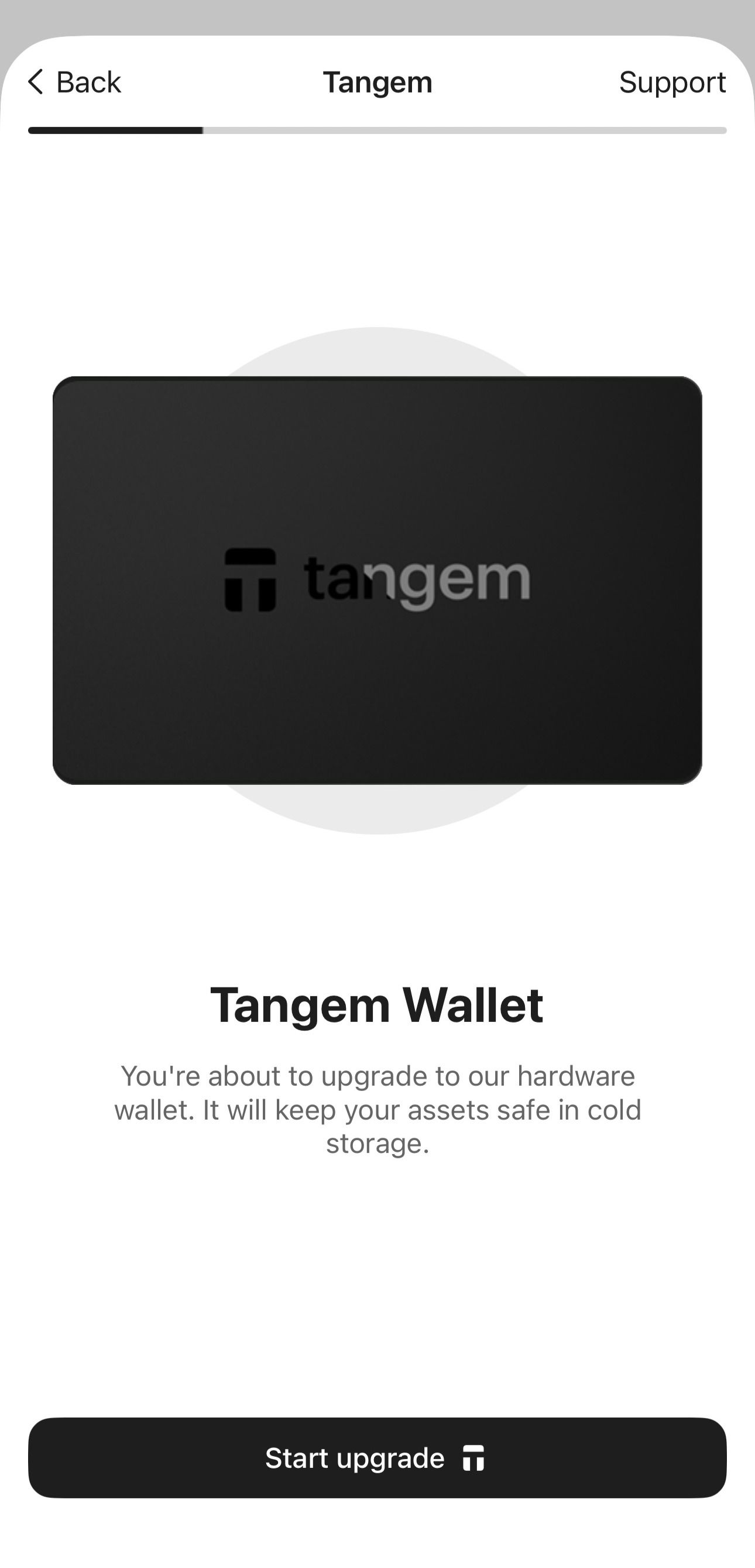
Tap Start upgrade and scan the Tangem device.
Tap Start upgrade and scan the Tangem device again.
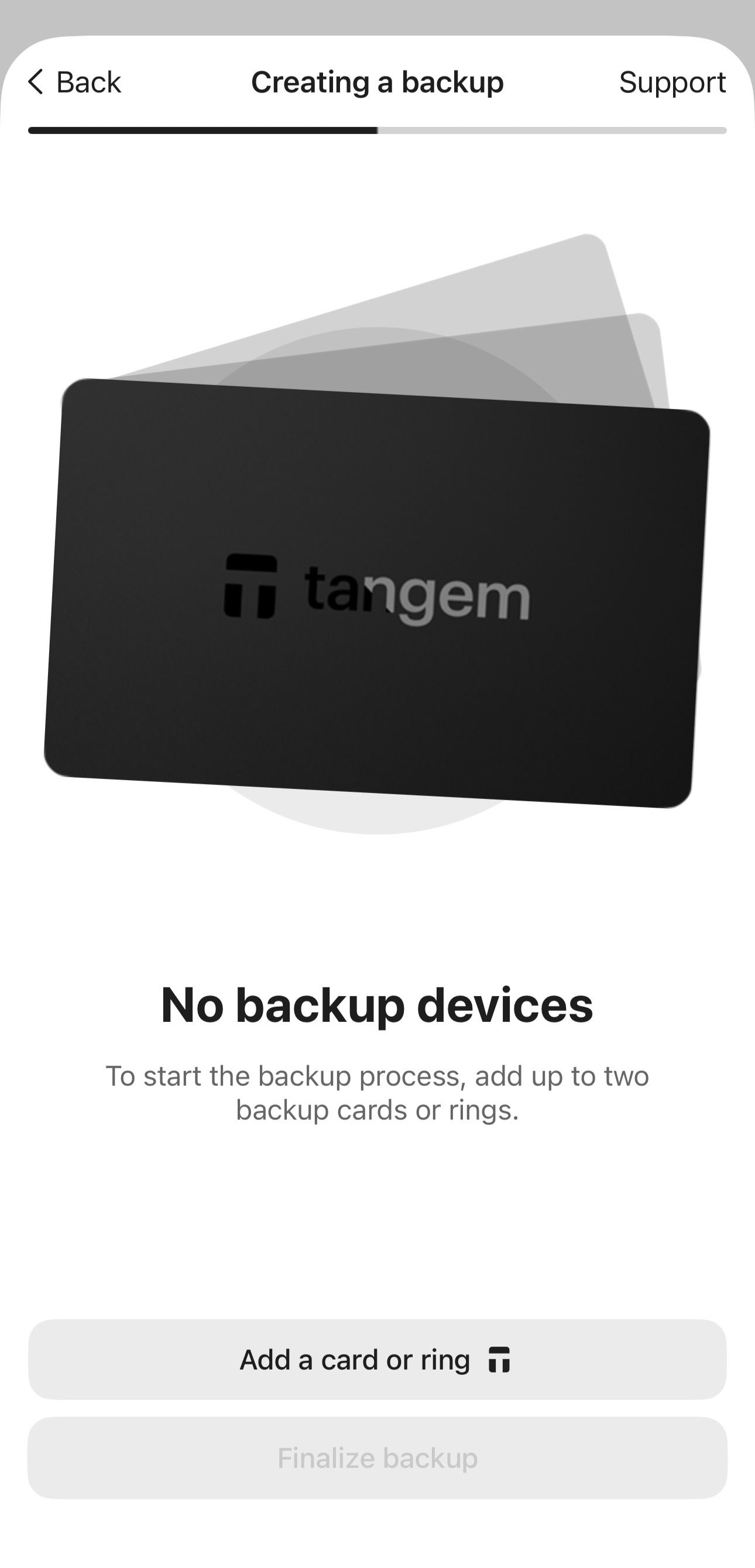
Tap Add card or ring and scan the second Tangem device.
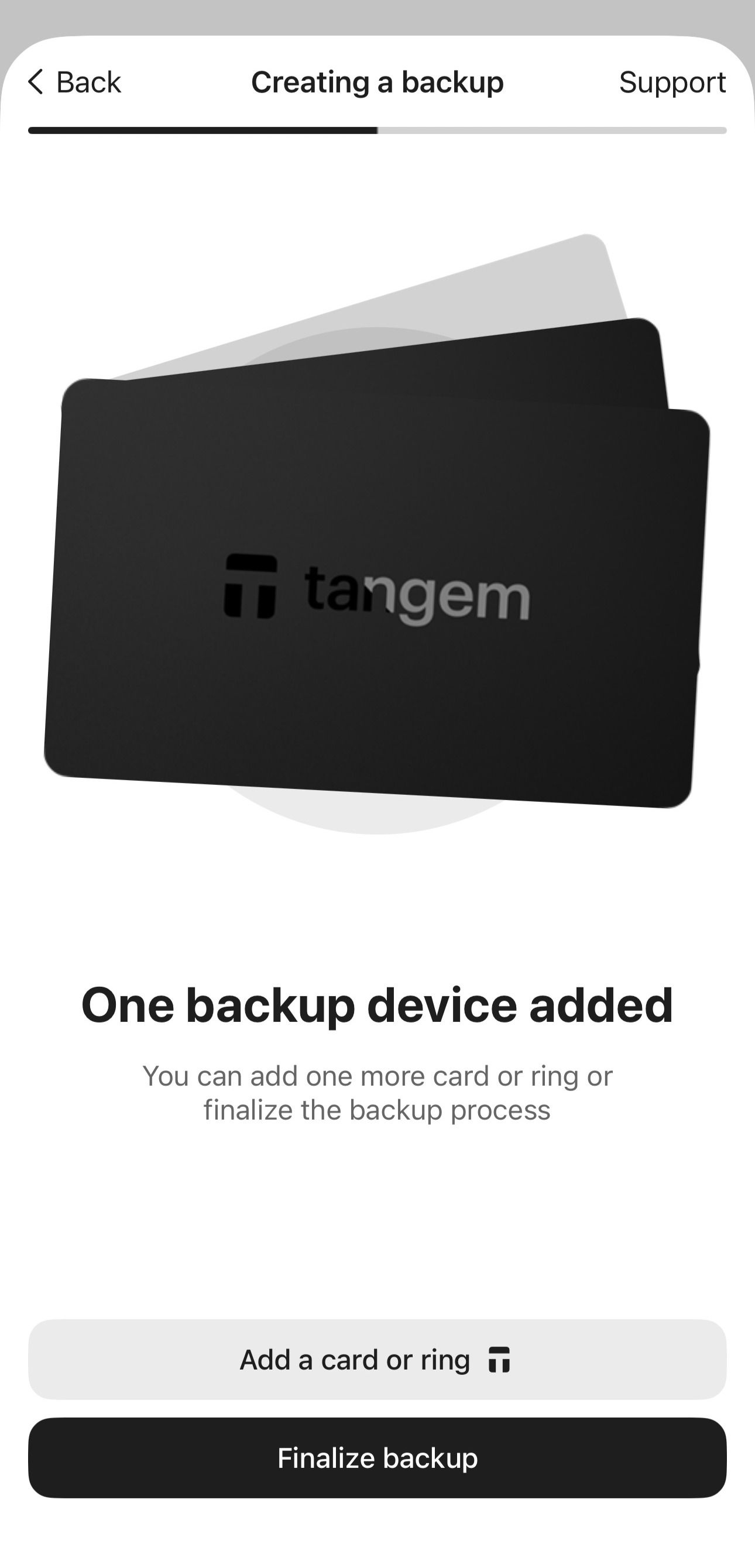
If you have an additional device, you can add it now by tapping Add card or ring again. Otherwise, tap Finalize backup.
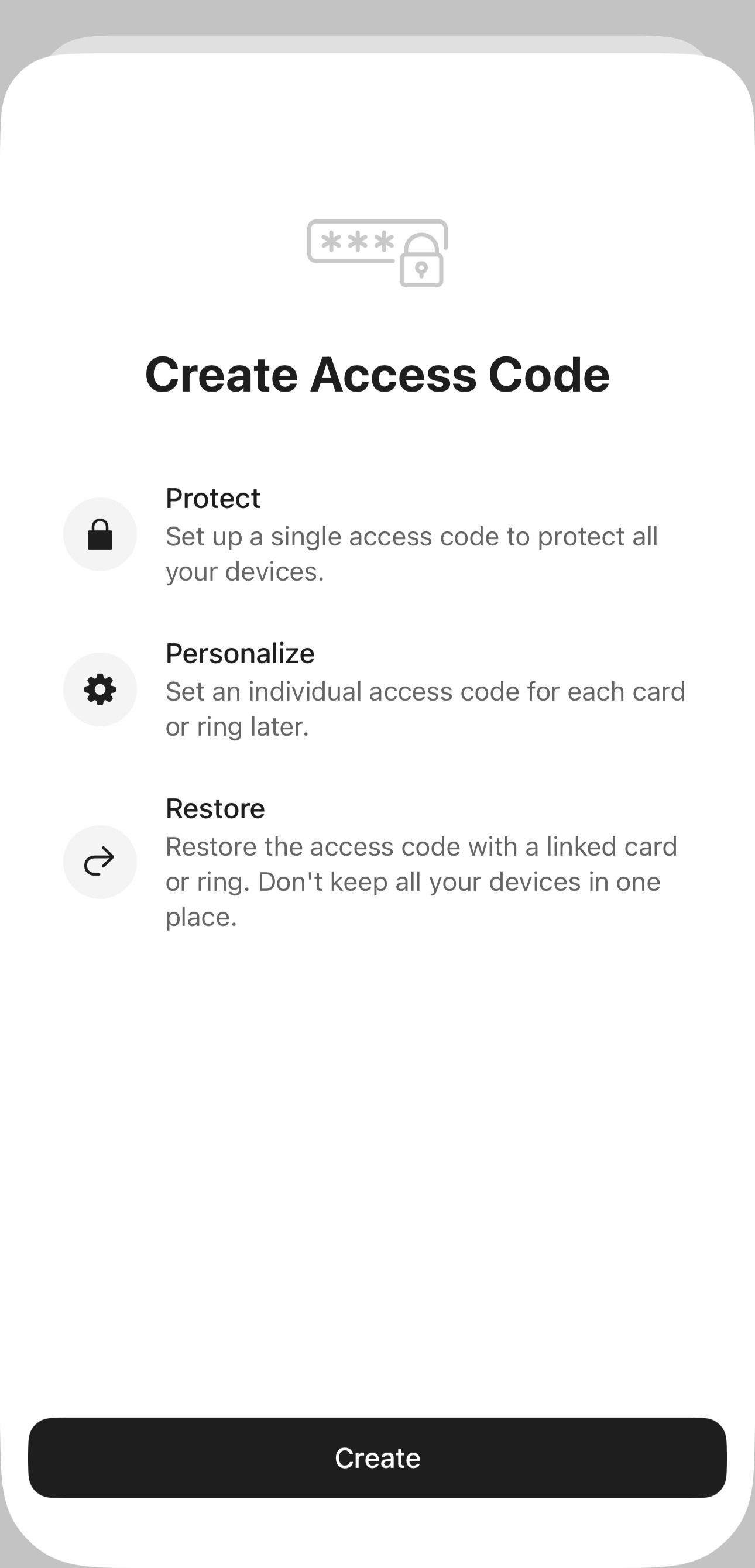
Next, you need to set up a single access code to protect your wallet:
Tap Create and create an access code for the wallet.
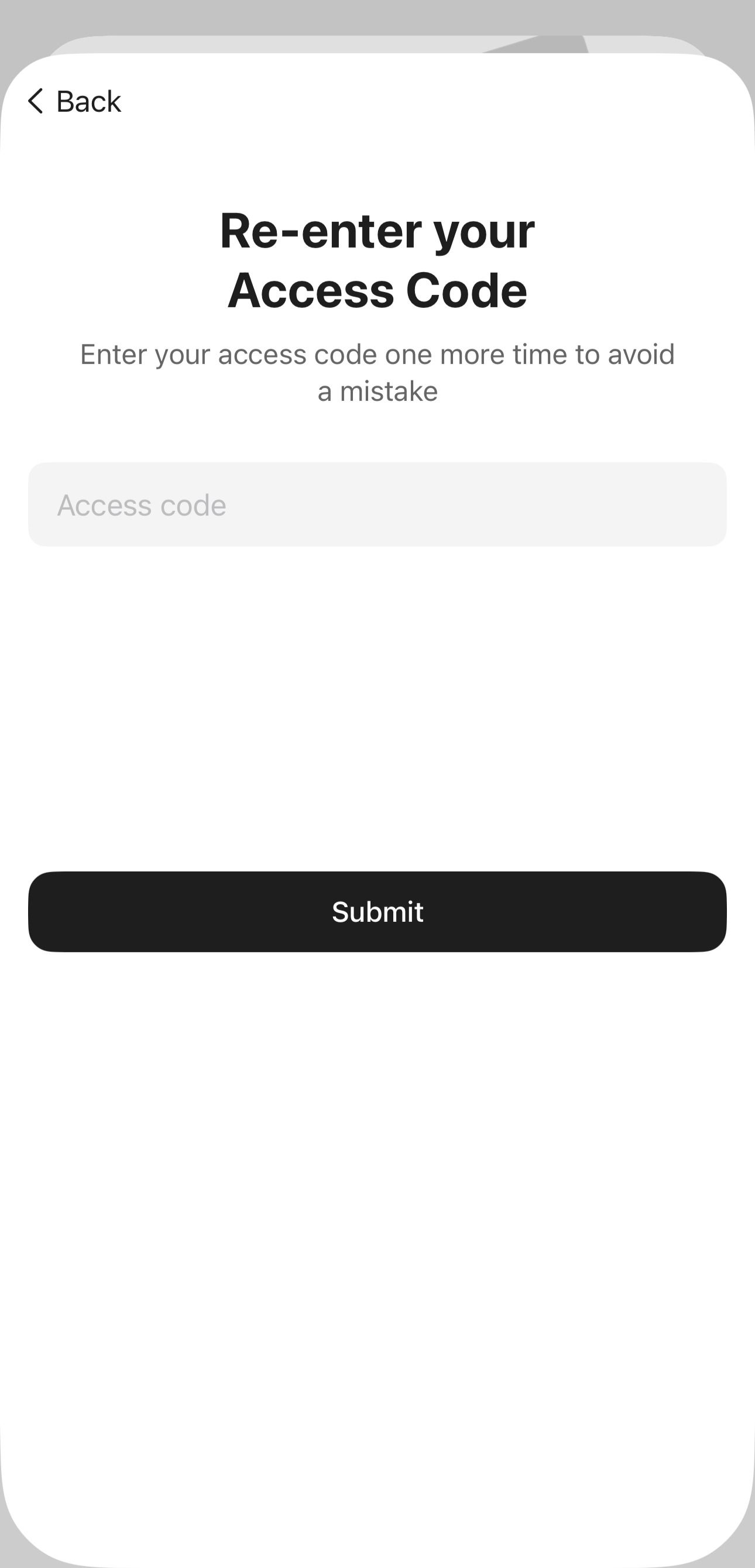
Tap Continue, re-enter the access code, and tap Submit.
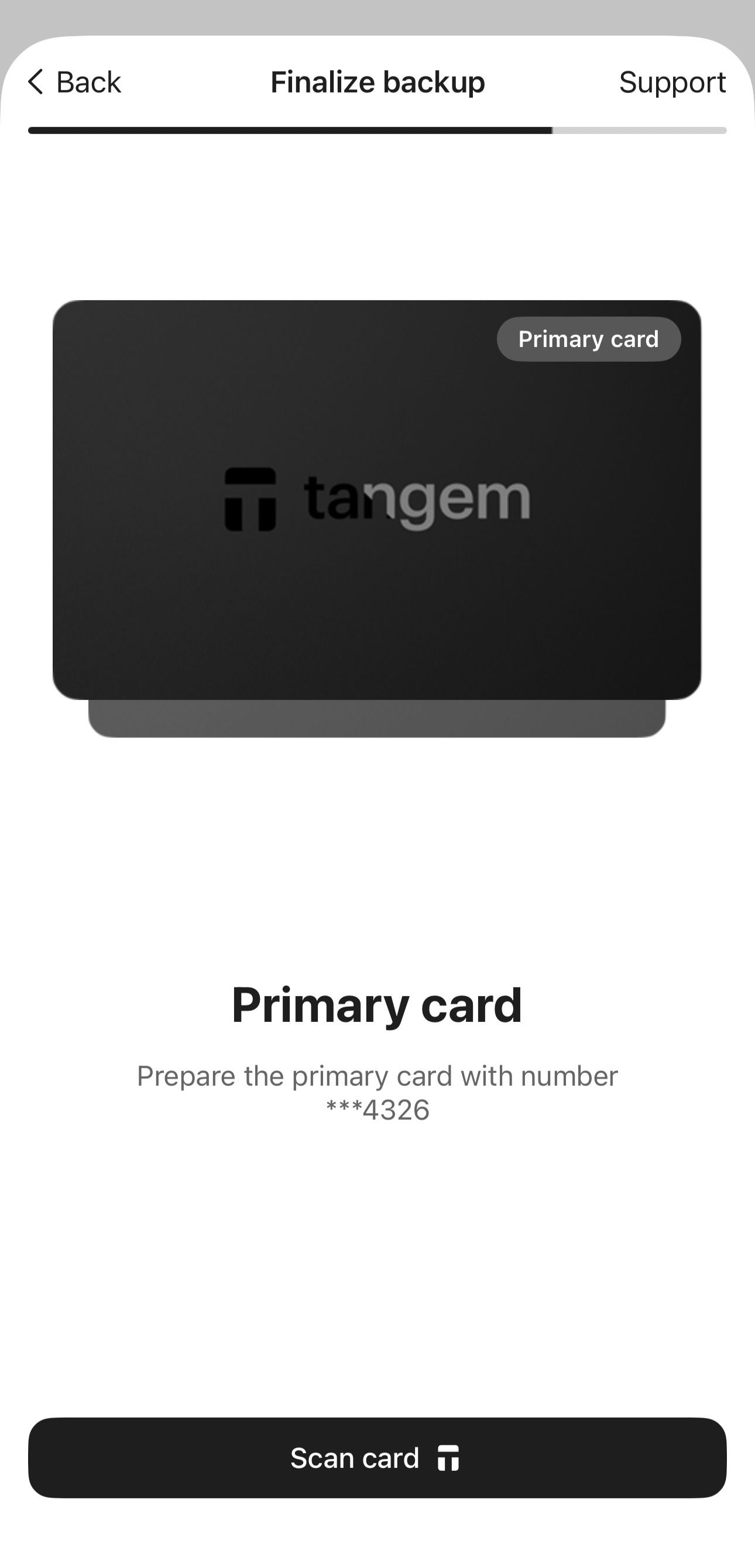
Scan all linked Tangem devices one by one to confirm.
Once the process is complete, your wallet becomes a Tangem Hardware Wallet and your private keys are secured by the Tangem device.

FAQ
Can I cancel or repeat the upgrade process?
No. The upgrade process cannot be reversed.
Once your Mobile Wallet is upgraded to a Hardware Wallet, the private keys are migrated from the phone to the secure element of the Tangem device and then fully erased from the phone.
Can I add a third device later if I initially backed up on two devices?
For security reasons, the private key can only be backed up and cloned once. Therefore, when creating your wallet, you need to be certain about the number of devices you want to add.
If you want to add a third device to an existing wallet, you must reset the wallet to factory settings and create a new one with all three.
Before resetting your wallet to factory settings, move all cryptocurrencies stored in it to another location (such as another wallet or exchange) for a while. This is important because a reset completely erases all funds stored in the wallet.
To reset the entire wallet, you must repeat the reset steps for each device from the backup. Our blog provides detailed instructions: How to reset Tangem Wallet to factory settings.
What is the difference between sets of 2 and 3 devices?
Tangem Wallet is sold in sets of 2 or 3 devices, which are used to create secure backups of your private key.
The number of devices determines how many backup copies of your private key exist. If one device is lost or stolen, the remaining devices allow you to access your wallet.
With three devices, you have greater recovery flexibility. For example, if you lose one device and forget your access code, a third device is required to reset it.
Therefore, we recommend choosing a set of three devices.