How to Import a Seed Phrase
You can import an existing wallet into a Tangem Mobile Wallet using a seed phrase of 12, 15, 18, 21, or 24 words.
To do this, install and open the Tangem app and follow the onboarding steps:
Tap Get started.
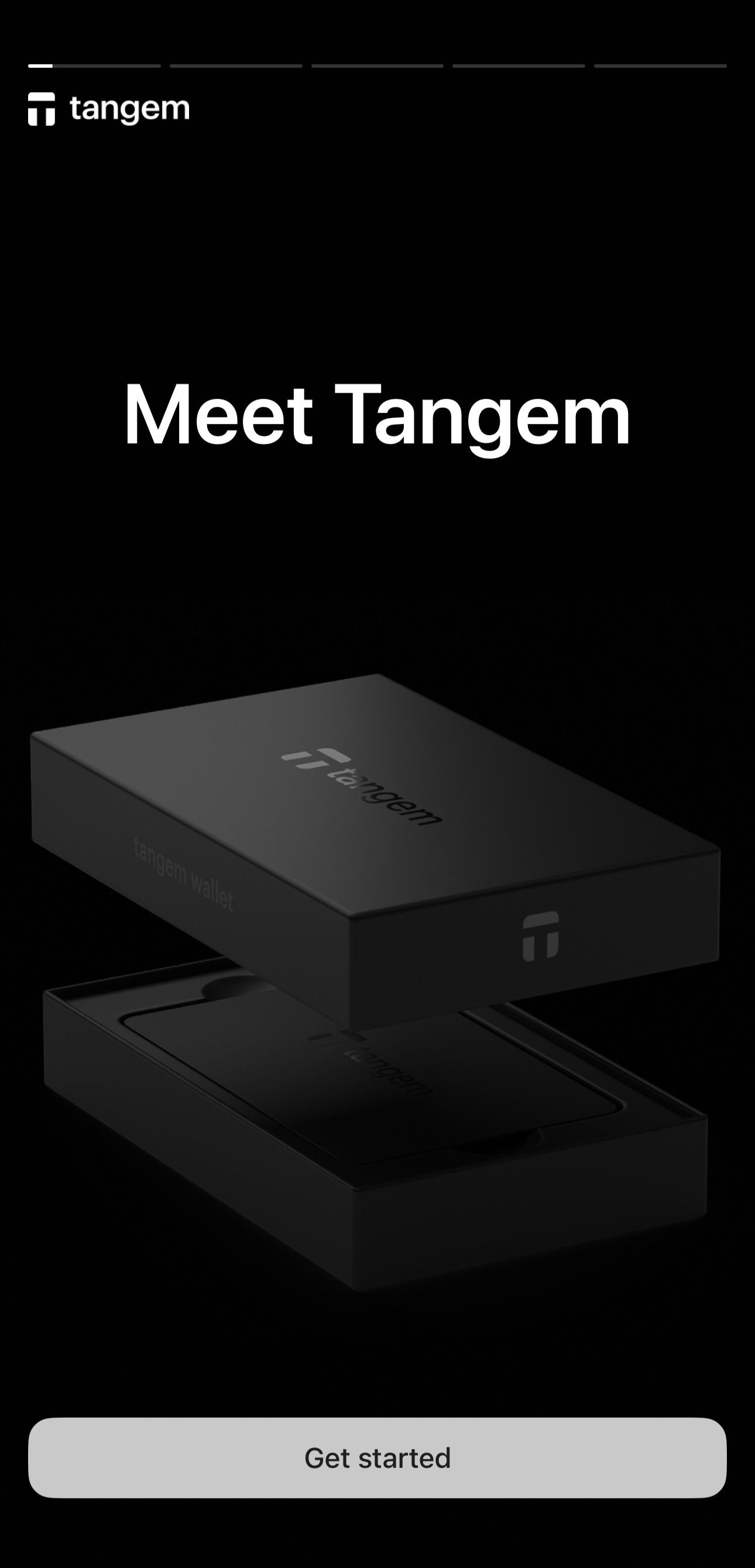
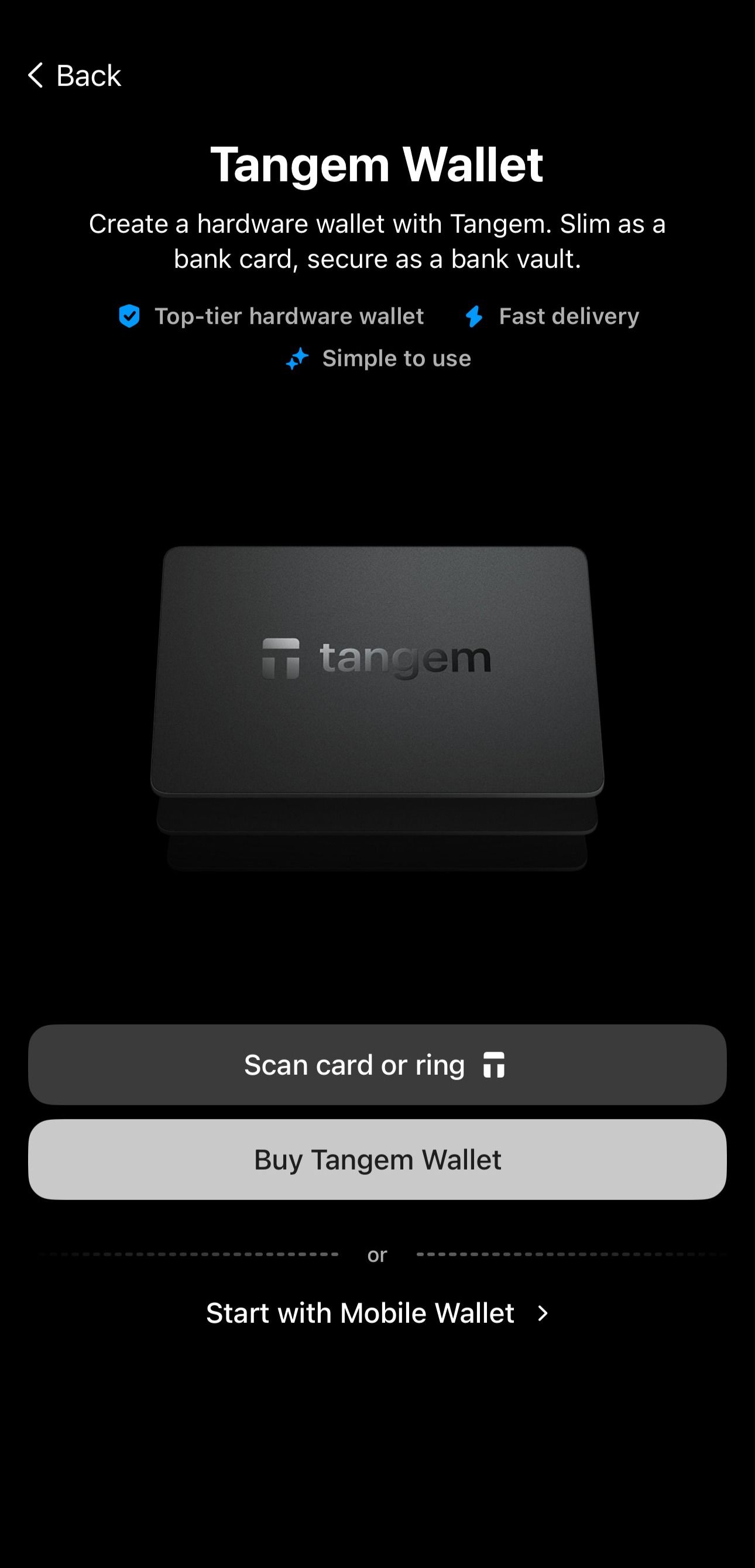
Tap Start with Mobile Wallet.
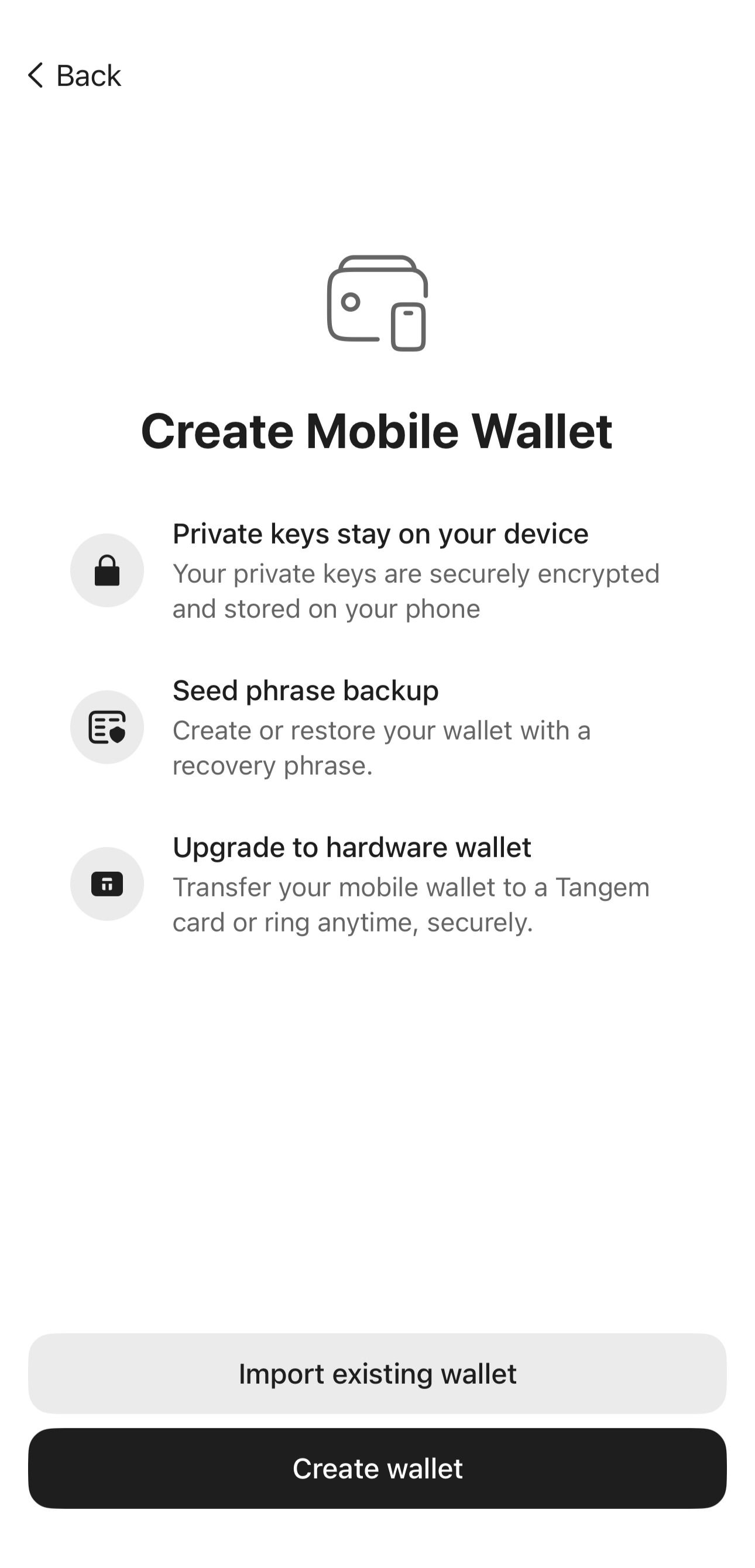
Tap Import existing wallet.
- Enter your seed phrase (12, 15, 18, 21, or 24 words). If you use a passphrase, enter it in the corresponding field.
- Tap Import.
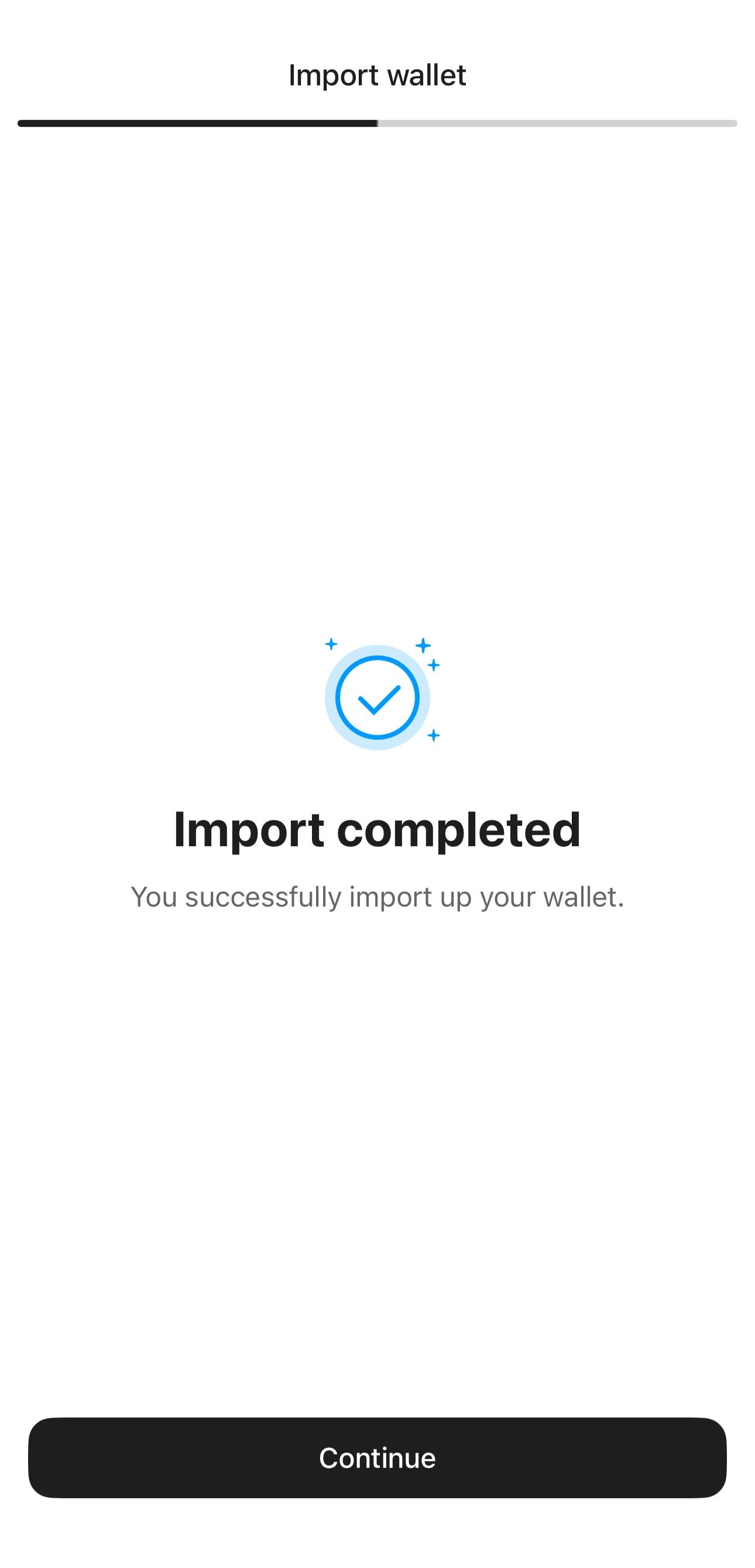
Tap Continue.
Create and confirm a 6-digit access code.
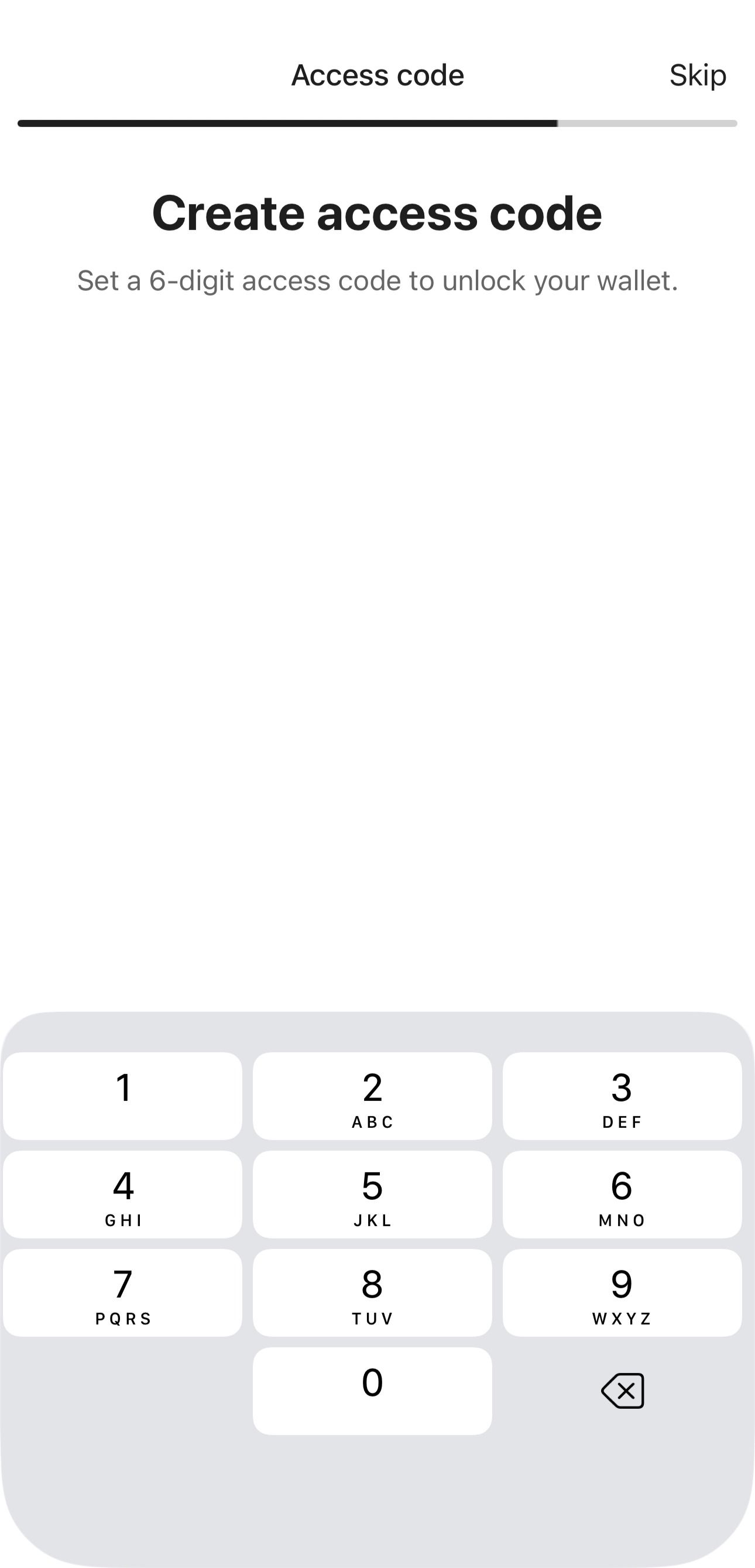
The wallet is imported directly on your device without requiring a Tangem device. Coins and tokens with a non-zero balance are detected and added to your portfolio automatically.
FAQ
What should I do if I receive an error when trying to import a seed phrase?
If you encounter the error "wrong seed phrase" during import, it may be due to several reasons:
- Wrong seed phrase: Ensure you entered the correct phrase. Check its correctness and make sure there are no typos.
- Wrong order: Make sure you enter the words in the correct order.
- Wrong word spelling: A seed phrase consists of words taken from a limited, very specific, and publicly available list. We recommend that you go through the list and find all the words you have written down. If you can't find a word in the list, it means it is spelled incorrectly. Searching for similar words, such as cake/cage/cave, cool/cook, is also useful. The list is available on GitHub.
Which coins and tokens are added to my portfolio after import?
After you import a seed phrase, Tangem automatically scans the supported networks and adds any coin or token with a balance greater than zero to your portfolio on the main screen. A progress bar shows the network verification status during the scan, and you can interact with tokens that have already been added without waiting for the process to finish.
When the scan completes, a banner with a link to Manage tokens appears in case anything is missing and you want to add it manually.
Notes:
- This feature is available only in the Mobile Wallet.
- Supported assets:
- All native coins
- Tokens on the following networks — all supported EVM compatible chains, Aptos, Cardano, Kaspa, Sei, Solana, Stellar, Sui, TRON, XRP Ledger.

