How to Set Up Without a Seed Phrase
To start using Tangem Wallet, you need an NFC-enabled mobile device and the official Tangem app.
Download the Tangem app from:
You can also tap your Tangem card or ring against your phone's NFC module to be prompted to download the app from the store.
Step-by-step guide
Open the Tangem app and tap Get started.
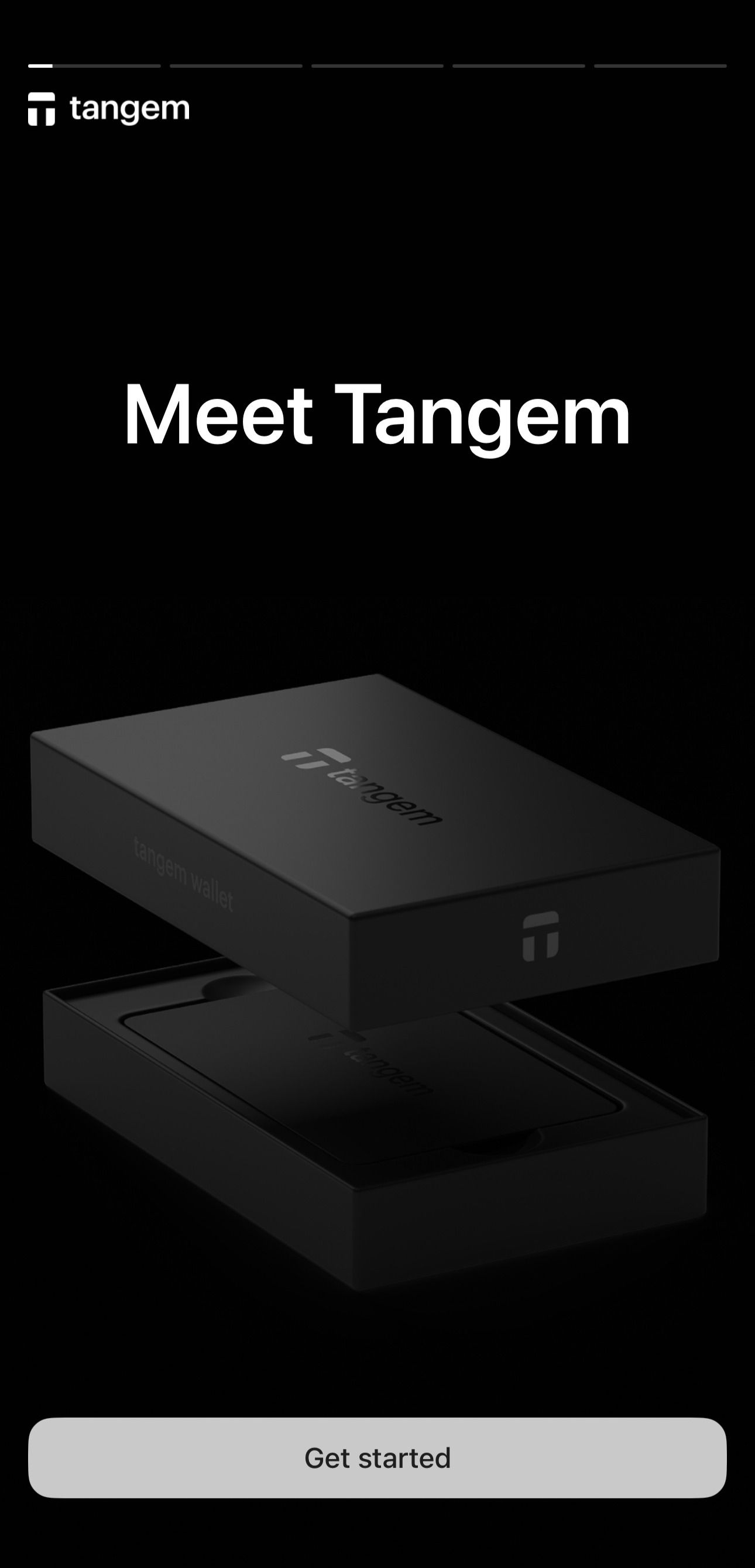
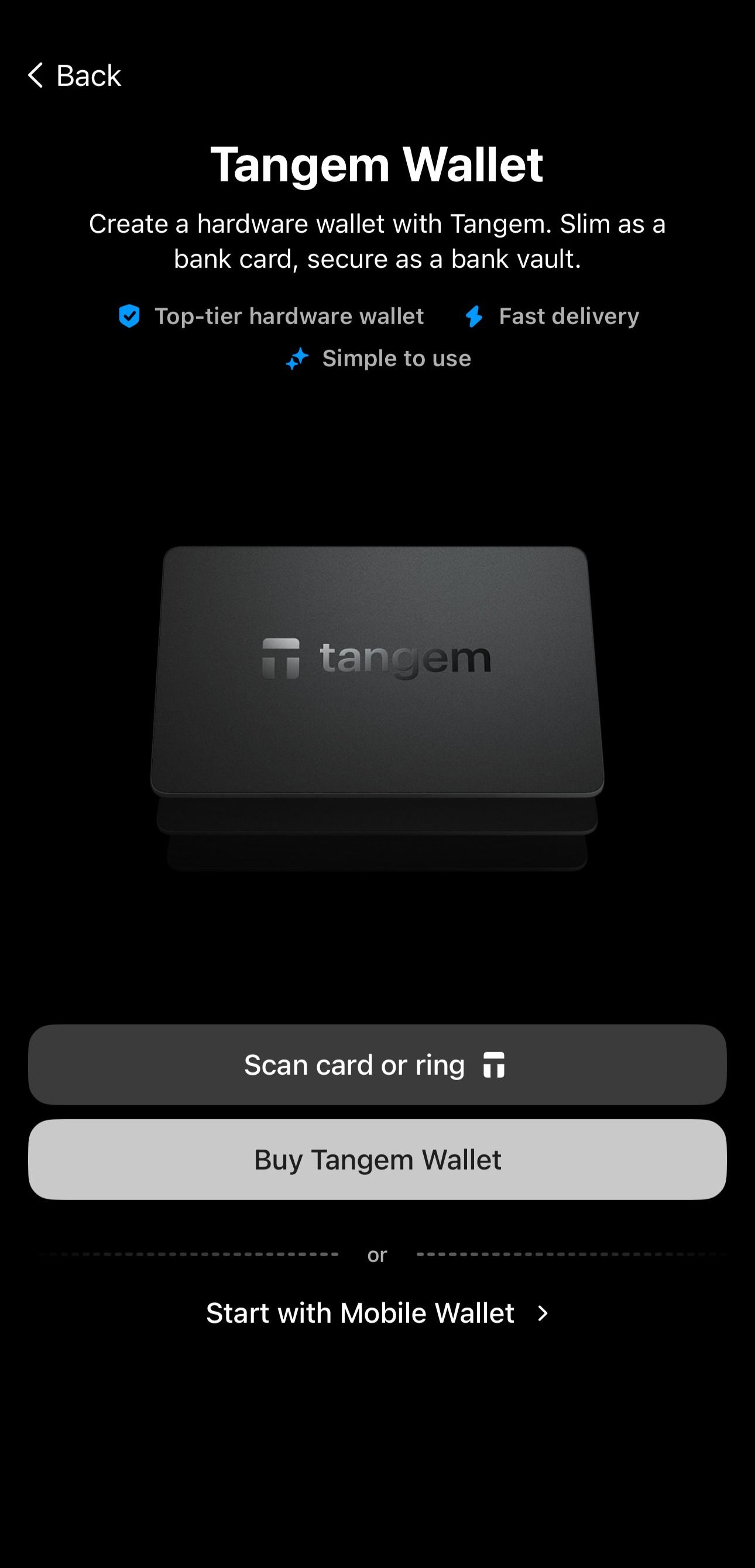
Tap Scan card or ring and scan your Tangem device.
Select Create wallet and scan the device again.
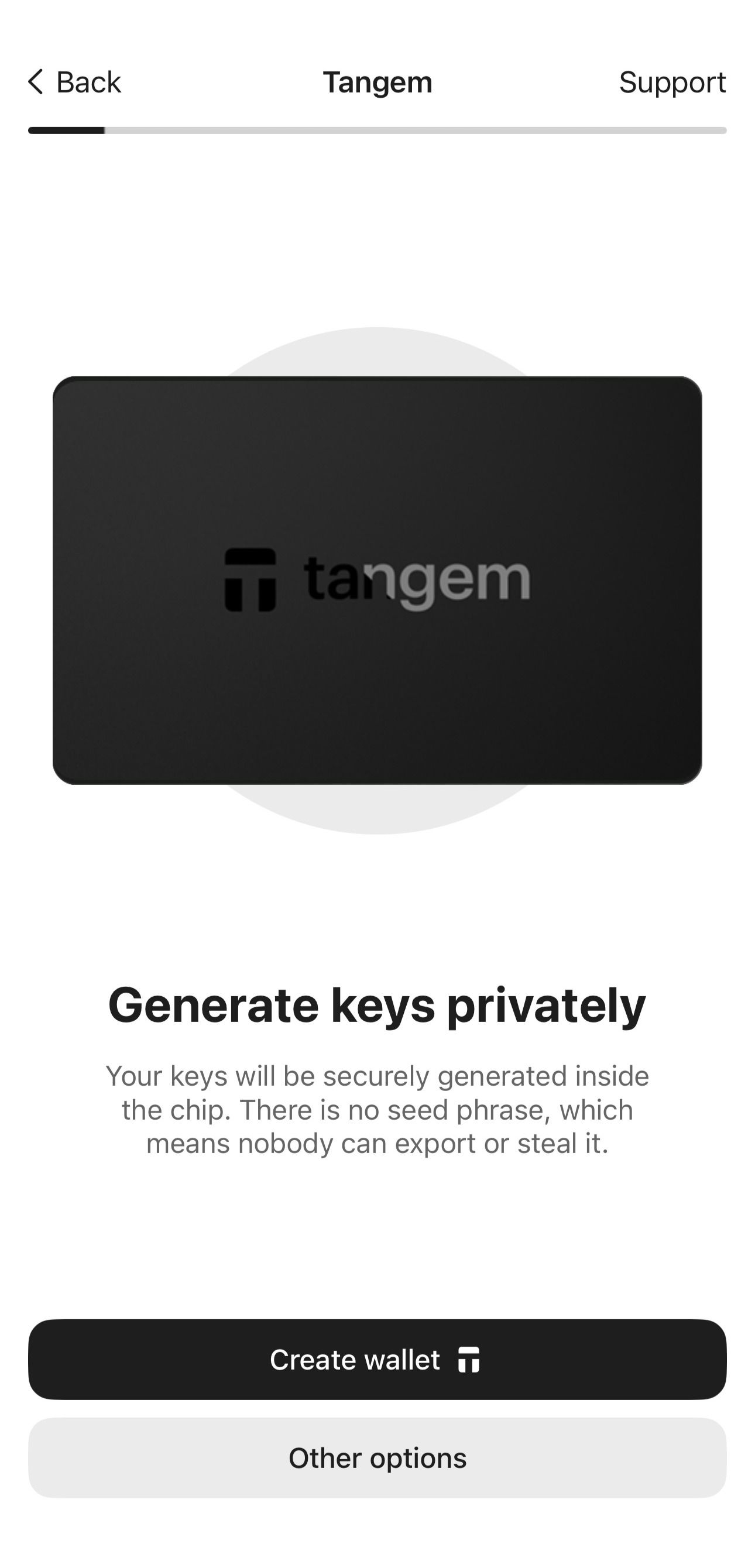
Your private keys will be generated offline inside the secure element chip of the Tangem device.
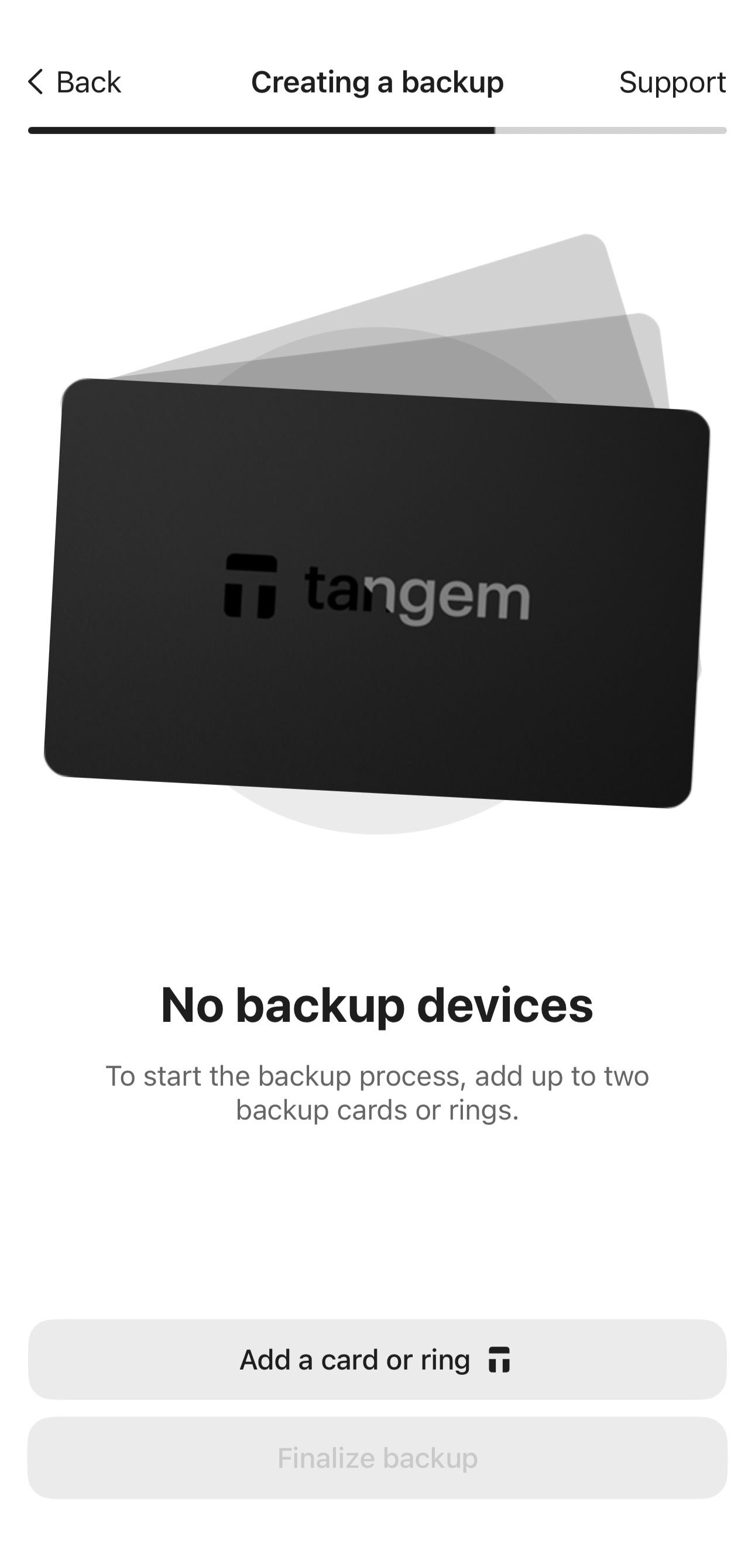
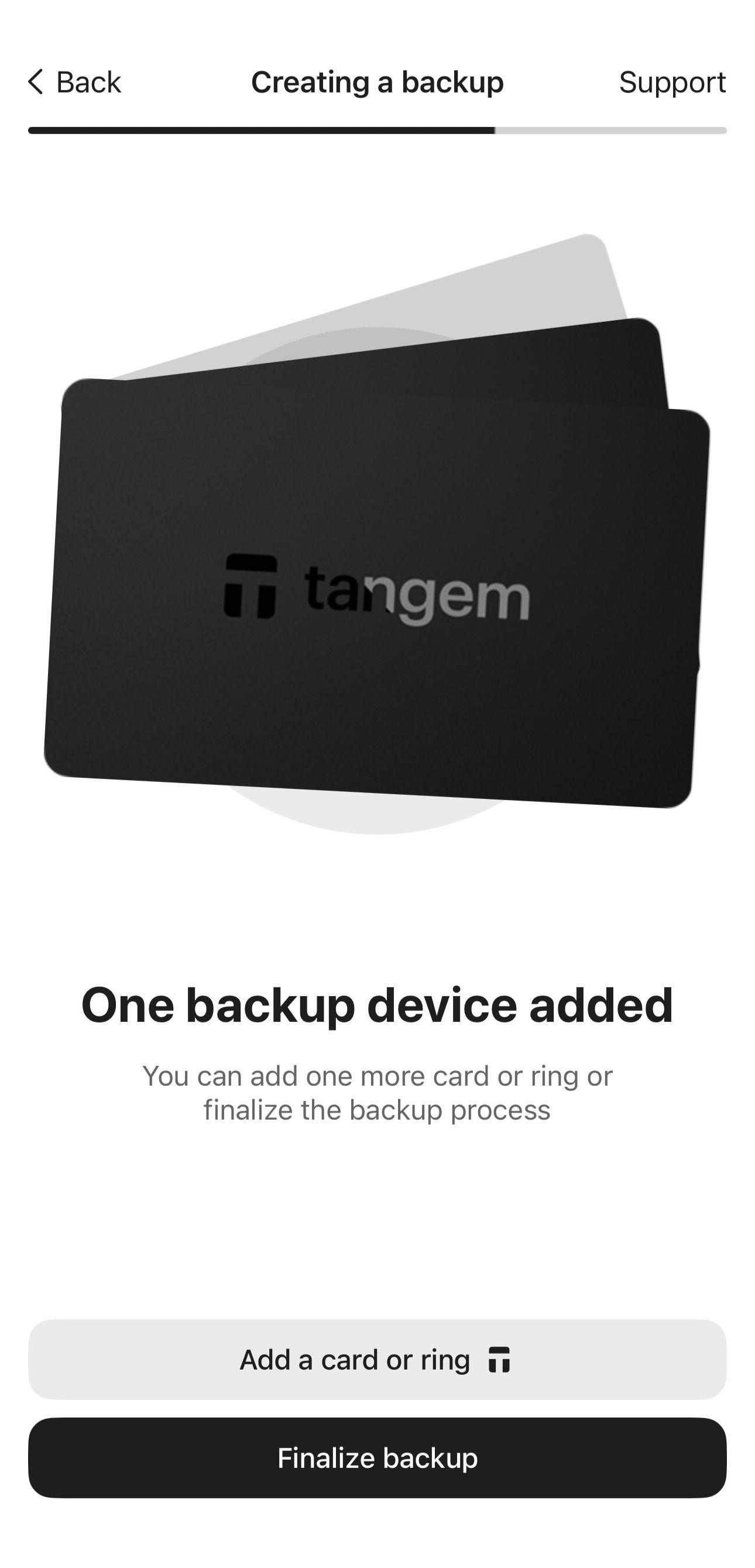
The wallet will prompt you to create a backup. You can back up your keys to one or two additional Tangem devices. If you add one backup device now, you cannot add more backups later.
Tap Add a card or ring and scan the backup device.
If a wallet has already been created on the backup device, the app will prompt you to reset it before using it. You can only use empty Tangem Wallets to create a backup. Do not reset a card or ring if you still have funds on it; otherwise, you will lose them.
Add another backup device by tapping Add a card or ring again, if you have an additional device. Otherwise, tap Finalize backup.
Next, you need to set up a single access code to protect your Tangem devices.
Tap Create and enter an access code.
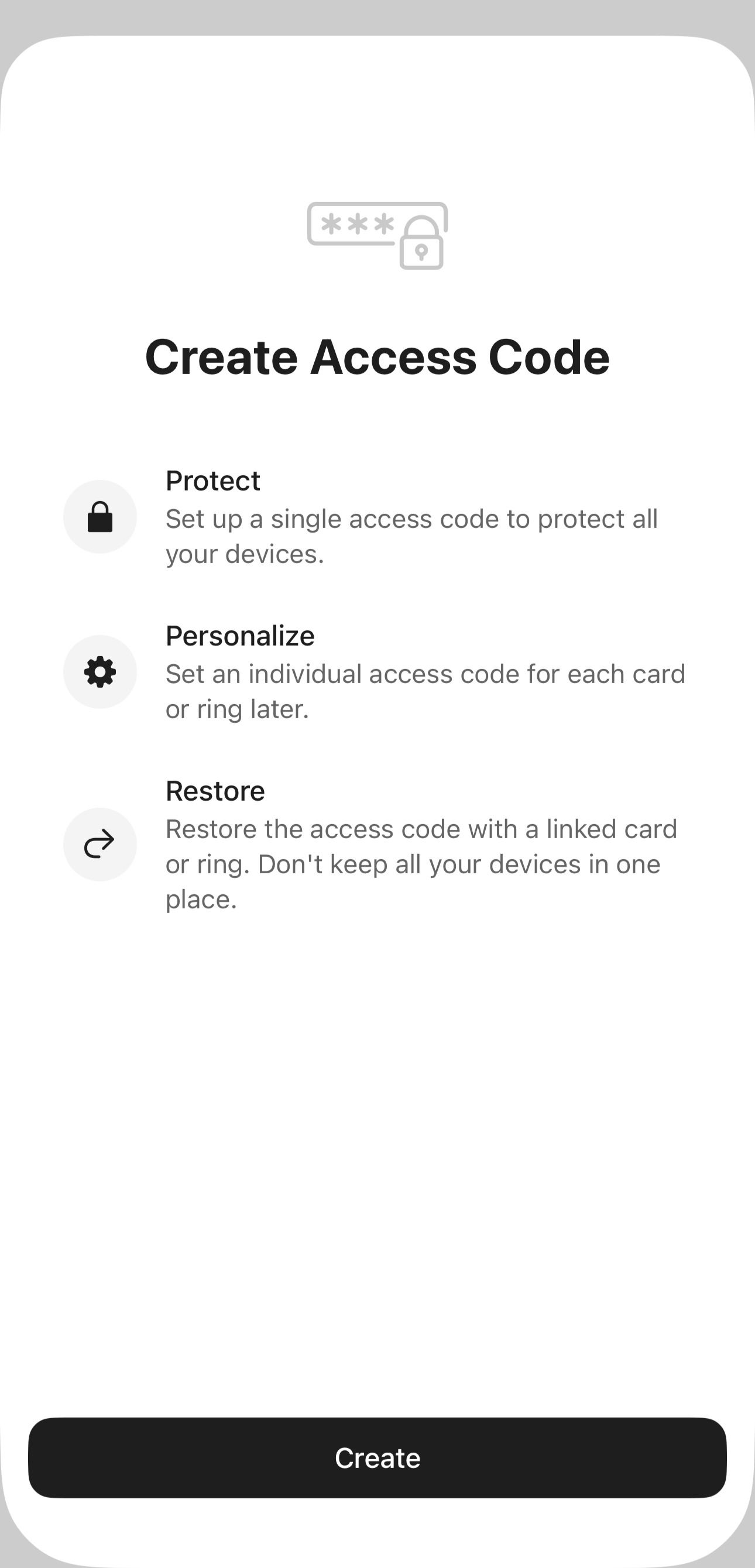
Select any word, phrase, or number as the access code. Later you can set an individual access code for each Tangem device.
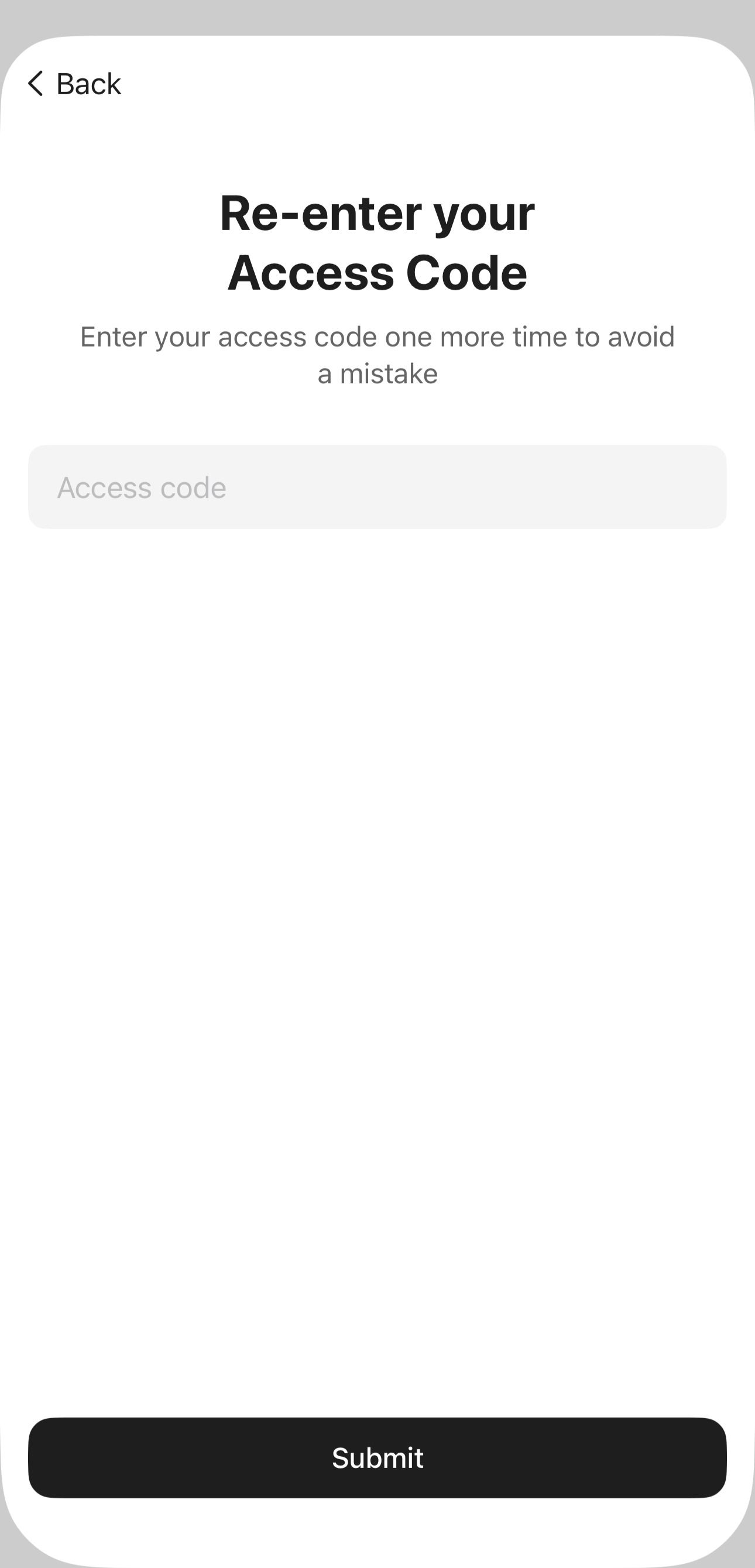
Tap Continue, re-enter the access code, and tap Submit.
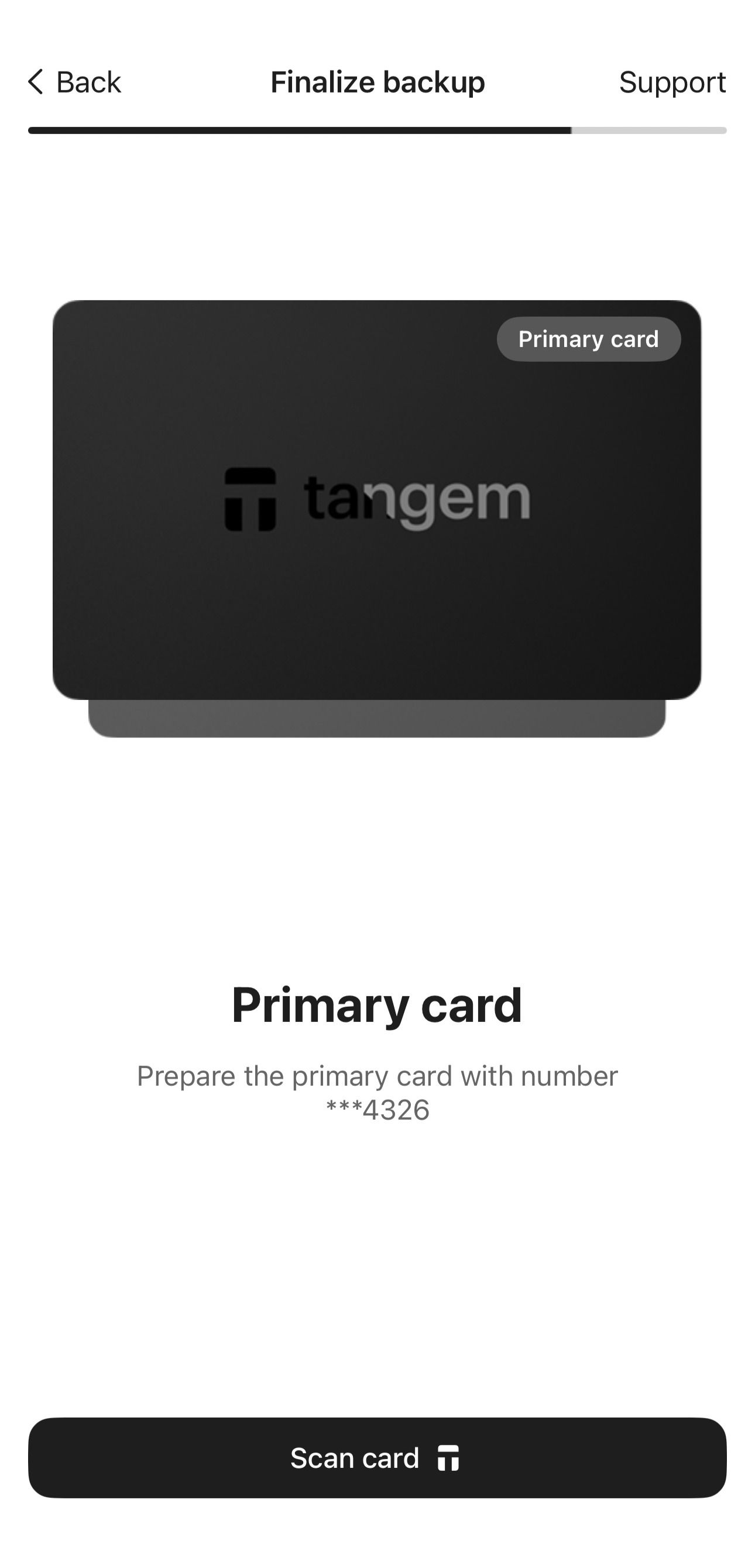
Scan all devices again one by one. Pay close attention to the card's number.
- Enable biometric authentication (optional). Allow the Tangem app to use Face ID, fingerprint, or other biometrics for quicker access to your wallet.
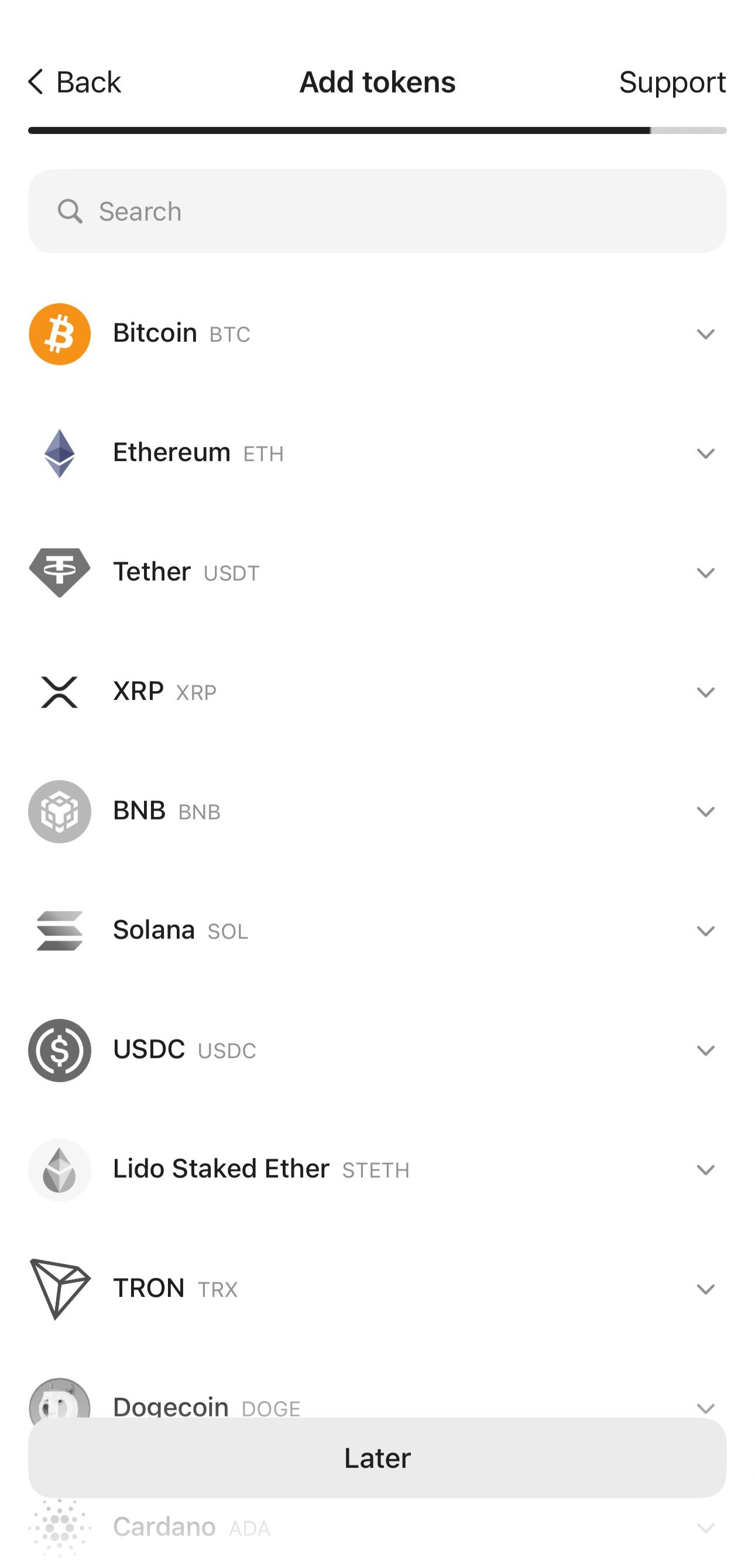
In the next step, you can add tokens to your wallet or skip this step and do it later. BTC and ETH are added by default to the app's home page.
Tap Continue to my wallet.
FAQ
Can I create a wallet with one Tangem device?
No. For second-generation Tangem Wallets, creating a backup with an additional device is required. You need at least two devices to create a wallet.
Can I purchase just the card/ring without the backup cards?
No. Tangem Wallet is sold in sets of two or three devices, which are used to create backups. The number of devices in a set (2 or 3) determines how many copies of your private key can exist. If one device is lost or stolen, the backup devices allow you to retain access to your wallet.
How many devices can be linked to a wallet?
You can link up to three Tangem devices to one wallet. If your wallet is created with a seed phrase, you can create additional backups by importing the seed phrase to multiple devices.
Important: This information is valid for the second-generation Tangem Wallets or later.